How to Calculate an Aspect Ratio — and Resize Without Distorting
You rarely need a new shape. You need the same shape at a new size — and one division tells you whether that is possible without cropping something you care about.
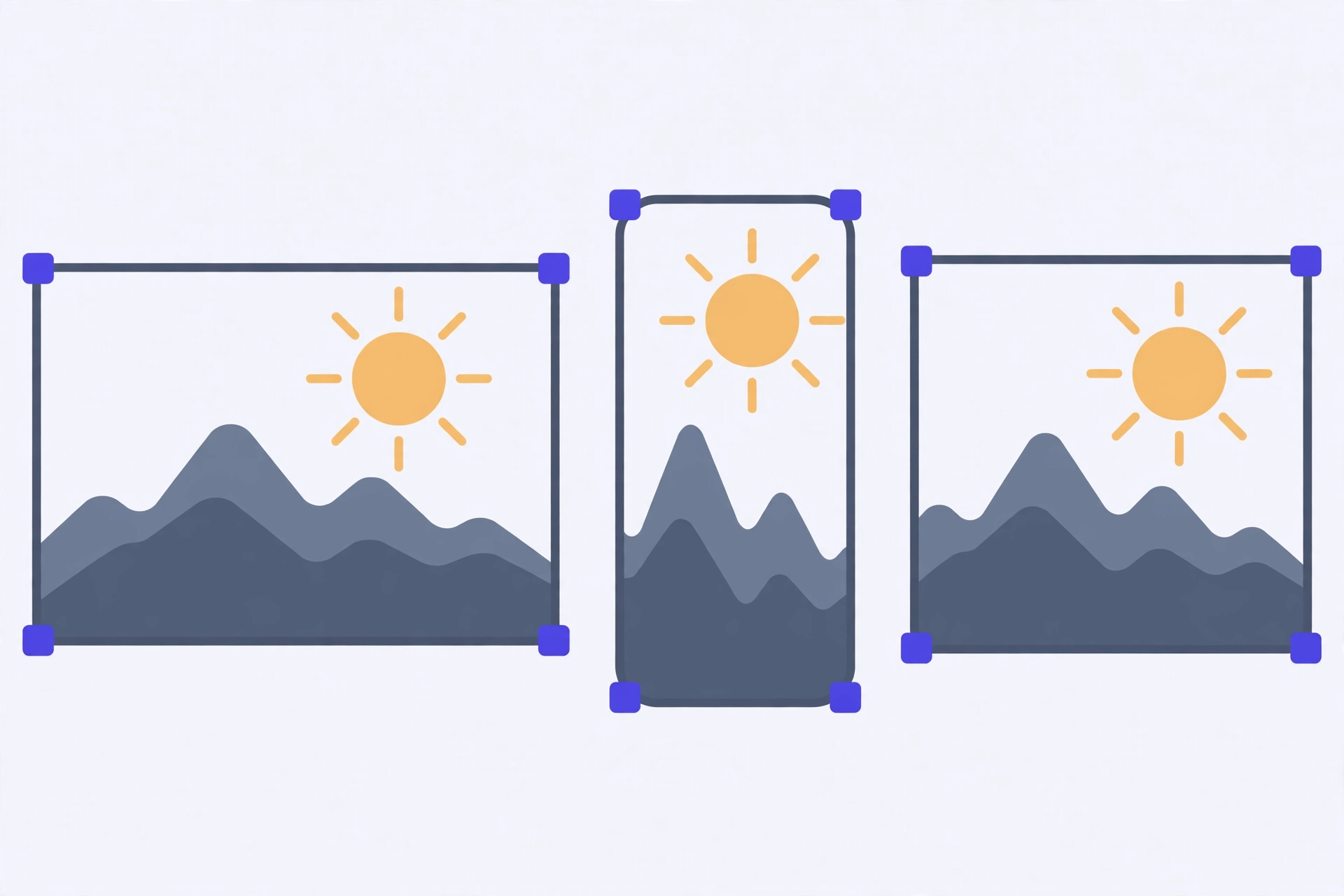
Divide both sides of a pixel size by their greatest common divisor and you get the aspect ratio: 1920 x 1080 has a GCD of 120, so 1920 / 120 = 16 and 1080 / 120 = 9, giving 16:9, decimal form about 1.78. A ratio is shape, not size — 1280 x 720, 1920 x 1080 and 3840 x 2160 are all 16:9 at different resolutions. To resize, lock the ratio and change one side only: a slot 1200 px wide at 16:9 needs 1200 x 9 / 16 = 675 px of height. If the ratios differ, crop, pad or reframe. Do not stretch.
Start with the shape you already have
Take the pixel size you are starting from and reduce it the way you would reduce a fraction. Find the largest number that divides both sides evenly — the greatest common divisor, or GCD — and divide. A 3000 x 2000 photo has a GCD of 1000, so it reduces to 3:2, the classic DSLR shape. A 1920 x 1080 video frame has a GCD of 120 and reduces to 16:9. The calculator below does this in its simplify section: you type Width (px) and Height (px), and it hands back the simplified ratio, the decimal form and what that shape is usually used for.
Keep ratio and resolution separate in your head. Resolution is the actual pixel count. Ratio is the proportion between the sides. Two files can share a ratio and differ wildly in size, and two files can both say 1080 in their name and have completely different shapes — 1920 x 1080 is 16:9, while 1080 x 1080 is square and 1080 x 1920 is tall 9:16 video. The number alone tells you nothing. The pair, reduced, tells you everything.
Calculate and resize in seven steps
The whole job takes about a minute. Work through it in this order and you will not have to redo an export.
- Find the pixel size you are starting from — the width and height of your image, video frame or target slot.
- Enter that width in the Width (px) field and the height in the Height (px) field of the simplify section.
- Read the simplified ratio and the decimal form, and note what the shape is commonly used for.
- Compare your ratio with the ratio of the slot the image has to fit. If they match, it scales cleanly at any size.
- If they do not match, decide now how you will absorb the difference: crop the overflow, pad with bars or background, or reframe the shot — never stretch.
- In the resize section, lock the ratio (pick a preset or type the Ratio width and Ratio height), then enter the New width (px) or New height (px) you need and read the other side.
- Use that exact width-and-height pair in your editor or exporter, then zoom in once and check that circles are still round and faces look natural.
That last zoom check catches almost every bad resize in about five seconds.
Worked examples, checked by hand
Say your site has a hero slot 1200 px wide and the design calls for 16:9. Height = 1200 x 9 / 16 = 675 px. Export at 1200 x 675 and the image fills the slot exactly, with nothing cropped and nothing pulled. Now flip it. You are cutting a vertical video for Shorts, Reels, TikTok or Stories and your width is 1080 px at 9:16. Height = 1080 x 16 / 9 = 1920 px, so you export 1080 x 1920.

Shrinking works the same way. A 4000 x 3000 photo is 4:3, since the GCD is 1000. Bring the width down to 1200 px and the height follows: 1200 x 3 / 4 = 900 px. One case needs a judgement call. A width of 1000 px at 16:9 gives 1000 x 9 / 16 = 562.5 px, and there is no half pixel. Use 562 or 563. If the file is video, pick 562, because most encoders prefer even numbers and will quietly round an odd height for you, sometimes in the direction you did not want.
The calculator also carries a common resolutions table — 854 x 480 for 480p, 1280 x 720 for HD, 1920 x 1080 for Full HD, 2560 x 1440 for QHD, 3840 x 2160 for 4K UHD and 7680 x 4320 for 8K UHD, plus 1080 x 1080 square posts and 1080 x 1350 portrait posts at 4:5. Tap a row and it loads into the fields above.
When the ratios do not match
Sooner or later your image is 4:3 and the slot is 16:9. You have three honest options. Crop: cut the overflow away, which works when the edges hold nothing important. Pad: keep the whole image and fill the gap with bars or a background colour, which suits screenshots and clips you cannot reshoot. Or reframe: go back to the original file and choose a new crop that puts the subject where the new shape wants it. Reframing takes longest and usually looks best.
The fourth option is not an option. Stretching a 4:3 image to fill a 16:9 slot makes everything about 33% wider. Faces broaden. Circles turn into ovals. Logos look wrong in a way viewers feel before they can name it. Leave stretch-to-fill buttons alone.
Mistakes that keep coming back
Order is the first one. Ratios are always written width first, then height, so 9:16 and 16:9 are opposite shapes, not a typo. Swapping the Ratio width and Ratio height fields turns a vertical video into a wide one at export. Second, trusting a label: two files both marked 1080 can be 16:9, 1:1 or 9:16, so check the actual pixel pair. Third, rounding drift. If you resize, round, then resize the rounded file again, each step shaves a pixel or two and the shape slowly wanders. Always resize from the original file, in one step. Last: stretching to fill a slot because the deadline is close. Cropping takes thirty seconds, and nobody has ever been thanked for an oval logo.
The Verystep Aspect Ratio Calculator has a simplify section with Width (px) and Height (px) fields that returns the simplified ratio, its decimal form and a common use, plus a resize section with Ratio width, Ratio height, New width (px) and New height (px) fields and presets from 16:9 to 4:5. Change one side and the other follows. It does ratio maths only and never touches your image file.
Last verified November 21, 2026 — Width (px) and Height (px) fields in the simplify section, Ratio width, Ratio height, New width (px) and New height (px) fields and the 16:9, 9:16, 4:3, 3:2, 2:3, 1:1, 21:9, 4:5, 5:4 and 3:4 presets in the resize section, and the common resolutions table checked against the live Verystep Aspect Ratio Calculator, and every worked example recomputed by hand: 1920 x 1080 with GCD 120 gives 16:9 and 1.78, 3000 x 2000 with GCD 1000 gives 3:2, 1200 px wide at 16:9 gives 675 px high, 1080 px wide at 9:16 gives 1920 px high, and 4000 x 3000 down to 1200 px wide gives 900 px high.
Frequently asked questions
How do I calculate an aspect ratio by hand?
Find the greatest common divisor of the width and height, then divide both sides by it. For 1920 x 1080 the GCD is 120, so 1920 / 120 = 16 and 1080 / 120 = 9, giving 16:9. For 3000 x 2000 the GCD is 1000, giving 3:2. If the GCD is not obvious, the calculator below finds it instantly.
What aspect ratio is 1920 x 1080?
16:9, with a decimal form of about 1.78. It is the standard widescreen shape, shared by 1280 x 720, 2560 x 1440 and 3840 x 2160. Same shape, four different resolutions.
What is the difference between aspect ratio and resolution?
Resolution is the pixel count — how many pixels wide and tall the file is. Aspect ratio is the proportion between those two numbers once reduced. A 1280 x 720 file and a 3840 x 2160 file have very different resolutions and the same 16:9 ratio, which is why one can be swapped for the other in the same slot.
Why does my video look stretched?
Almost always a ratio mismatch plus a stretch-to-fill setting. Your clip might be 4:3 while the player preset is 16:9, and something pulled the picture sideways to fill the gap. Check for oval circles and broadened faces, then re-export at the clip ratio, or crop and pad instead of stretching.
How do I resize an image without changing its shape?
Lock the ratio and change one side only. In the resize section below, pick a preset such as 16:9, 4:3, 3:2, 2:3, 1:1, 21:9, 4:5, 5:4 or 3:4, or type the Ratio width and Ratio height yourself, then enter the New width (px) or New height (px) and use the pair it gives you. For an actual image file, take that pair into the Image Resizer or Resize tools on this site — the calculator itself only does the maths.
More guides
The PPWR Empty Space Ratio: Why the 50% Cap Hits Your Shipping Box First
Ask a room of online sellers what the PPWR will change first and most will say labels. The duty with a number in it is quieter: from 2030 at the earliest, no more than half the volume of your shipping box may be empty — and the filler you stuff into it counts as empty.
Counting a Return Window: The EU 14-Day Cooling-Off Period Starts the Day After Delivery
A shop page says “14 days to return”. Fourteen days from when — the order, the dispatch, the delivery? And counted how — in calendar days or working days? EU law answers both questions, and the answers are not the ones most countdown banners use.

How to Check Gift Return Eligibility Without a Receipt
Black Friday is over, the gifts are changing hands, and some of them are the wrong size, the wrong color or the second one you own. There is no receipt — there never is with a gift — so the question is not “can I get my money back?” but “which route does this store actually offer someone in my position, and how long do I have?”