How to Rotate PDF Pages and Save the Fix
You turned the page in your viewer, saved, sent the file — and it arrived sideways again. Your viewer never changed the file. Here is the fix that actually sticks.
There are two kinds of rotation. A viewer’s rotate button turns the page on your screen only; close the file and the change is gone. A real fix rewrites the /Rotate value stored inside the PDF — always a multiple of 90, measured clockwise — and that is what every viewer, phone and printer then obeys. On Verystep you pick the file, choose which pages turn (all, odd, even, or a typed range such as 3-5), choose 90, 180 or 270 degrees clockwise, and download a new file named rotated.pdf with the new values written in. Your original is never modified, so a wrong guess costs nothing.
Two kinds of rotation, and only one of them survives sending
Open a sideways PDF in almost any viewer and you will find a rotate button. Press it, the page swings upright, you feel done. You are not. That button is a viewing preference: some viewers forget it when you close the tab, others remember it for you, on your machine, and tell nobody else. The file still says “sideways”, so whoever opens your attachment sees the problem you thought you had fixed.
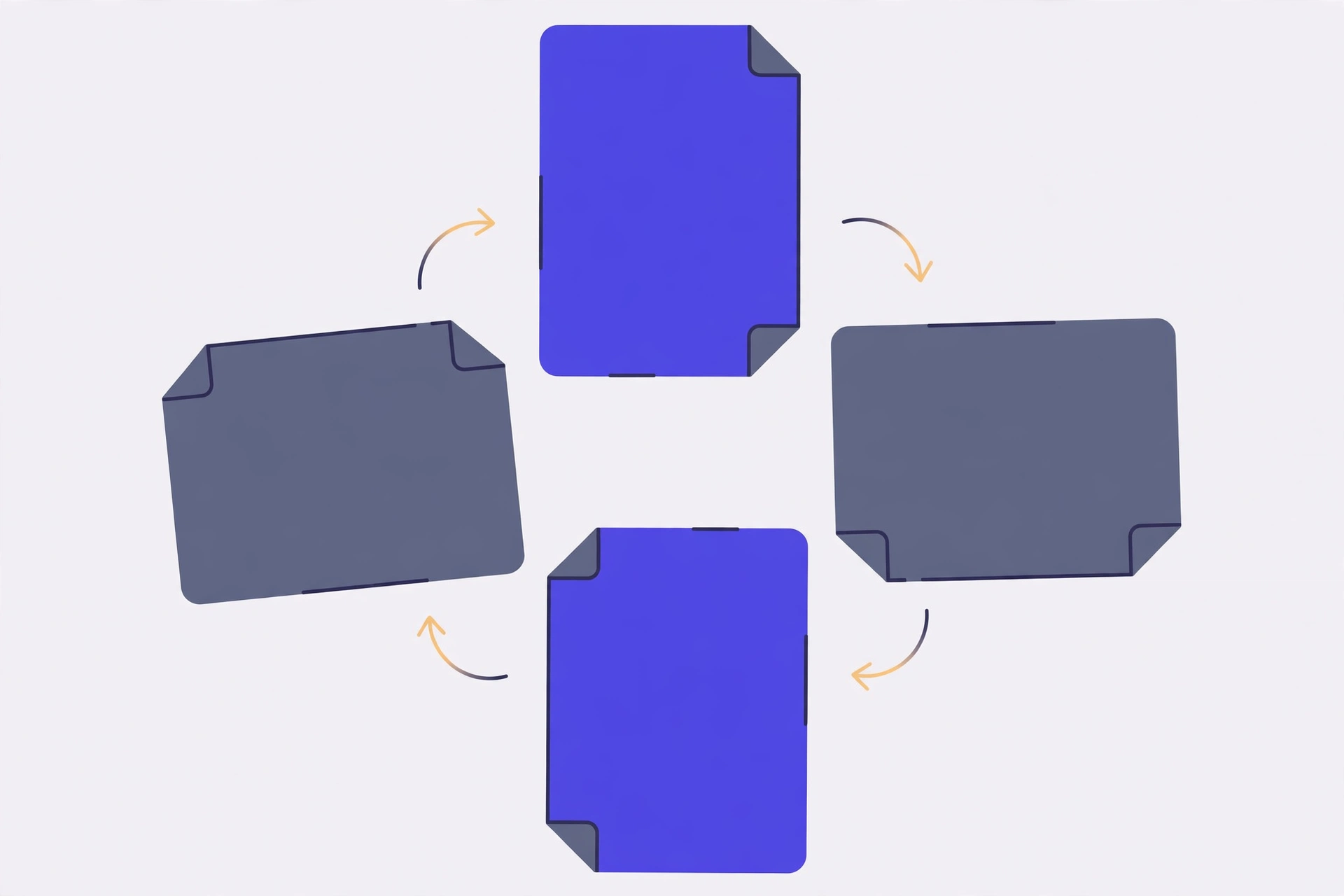
Inside the file, every page carries a small instruction in its page dictionary: the /Rotate entry. It holds one of four values — 0, 90, 180 or 270 — and tells any viewer how many degrees clockwise to turn that page when showing or printing it. No entry means 0. A real fix changes that stored number and saves the file again. That is why a properly rotated PDF opens the right way up in every viewer, for every person, on every device.
Two consequences follow. First, rotation is always a quarter-turn: 90, 180 or 270 degrees, clockwise. No 12-degree option exists, because the format has nowhere to store it. Second, angles add: a page at 90 turned by another 90 ends at 180; turn a 270 page by 90 and you land back at 0. Nothing gets redrawn along the way — words, images and links are not re-rendered or recompressed, so selectable text stays selectable. You are editing one number per page, not repainting the page.
Rotate and save, step by step
Before you start: know which pages are wrong and which way they lean. Note the page numbers as you count them from the first page. A page’s top pointing left needs 90 clockwise; top pointing right means 270; fully upside down is 180.
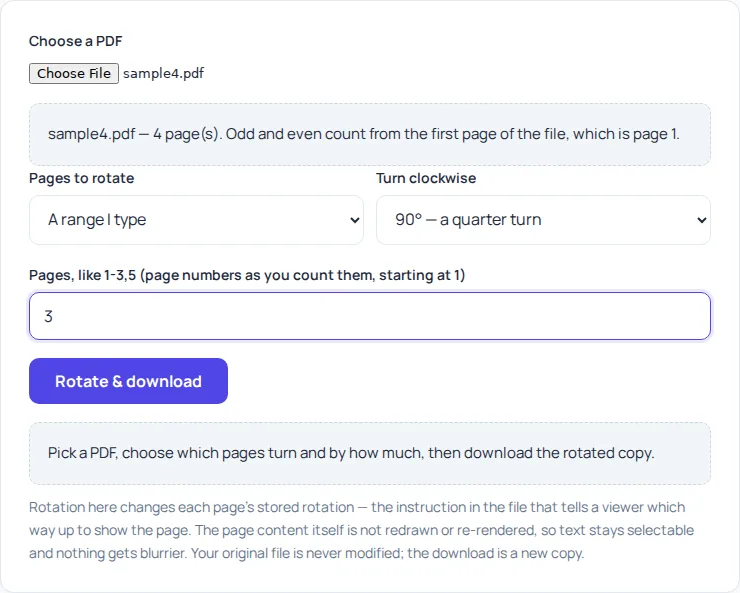
- Under “Choose a PDF”, pick your file — one PDF at a time, .pdf only. Expect the line under the picker to answer with the file name and page count, like “contract.pdf — 12 page(s)”. That count is your sanity check.
- Set “Pages to rotate”: All pages, Odd pages (1, 3, 5…), Even pages (2, 4, 6…) — odd and even count from the first page — or “A range I type”. For a range, use the box labelled “Pages, like 1-3,5” and type numbers as you count them, starting at 1: 3-5 means pages 3, 4 and 5.
- Set “Turn clockwise” to 90° (a quarter turn, the default), 180° (upside down) or 270° (three quarters). One angle applies to every page in this pass; pages needing a different angle get their own pass later.
- Press “Rotate & download”. Expect the status line to pass “Reading the PDF…” and finish like “Done — 3 of 12 page(s) turned 90° clockwise”, while the new file downloads as rotated.pdf. Read that count before you trust the download.
- Open rotated.pdf and check the fixed pages, ideally in a different viewer or on your phone. That second look proves the fix lives in the file.
- Wrong direction, or a second group leaning the other way? Run the original through again with the other angle and range. Always start from the original — angles add, so “correcting” the rotated copy is how pages end up at 180 when you wanted 0.
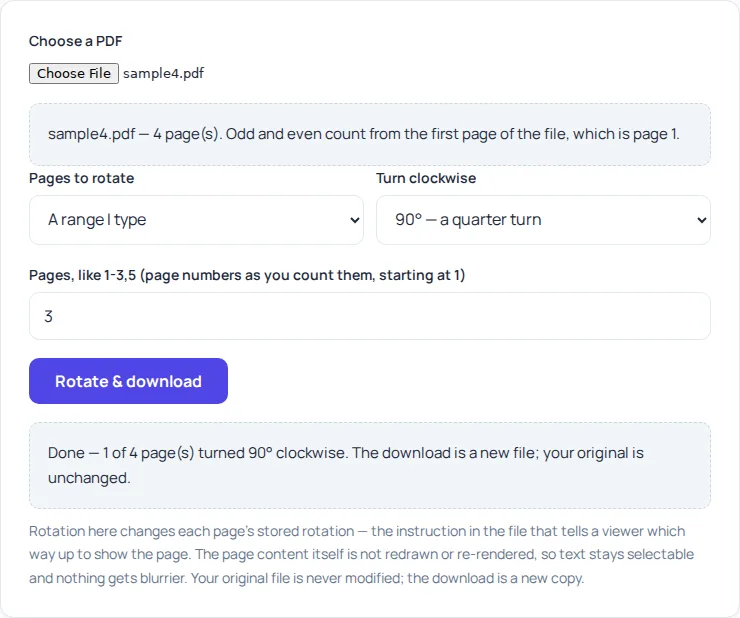
No account, no upload: the file is read into your browser’s memory, the rotation values are rewritten there with pdf-lib, and you get the new copy. Close the tab and nothing remains.
Worked example: a 12-page scanned contract, pages 3 to 5 sideways
Say a signed contract comes back from the scanner as one 12-page PDF. Pages 1 and 2 are fine. Pages 3, 4 and 5 — the annex that went through the feeder landscape — lie on their side, tops pointing left. Pages 6 to 12 are fine. You need this file to open correctly for the client, not just for you.
You pick the file; the picker confirms 12 pages. Under “Pages to rotate” you choose “A range I type” and enter 3-5. Tops pointing left means a quarter turn clockwise, so you leave “Turn clockwise” at 90° and press “Rotate & download”. The status line answers “Done — 3 of 12 page(s) turned 90° clockwise” — three, not twelve, so the other nine pages were left as they were. Inside the new file, pages 3 to 5 now store /Rotate 90 where they stored 0; the rest keep their original values.
Now the check that matters: open rotated.pdf on your phone, a viewer you never touched during the fix. Pages 3 to 5 stand upright. The fix was in the file, so it survived the trip to another device. Had those pages leaned right, the same run at 270° would have done it — and your original is still on disk, unrotated, if you ever need a second run.
Limits worth knowing before you rely on it
Password-protected and unreadable files stop here. If the PDF cannot be opened without a password, or is not a readable PDF at all, the tool says so — “Could not rotate that file” — and produces no download. There is deliberately no password-removal feature; unlock the file where your organisation allows, then rotate the unlocked copy.
Rotation is not resizing. It changes a page’s stored direction, not its physical dimensions. A rotated annex displays upright, but rotation does not reflow text, straighten a scan that is 3 degrees crooked (image correction — a different job), or turn a photo inside a page while leaving the text around it alone: the whole page turns, always. One angle and one selection per pass, too; mixed problems mean two passes, both from the original.
Size is the soft limit. Everything happens in your browser’s memory, so a very large scan can be slow or strain a small phone; if a huge file struggles, try a desktop browser. And keep the original — the download is always a new file named rotated.pdf, so rename it to something meaningful when you save it.
The Verystep Rotate PDF tool takes one PDF at a time. Use “Choose a PDF” to pick the file, set “Pages to rotate” to All pages, Odd pages, Even pages or a range you type (like 1-3,5), pick a clockwise turn of 90, 180 or 270 degrees, and press “Rotate & download”. You get a new file called rotated.pdf. It all runs with pdf-lib in your browser — the file is never uploaded, and your original stays untouched.
Last verified November 23, 2026 — checked against the live Rotate PDF tool in all three languages (English /rotate-pdf/, Spanish /es/rotar-pdf/, Portuguese /pt/girar-pdf/): the single-file picker (“Choose a PDF” / “Elige un PDF” / “Escolha um PDF”, .pdf only) and its file-name plus page-count confirmation line; the “Pages to rotate” selector with All pages, Odd pages (1, 3, 5…), Even pages (2, 4, 6…) and a typed range (box labelled “Pages, like 1-3,5”, placeholder 1-3,5, counting from page 1); the “Turn clockwise” selector with 90° (default), 180° and 270°; the “Rotate & download” button; the fixed download name rotated.pdf; the status messages including “Done — N of M page(s) turned …° clockwise” and the password-protected/unreadable-file failure message; and the in-browser pdf-lib processing note (no upload, original unchanged, new rotation added to any existing page rotation). Worked example recomputed by hand: a range of 3-5 in a 12-page file targets exactly 3 pages, and 0° + 90° stores /Rotate 90.
Frequently asked questions
I rotated the page in my PDF viewer and saved. Why did it arrive sideways?
Because most viewers’ rotate buttons only change how that viewer shows the page to you. The stored /Rotate value never changed, so every other viewer shows the original, sideways version. Rewrite the stored value, download the new copy, and send that copy.
Can I rotate just one page, or only some pages?
Yes. “Pages to rotate” offers All pages, Odd pages, Even pages, or a range you type — 3-5 turns pages 3, 4 and 5, and 1-3,5 turns pages 1, 2, 3 and 5. A single page is a range of one: type its number. Pages outside the selection keep their rotation.
What if I pick the wrong angle?
Nothing breaks. Your original is never modified — the result is a separate download called rotated.pdf. If 90° leaves the page leaning the other way, run the original again at 270°. Start from the original each time: rotation adds to the value a page already holds, so re-rotating the copy piles angles up.
Is my PDF uploaded to a server?
No. The file is read into your browser’s memory and processed there with pdf-lib; the rotated copy is built on your device. There is no account and no history. Close the tab and nothing remains.
Will rotating reduce the quality of my scans or make text unselectable?
No. Rotation rewrites one stored number per page; the content is not re-rendered or recompressed. Scans stay as sharp as they were, and selectable text stays selectable.
More guides
The PPWR Empty Space Ratio: Why the 50% Cap Hits Your Shipping Box First
Ask a room of online sellers what the PPWR will change first and most will say labels. The duty with a number in it is quieter: from 2030 at the earliest, no more than half the volume of your shipping box may be empty — and the filler you stuff into it counts as empty.
Counting a Return Window: The EU 14-Day Cooling-Off Period Starts the Day After Delivery
A shop page says “14 days to return”. Fourteen days from when — the order, the dispatch, the delivery? And counted how — in calendar days or working days? EU law answers both questions, and the answers are not the ones most countdown banners use.

How to Check Gift Return Eligibility Without a Receipt
Black Friday is over, the gifts are changing hands, and some of them are the wrong size, the wrong color or the second one you own. There is no receipt — there never is with a gift — so the question is not “can I get my money back?” but “which route does this store actually offer someone in my position, and how long do I have?”