How to Reorder PDF Pages in One Pass
Do not start by dragging page 14 somewhere. Start by looking at all of them. The thumbnail grid is your contents page — delete first, drag second, and most mistakes never happen.
A PDF’s reading order is simply the order of its pages in the file’s page tree, and the organizer edits exactly that: one list of original page numbers, in the order you leave them on screen. Load the file and pdf.js renders each page as a small thumbnail at 0.35 of its own size, labelled with its original number, so you can recognise pages instead of counting them. Remove pages with ✕, drag cards or nudge them with the arrow buttons, and the download is built by copying the kept pages from your original file at full quality — the thumbnails are only previews. Work in this order: look at the whole grid first, delete what does not belong, then drag what remains. Nothing is uploaded, and your original file is never changed.
Page order is just a list — and the grid shows you that list
Open any PDF and ask a simple question: what decides that this page comes third? Not the number printed on the page itself — plenty of documents have an unnumbered cover, a preface in roman numerals, an appendix that restarts at one. What decides the order is the file’s own page tree, an internal sequence that says “show this page, then this one, then this one”. Reordering a PDF means rewriting that sequence, nothing deeper.
That is exactly what the organizer keeps in front of you. It holds one list: the original page numbers, in the order the cards sit on screen. Delete a card and its number leaves the list; drag one and its number moves. On download, that list goes to pdf-lib’s copyPages, which copies those pages, in that order, into a new file. Grid reads 3, 1, 2? The new file opens with original pages 3, 1 and 2. No magic — and no surprises if you read the grid first.
Why can you trust the thumbnails? Because pdf.js — the same engine this site’s PDF to Image tool uses — draws each one from the actual page content, at a fixed scale of 0.35 of that page’s own dimensions. A landscape page really does look wider than a portrait one; a blank separator really does look blank. But thumbnails are for your eyes only: the download is never built from them. Kept pages are copied from your original file with size, text layer and image resolution intact, so a 300 dpi scan stays a 300 dpi scan. And the output is always a new file — your original sits untouched, which makes experimenting cheap.
Here is the working habit this guide is built around: look at the whole grid before you touch anything. The grid is a contents page you can act on. Scan it once and the document’s real shape shows itself — the duplicate cover, the blank sheet, the appendix in the middle. Then work in a fixed order: delete first, drag second. Deleting first shrinks the puzzle. Dragging through a grid still holding junk pages is how pages end up one slot off: you counted positions about to disappear.
One pass, six steps: look, delete, drag, download
Before you start, you need the PDF on this device and a rough idea of the order the finished document should read in. Page numbers memorised? Not needed — that is the grid’s job. One document at a time, up to 100 pages.
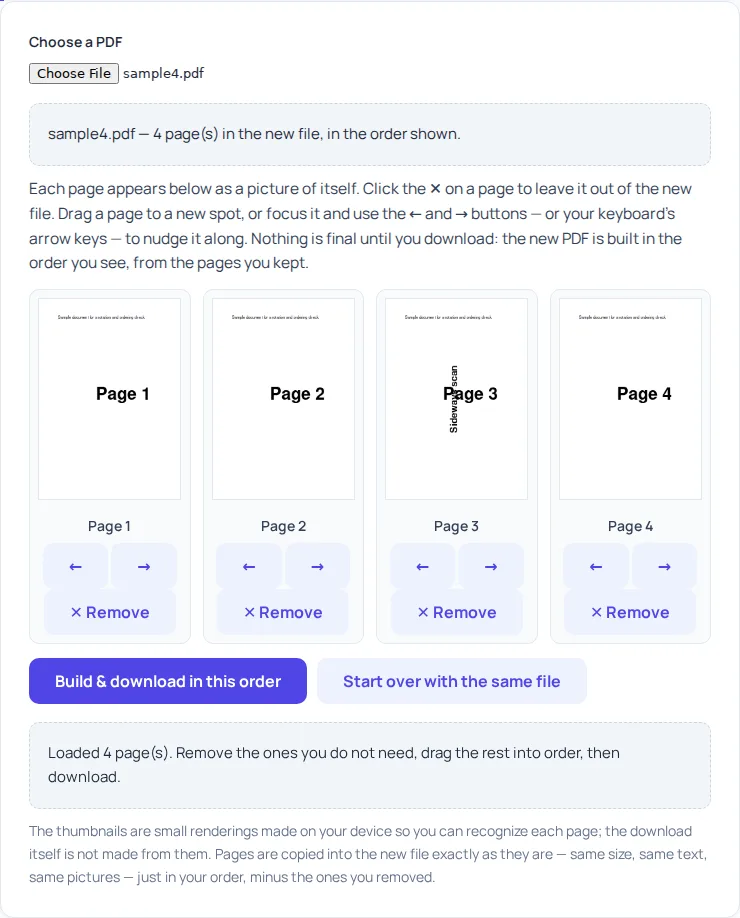
- Load the file. Click “Choose a PDF” and pick your document. Expected result: every page appears as a thumbnail card, in file order, labelled with its original page number. The file is read in this browser only — nothing is uploaded.
- Read the whole grid before touching it. Note three things: pages that do not belong (scanner covers, blanks, duplicates), pages in the wrong place, and any page sitting sideways. Sideways pages matter later, not now — this tool does not rotate.
- Delete first. Click the ✕ on each card that should not be in the new file. Expected result: the card disappears and the grid closes up. The page is not erased from anything you own — it is left out of the download, and “Start over with the same file” brings every page back if you clicked the wrong one.
- Drag what remains into reading order. Drag a card onto its spot, or click a card and use the ← and → buttons — or your keyboard’s arrow keys — to move it one position at a time. Key detail: each card’s label is always its original page number and travels with the card, so after dragging you can read the grid as a sequence of original numbers and check it against the order you wanted.
- Do a final read of the grid, left to right, as a reader will meet the pages. This ten-second check is the point of working visually: a pricing page before the introduction looks wrong at a glance, in a way a list of numbers never does.
- Click “Build & download in this order”. Expected result: a new PDF downloads with the kept pages, in the order on screen, at full original quality and their own page sizes — an A5 page among A4 pages stays A5. Open it once and flip through before sending it anywhere. Wrong? Your original is untouched; reload and go again.
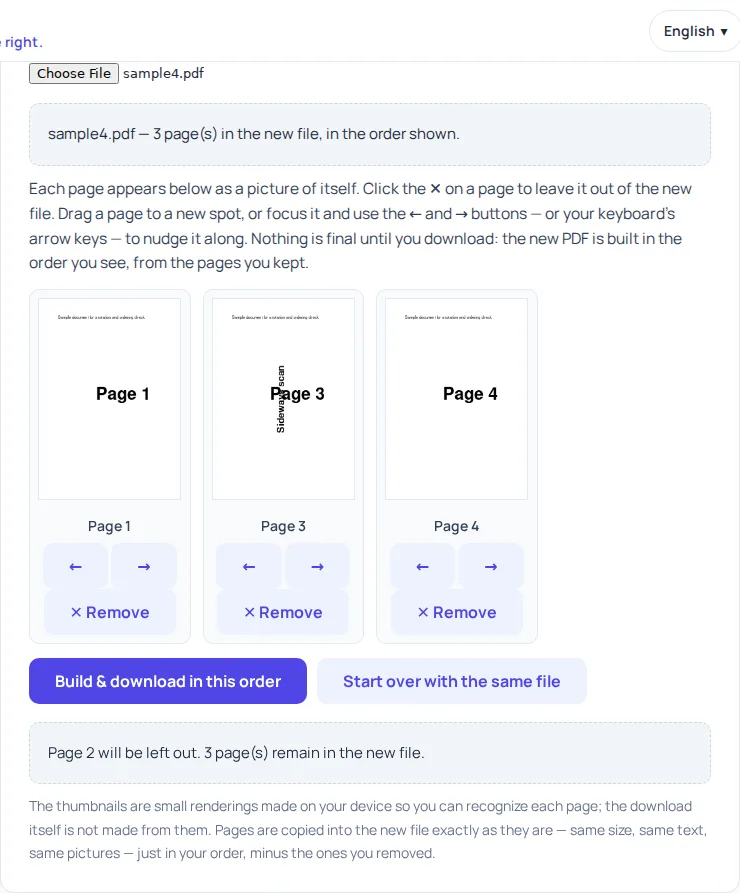
One refusal worth knowing: you cannot remove every page — a PDF with no pages is not a usable file, so the tool asks you to keep at least one. A safety rail, not an error.
Worked example: an 18-page bid file, cleaned in one pass
Say you are sending a bid tomorrow. The merged PDF has 18 pages and three problems. Pages 2 and 11 are blank separator sheets the scanner inserted. The pricing summary — the page your client will look for first — sits at page 14, buried behind technical appendices. And two scanned pages, 7 and 8, are sideways. Here is the pass, in order.
Load the file and read the grid. You spot the blanks instantly — two white cards in a grid of text. That is the visual method paying for itself: nobody reliably remembers that page 11 is blank, but anybody can see it. Delete first: click ✕ on page 2 and ✕ on page 11. The grid now holds 16 cards. Notice what just happened to your counting problem: the pricing page is still labelled 14, because labels are original numbers and never change, but it now sits at position 13 on screen. The label is your anchor; the position is just where it happens to be standing.
Now drag. Take the card labelled 14 and drop it at the third position, right after the cover and the executive summary. Then read the grid as numbers: 1, 3, 14, 4, 5, 6, 7, 8, 9, 10, 12, 13, 15, 16, 17, 18. Sixteen numbers, none missing, none repeated — the two gaps, 2 and 11, are exactly the blanks you removed. That read-back takes seconds and catches the classic accident, dragging the wrong twin of two similar-looking pages.
About those sideways pages, 7 and 8: leave them. This organizer deliberately does not rotate — rotation answers “which way up”, organizing answers “which pages, in which order” — and each page keeps its own rotation, so 7 and 8 come out sideways, exactly as they went in. The fix is a short second pass: download, run the result through the Rotate PDF Pages tool in the same cluster, turn those two upright there. Organize first, rotate second.
Download and check three things: 16 pages, the pricing summary at page 3, and text on it still selectable — proof the pages were copied, not flattened from the thumbnails. Done. The original 18-page file is still on your disk, unchanged, if the client later asks for the separators back.
Limits and boundaries: what organizing cannot do
The hard cap is 100 pages at a time. Every thumbnail is a rendered picture held in your browser’s memory, and past roughly a hundred pages ordinary laptops start to struggle. The workaround is spelled out on the tool page: split a longer document, organize each part, then merge the results. A stated limit, not one you discover by crashing.
One document at a time, too. Pages scattered across three files? Merge first. Password-protected PDFs cannot be opened by the libraries this page uses, so they cannot be organized here, and this site offers no password-removal tool, by design. Unlock the file in the software that issued it, then come back.
Finally, know what organizing never touches: the inside of a page. Text, images, page size and existing rotation are copied as they are. You cannot edit a sentence or crop a margin from this grid — and that narrowness is the feature. A tool that only reorders the list cannot damage the pages on it, which is why the check after downloading is so short: right pages, right order, same quality.
The Verystep PDF Page Organizer draws every page of your PDF as a thumbnail labelled with its original page number. Click ✕ to leave a page out, drag a card to its new spot or nudge it with the ← and → buttons, then click “Build & download in this order”. It handles up to 100 pages, runs entirely in your browser with pdf.js and pdf-lib, and never uploads your file.
Last verified November 23, 2026 — checked against the live Verystep PDF Page Organizer in English, Spanish and Portuguese: the “Choose a PDF” picker, thumbnails rendered on-device with pdf.js and labelled with original page numbers, ✕ remove, drag to reorder, ← and → buttons and keyboard arrow keys on a focused card, “Build & download in this order”, “Start over with the same file”, the 100-page limit, the refusal to remove every page, password-protected files not opening, and the on-page note that rotation is handled by the separate Rotate PDF Pages tool — pages keep their own size and rotation, and downloads are copied with pdf-lib at full quality while everything runs in the browser with no upload.
Frequently asked questions
I removed the wrong page. Is it gone for good?
No. Removing a card only leaves that page out of the file you download; your original PDF is never modified. Click “Start over with the same file” and every page comes back into the grid in its original order, ready for a second try. Nothing is final until you download — and even then, the download is a new file sitting beside the original.
Does reordering lower the quality of my pages?
No. The thumbnails are low-resolution previews for your eyes, but the download is not built from them. Each kept page is copied from your original file by pdf-lib, keeping its own size, text layer, rotation and image resolution — a 300 dpi scan stays 300 dpi, and selectable text stays selectable. Only the set of pages and their sequence change.
Can I rotate a sideways page in the organizer?
No, and that is deliberate. The organizer answers which pages belong and in what order; rotation answers which way up, and it lives in the separate Rotate PDF Pages tool in the same PDF cluster. Organize first, download, then rotate the pages that need it in the result. Each page keeps whatever rotation it already had while you organize.
Why is there a 100-page limit?
Because every thumbnail is a rendered picture held in your browser’s memory, together with the file itself. Past about a hundred pages, ordinary laptops start to struggle. For a longer document, split it into parts, organize each part, and merge the results — the tool page says this outright rather than letting you find out the hard way.
What do the numbers on the cards mean after I drag things around?
Each card is always labelled with the page’s number in the file you loaded — its original number — and the label travels with the card. So after reordering, read the grid left to right as a sequence of original numbers: if it reads 1, 3, 14, 4, you know exactly which original pages sit where, and you can spot a missing or duplicated page before you download.
More guides
The PPWR Empty Space Ratio: Why the 50% Cap Hits Your Shipping Box First
Ask a room of online sellers what the PPWR will change first and most will say labels. The duty with a number in it is quieter: from 2030 at the earliest, no more than half the volume of your shipping box may be empty — and the filler you stuff into it counts as empty.
Counting a Return Window: The EU 14-Day Cooling-Off Period Starts the Day After Delivery
A shop page says “14 days to return”. Fourteen days from when — the order, the dispatch, the delivery? And counted how — in calendar days or working days? EU law answers both questions, and the answers are not the ones most countdown banners use.

How to Check Gift Return Eligibility Without a Receipt
Black Friday is over, the gifts are changing hands, and some of them are the wrong size, the wrong color or the second one you own. There is no receipt — there never is with a gift — so the question is not “can I get my money back?” but “which route does this store actually offer someone in my position, and how long do I have?”