How to Scan a QR Code From a Photo or Screenshot
Your camera can't point at a code that's already on your own screen. When the QR code lives in a screenshot, a saved photo, or a chat thread, you don't scan it — you decode the file.
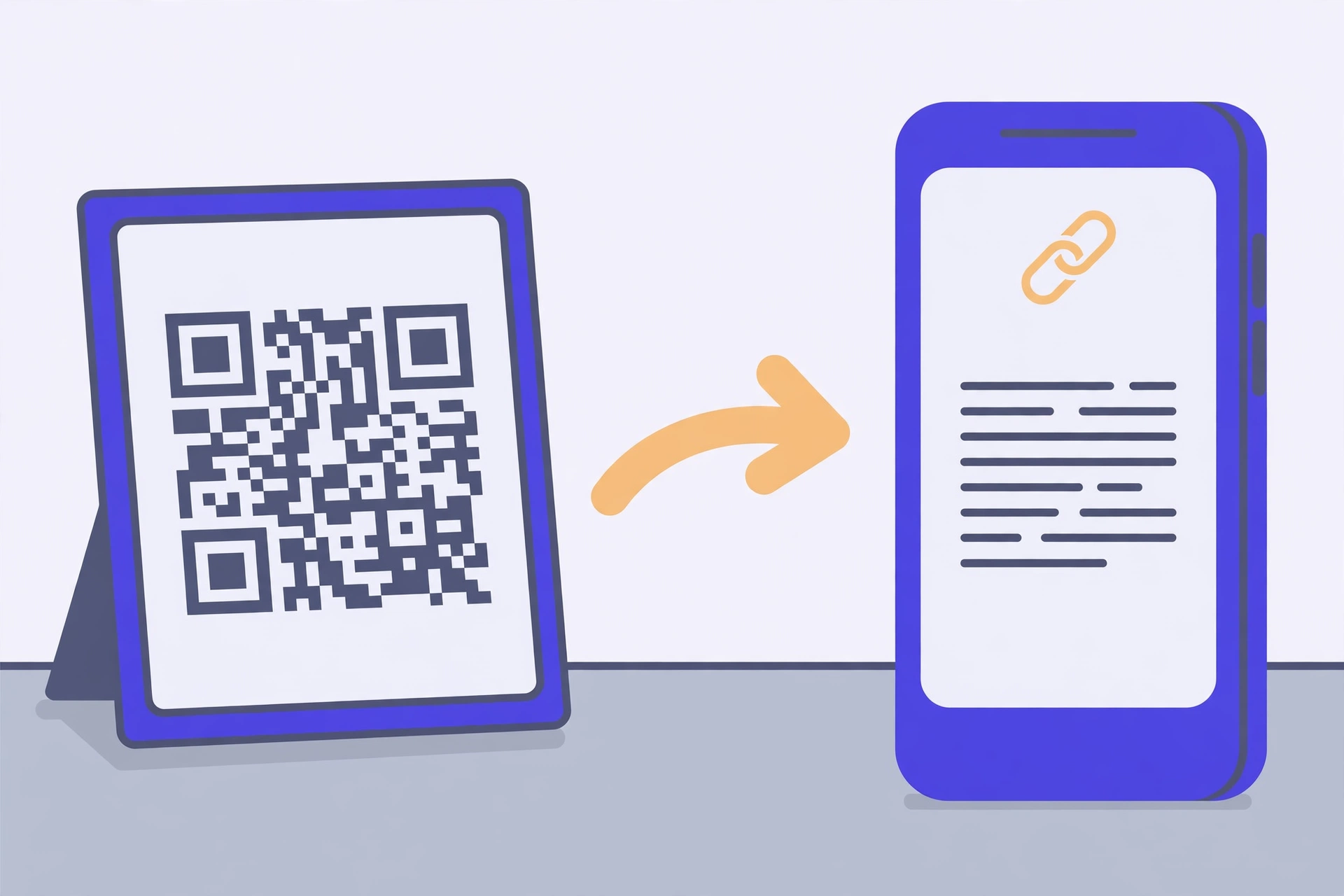
This guide is about decoding only: taking a QR code you already have as an image and reading what it holds. The Verystep QR Code Parser does that from a file. You pick the image with the Open an image with a QR code field, and the tool shows the result under Decoded content as plain text — a link, a Wi-Fi password, a block of text, whatever the code was built to carry. Nothing opens on its own. You read the text first, check it, then decide what to do with it. That pause is the whole point, and it's what makes decoding from a photo safer than tapping a code with your camera and landing somewhere before you've seen the address.
Why a file beats a camera here
The classic case goes like this. Someone sends you a QR code in a message, or you screenshot one from a web page, and now it's sitting on the one phone you own. Your camera app is useless — it can't look at its own screen. The same thing happens with a photo you took earlier: a code on a poster or a menu, saved for later. In both cases the code already exists as pixels in a file. You don't need a lens. You need a decoder that reads the file directly.
That's all the QR Code Parser does. It looks at the image you give it, finds the square pattern, and translates it back into the text it was made from. If you need to make a code instead of reading one, that's a separate job covered in the companion guide to the QR generator — this page stays on reading codes you already have.
Decode a code from a photo in seven steps
Start by getting the code into a file on this device, then run it through the parser.
- Save or screenshot the QR code so you have it as an image file on this device.
- Open the QR Code Parser and use the Open an image with a QR code field to choose that file.
- Read the text that appears under Decoded content, because that is what the code actually contains.
- If it is a link, check the decoded URL character by character before you open it anywhere.
- Tap Copy result to copy the decoded content so you can paste it where you need it.
- If you do not have a file, tap Use camera instead and point the camera at the code in front of you.
- Tap Stop camera when you are done so the camera feed closes.
Steps one and two are where most people get stuck, and it's not the tool's fault. If the code arrived inside a chat app, open the image full-screen first and save it to your photos or files, or take a screenshot. The parser needs a real image file to work from — it can't reach inside another app's thread. Once you've picked the file, decoding is near instant. The text either appears under Decoded content or the tool tells you it couldn't find a readable code, which sends you to the fixes further down this page.
Read the decoded content before you act on it
Here's the habit worth building. A decoded link is just text until you decide to visit it. Read it the way you'd read an address on an envelope. Check the domain first — does it match the business or service the code claimed to be from? Then scan the rest character by character. Look for swapped letters, extra words tucked in front of a familiar name, or a shortener that hides the real destination. A code on a parking meter or a table tent can be covered by a sticker with a different code, and the camera path would have taken you straight to the wrong site. The file path gives you a checkpoint.
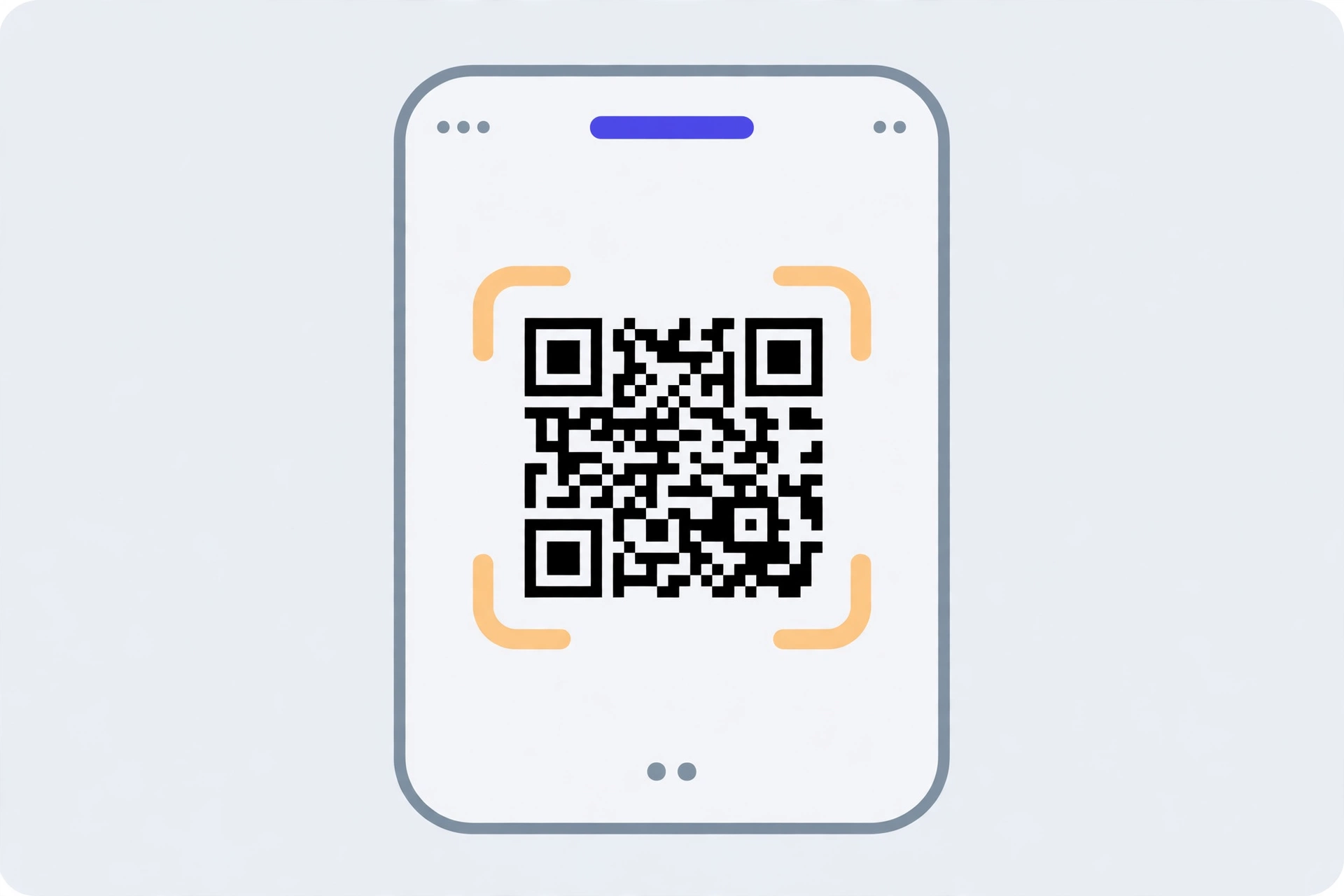
Not every code holds a link. Plenty hold plain text, contact details, or a Wi-Fi network name and password. The same rule applies: read what's under Decoded content, confirm it matches what you expected, then use Copy result to move it. Pasting a decoded Wi-Fi password into your settings beats retyping a long string by hand and getting one character wrong.
The camera path, when the code is in front of you
If the code is on a wall, a package, or someone else's screen, skip the file route. Tap Use camera in the parser, allow camera access when your browser asks, and hold the code steady inside the frame. The decoded content appears under the same heading, and Copy result works the same way. When you're finished, tap Stop camera so the feed actually closes.
Pick the path that matches where the code lives. File for anything already on your device. Camera for anything out in the world. The output and the safety check don't change — only how the code gets into the tool.
When the parser can't read your image
Most failures come down to the picture, not the code. A blurry or low-resolution screenshot is the top cause: if you screenshotted a tiny code inside a busy page, zoom in on the code itself and screenshot again so the pattern takes up more of the frame. A code cropped at the edge won't decode either — the parser needs the full square, including a bit of quiet space around it, so re-save the image with the whole code in view.
Photos of screens bring their own problem: glare. A shiny reflection or a photo taken at an angle can wash out part of the pattern. Retake it straight-on, with the screen brightness up and no light source reflecting off the glass. And if your image holds more than one code — a flyer with three codes in a row, say — the parser may not know which one you mean. Crop the image down to the single code you want, save that crop, and run the crop instead. One code per file is the reliable setup.
The Verystep QR Code Parser reads a QR code straight from an image file. Use the Open an image with a QR code field, read what shows up under Decoded content, and hit Copy result when you want to paste it elsewhere. You can also tap Use camera if the code is right in front of you.
Last verified November 17, 2026 — steps, field labels and buttons checked against the Verystep QR Code Parser (Open an image with a QR code, Decoded content, Use camera, Stop camera, Copy result).
Frequently asked questions
Why can't I just use my camera app on a screenshot?
Your camera looks outward at the world. A screenshot or saved photo is already a file on the same device, so there's nothing for the lens to point at. A decoder that reads image files solves that — you pick the file, and it translates the code straight from the pixels in the picture.
Is it safe to decode a QR code from a stranger?
Decoding is the safe part. The parser shows you the content as plain text and doesn't open anything. The risk only starts when you act on it — visiting a link, joining a network, saving a contact. Read the decoded content first, check a link character by character, and only proceed if the destination matches what the code claimed to be.
The tool couldn't read my image. What should I try first?
Check three things in order. Is the whole code in the frame, with a little space around the edges? Is the image sharp enough that the small squares are crisp, not smeared? And if it's a photo of a screen, is glare covering part of the pattern? Fix whichever one applies — usually a tighter, straight-on, higher-resolution capture — and run it again.
My image has two QR codes in it. Which one gets decoded?
Don't count on the tool guessing the one you want. Crop the image so only the code you need stays in the frame, save the crop as its own file, and decode that. One code per image gives you a clean, predictable result every time.
What kinds of content can a QR code hold?
Links are the most common, but codes also carry plain text, Wi-Fi network names and passwords, contact details, and payment addresses. Whatever it holds, the parser shows it under Decoded content as readable text, and Copy result lets you paste it into the right place instead of retyping it.
More guides
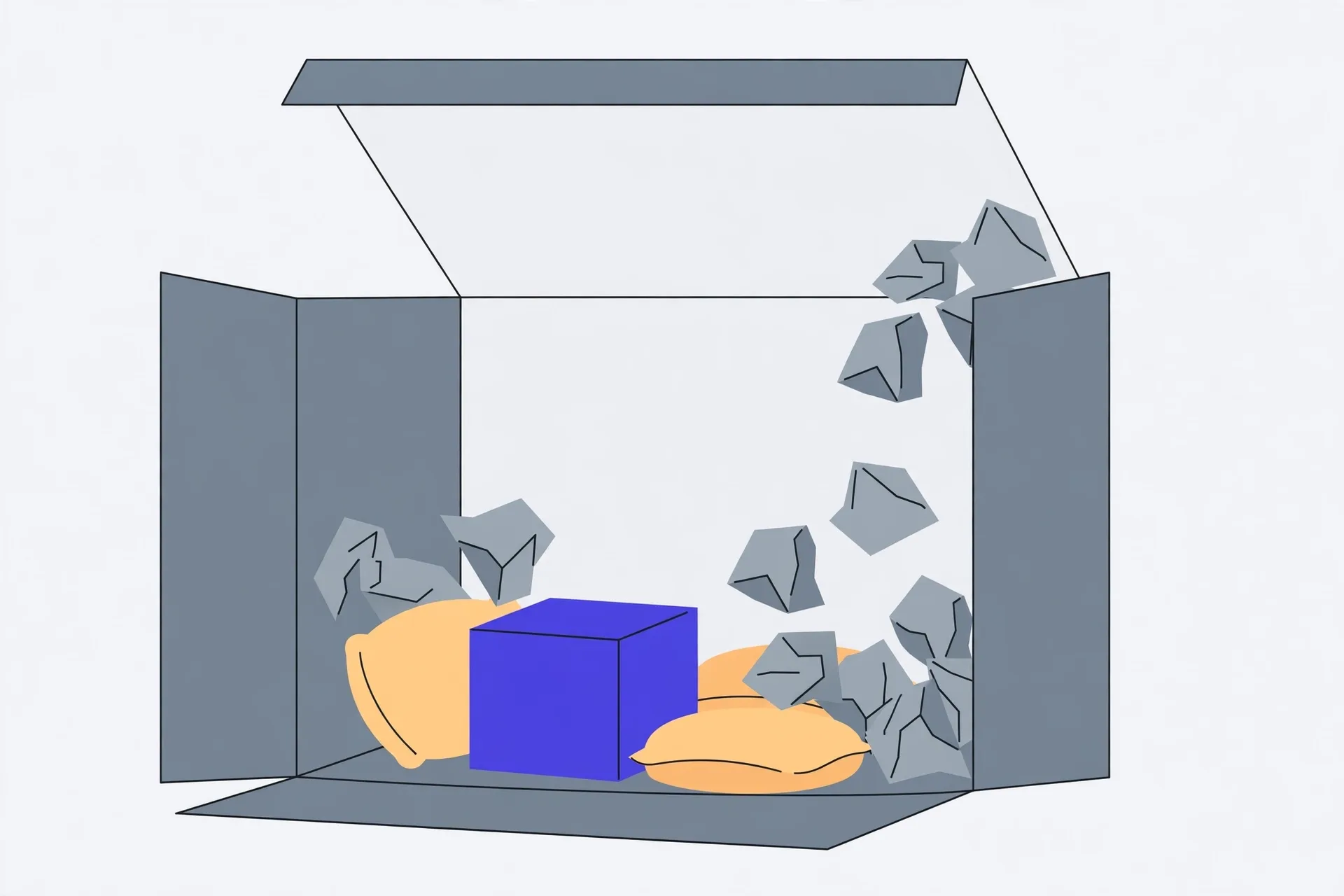
The PPWR Empty Space Ratio: Why the 50% Cap Hits Your Shipping Box First
Ask a room of online sellers what the PPWR will change first and most will say labels. The duty with a number in it is quieter: from 2030 at the earliest, no more than half the volume of your shipping box may be empty — and the filler you stuff into it counts as empty.
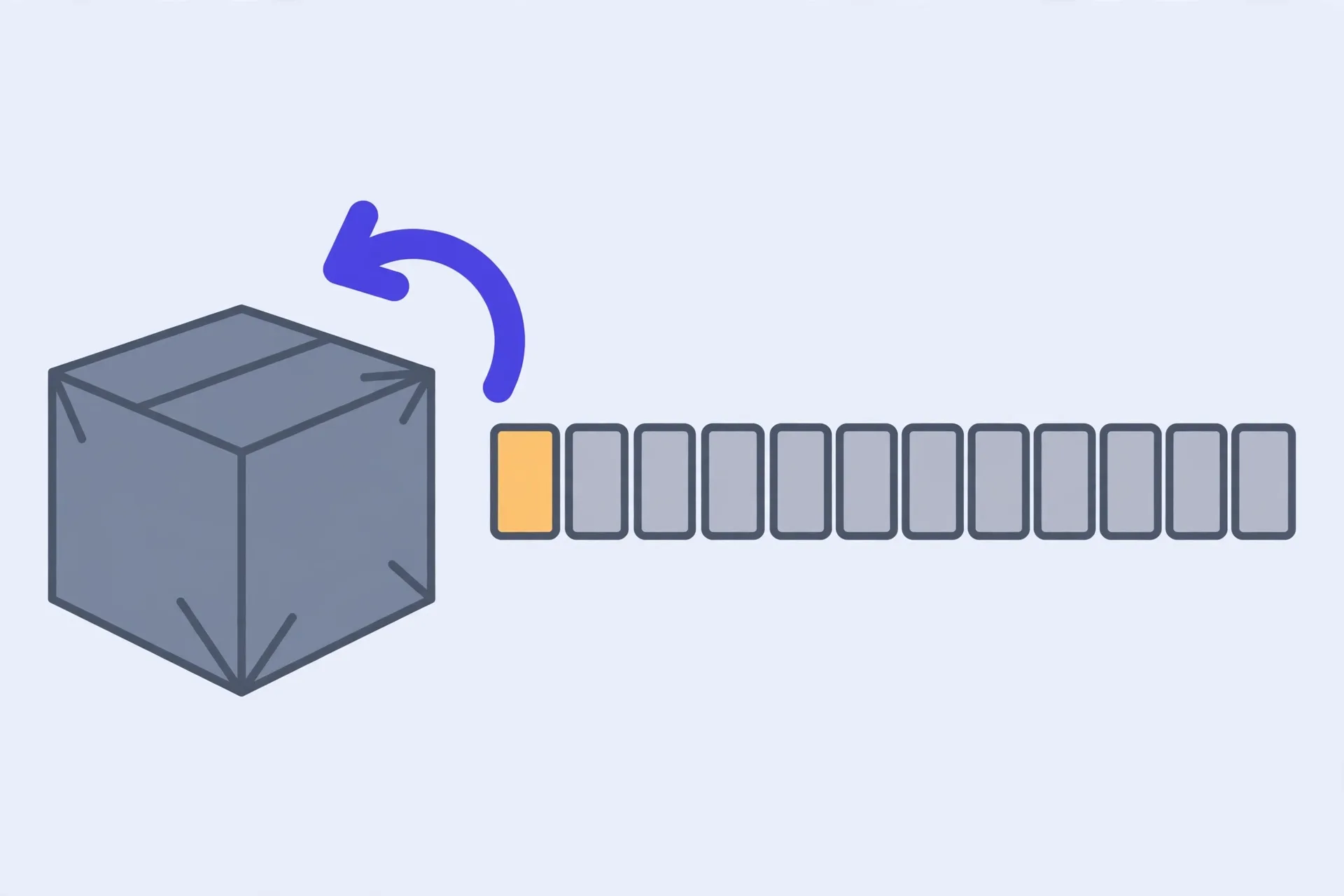
Counting a Return Window: The EU 14-Day Cooling-Off Period Starts the Day After Delivery
A shop page says “14 days to return”. Fourteen days from when — the order, the dispatch, the delivery? And counted how — in calendar days or working days? EU law answers both questions, and the answers are not the ones most countdown banners use.
How to Check Gift Return Eligibility Without a Receipt
Black Friday is over, the gifts are changing hands, and some of them are the wrong size, the wrong color or the second one you own. There is no receipt — there never is with a gift — so the question is not “can I get my money back?” but “which route does this store actually offer someone in my position, and how long do I have?”