How to Merge, Reorder and Trim a PDF in Your Browser
A signed form in one file, the attachments in two more, and page three is sideways. One browser tool handles all of it — merging, splitting, reordering, rotating and trimming — without uploading a page.
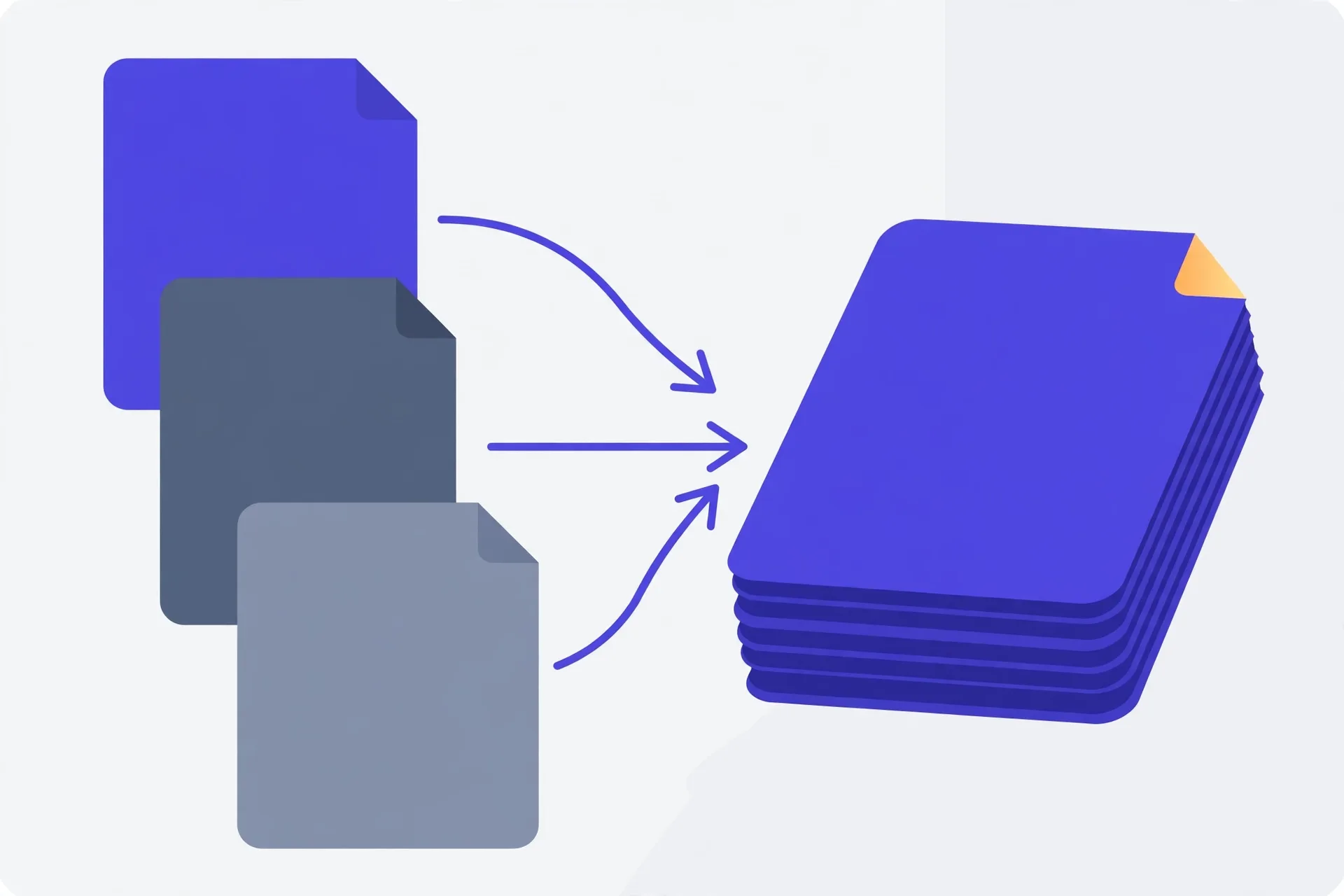
The PDF Merge tool covers the three jobs people actually need to do to a PDF. Merge: choose several files with Choose PDFs and combine them with Merge into one PDF. Split: pull pages out of the first file by typing a range like 1-3,5, or split it into single pages, or into chunks of a set size. Organize: load one PDF, tick the pages you want to touch, then move them up or down, rotate the ticked pages 90°, or delete them — which is how you trim a document down to the pages that matter. Everything runs locally in your browser using pdf-lib. Your files aren't uploaded, and your original PDF is never modified; every operation produces a new file to download.
Three jobs, three parts of the page
It helps to know which part of the tool you need before you start clicking, because the jobs take different inputs. Merging starts from several separate files and ends with one. Splitting starts from one file — the tool works on the first PDF you chose — and ends with smaller files containing just the pages you asked for. Organizing also starts from one file, loaded separately in the Organize section, and it's the precision tool: you work page by page, ticking the pages you want to move, rotate or delete.
Trimming isn't a separate button, and that's the thing people hunt for longest. To trim a PDF — cut it down to the pages worth keeping — you have two routes. If you know exactly which pages you want, splitting them out is fastest: type the range and take those pages as a new file. If the document needs tidying as you go, load it in the Organize section, tick the pages you don't want, delete them, and download what's left. Both routes give you a trimmed file; the difference is whether you're selecting pages to keep or pages to remove.
Merge, split and organize in seven steps
The steps below run through a full tidy-up: merge first if you need to, then split or organize. Skip the parts your job doesn't need.
- To merge, click Choose PDFs in the merge area and select two or more PDF files from your device.
- Click Merge into one PDF, wait for the combined file to download, and open it to check the files joined in the order you expected.
- To extract pages instead, load the file, type the pages you want in the pages field — for example 1-3,5 — and click Split first PDF.
- For other splits, use Split into single pages to get one file per page, or set Pages per chunk and use Split into chunks for even groups.
- To reorder, rotate or trim, go to the Organize section, use Choose one PDF to load a single file, and tick the pages you want to change.
- Use the move up and move down controls to reorder pages, click Rotate ticked pages 90° to turn them, or Delete ticked pages to trim pages out.
- Click Download organized PDF, then open the result and check every page is present, in order and the right way up before you share it.
Step two's check matters more than it looks. Files merge in the order they were selected, and if the contract landed after the appendix instead of before it, you want to catch that in the downloaded file now — not when the person you sent it to does. A ten-second scroll through the merged PDF, checking the first page of each original file, confirms the order while fixing it is still free.
A worked example: one application pack from three files
Say you're assembling an application. You have a two-page form, a four-page bank statement and a one-page ID scan that came out sideways — seven pages across three files, in the wrong shape. Start with Choose PDFs and select all three, then Merge into one PDF. You now have a single seven-page file, but the statement includes two blank trailing pages you don't need, and the ID page is rotated.
Load that merged file in the Organize section with Choose one PDF. Tick the two blank pages and click Delete ticked pages — the file is now five pages, trimmed. Tick the sideways ID page and click Rotate ticked pages 90° once to turn it upright. If the ID page needs to sit right after the form rather than at the end, use the move up control to walk it into place, one position per click. Then Download organized PDF and read the result end to end: form, ID, statement, every page upright.
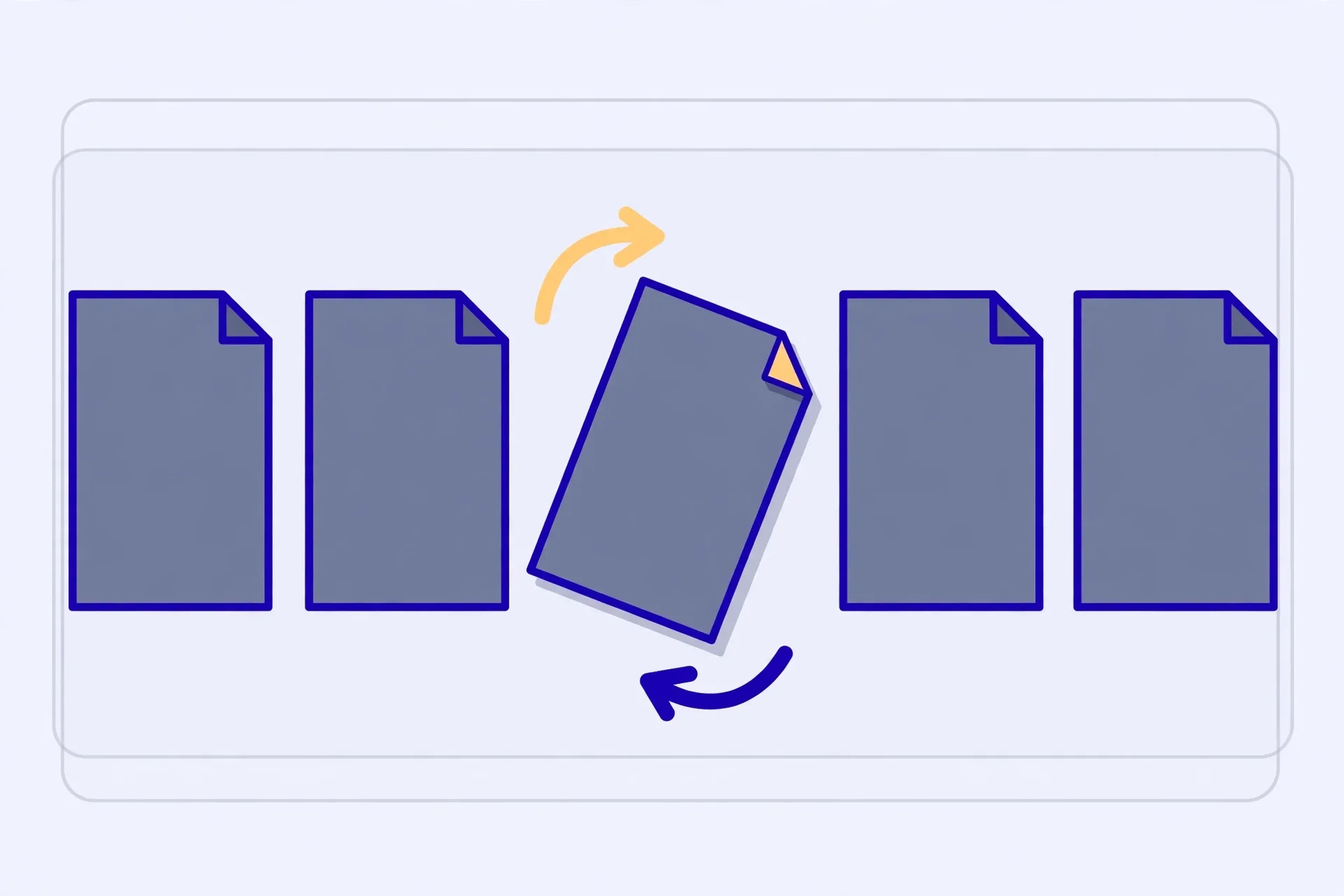
If you'd only needed the form and the first page of the statement, splitting would have been quicker than organizing: type 1-3,5-style ranges — in this pack, the pages you want — into the pages field and click Split first PDF to extract exactly those pages as a new file. Same trimming result, reached by keeping pages instead of deleting them.
Rotation, order and your original file
Rotation in the Organize section turns the ticked pages 90° per click, and the turns accumulate. A page scanned upside down needs two clicks, not one — click once and it's sideways the other way. A page that needs to go back needs three clicks to come round, since there's no counter-rotate button. Tick carefully before each click, too: the rotation applies to every ticked page at once, which is handy for a whole batch of sideways scans and a nuisance if one upright page got ticked by accident. If it happens, just tick that page on its own and click three more times to bring it back round.
Two reassurances about your files. First, the original is never modified. Merging, splitting and organizing all produce a new PDF for you to download; the file on your device stays exactly as it was, so a botched trim costs you nothing but a few clicks — download a fresh copy and start the organize step again. Second, none of it leaves your machine. The tool does its work with pdf-lib, a library that runs in your browser, so the pages of a bank statement or a signed contract aren't uploaded to a server to be processed. For documents you'd hesitate to email to a stranger, that distinction is the whole point.
Mistakes that produce a mangled PDF
The classic is merging in the wrong selection order and sending the result unchecked — covered in step two, and still the most common real-world failure. Next is splitting the wrong file: the split functions work on the first PDF you chose, so if you selected several files for a merge and then reach for Split first PDF, you'll be cutting up whichever file came first in your selection, which may not be the one on your mind. When a job is split-only, choose just that one file.
In the Organize section, the recurring mistake is deleting before you've downloaded anything else you need from the file. Deleting ticked pages and downloading gives you the trimmed version, and your original on disk is untouched — but if you loaded the merged file, trimmed it, and never saved the untrimmed merge anywhere, you'll need to merge again to get those pages back. Keep the intermediate file until the final one checks out. Finally, always do step seven properly: open the downloaded PDF and page through it. Page counts, order and rotation are all visible at a glance, and every mistake described above announces itself in that one pass.
The Verystep PDF Merge tool combines files with Choose PDFs and Merge into one PDF, splits a file by page range, single pages or chunks, and has a separate Organize section where you can reorder pages, rotate them 90° at a time or delete them — all with pdf-lib, running locally in your browser.
Last verified November 18, 2026 — merge, split and Organize controls (Choose PDFs, Merge into one PDF, the pages field, Split first PDF, Split into single pages, Pages per chunk, Choose one PDF, Rotate ticked pages, Delete ticked pages, move up/down and Download organized PDF) checked against the live Verystep PDF Merge tool.
Frequently asked questions
Are my PDF files uploaded to a server?
No. The tool runs locally in your browser using pdf-lib, so your files stay on your device while they're merged, split or organized. That's a practical difference for documents like bank statements, contracts and ID scans — the pages never travel anywhere to be processed.
How do I trim a PDF down to just the pages I need?
Two ways. If you can name the pages you want to keep, type them in the pages field — for example 1-3,5 — and click Split first PDF to extract them as a new file. If it's easier to remove what's not needed, load the file in the Organize section, tick the unwanted pages, click Delete ticked pages, and download the organized PDF.
A page is upside down, but one rotate click left it sideways. Why?
Rotate ticked pages turns the ticked pages 90° per click, and the turns add up. An upside-down page needs two clicks to come upright. There's no counter-rotate button, so a page that needs to turn the other way takes three clicks to come round instead.
Does organizing or deleting pages change my original file?
No. Every operation produces a new PDF for you to download, and the original file on your device is never modified. If a trim or a rotation goes wrong, you can load the original again and redo it — nothing is lost.
What's the difference between Split into single pages and Split into chunks?
Split into single pages gives you one file per page — a ten-page PDF becomes ten one-page files. Split into chunks groups pages evenly by the size you set in Pages per chunk, so a ten-page PDF with chunks of five becomes two five-page files. Use single pages when each page goes somewhere different, and chunks when you're dividing a long document into equal parts.
More guides
The PPWR Empty Space Ratio: Why the 50% Cap Hits Your Shipping Box First
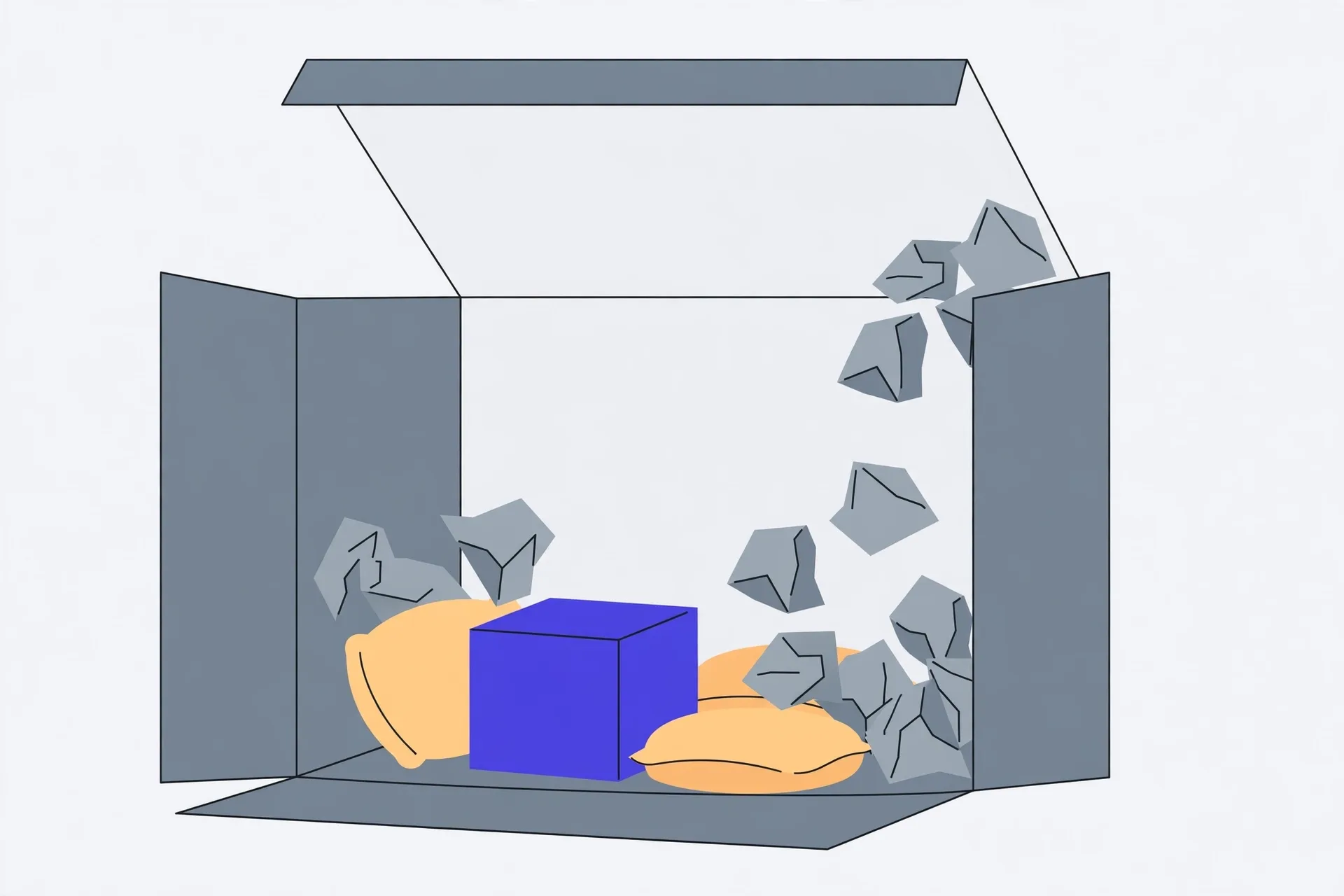
Ask a room of online sellers what the PPWR will change first and most will say labels. The duty with a number in it is quieter: from 2030 at the earliest, no more than half the volume of your shipping box may be empty — and the filler you stuff into it counts as empty.
Counting a Return Window: The EU 14-Day Cooling-Off Period Starts the Day After Delivery
A shop page says “14 days to return”. Fourteen days from when — the order, the dispatch, the delivery? And counted how — in calendar days or working days? EU law answers both questions, and the answers are not the ones most countdown banners use.

How to Check Gift Return Eligibility Without a Receipt
Black Friday is over, the gifts are changing hands, and some of them are the wrong size, the wrong color or the second one you own. There is no receipt — there never is with a gift — so the question is not “can I get my money back?” but “which route does this store actually offer someone in my position, and how long do I have?”