How to Create a QR Code That Still Scans After Printing
A QR code that scans on your screen can still fail on paper. Print shrinks it, softens it and trims its margins — so you generate for print from the start, and you test the sheet that came off the printer.
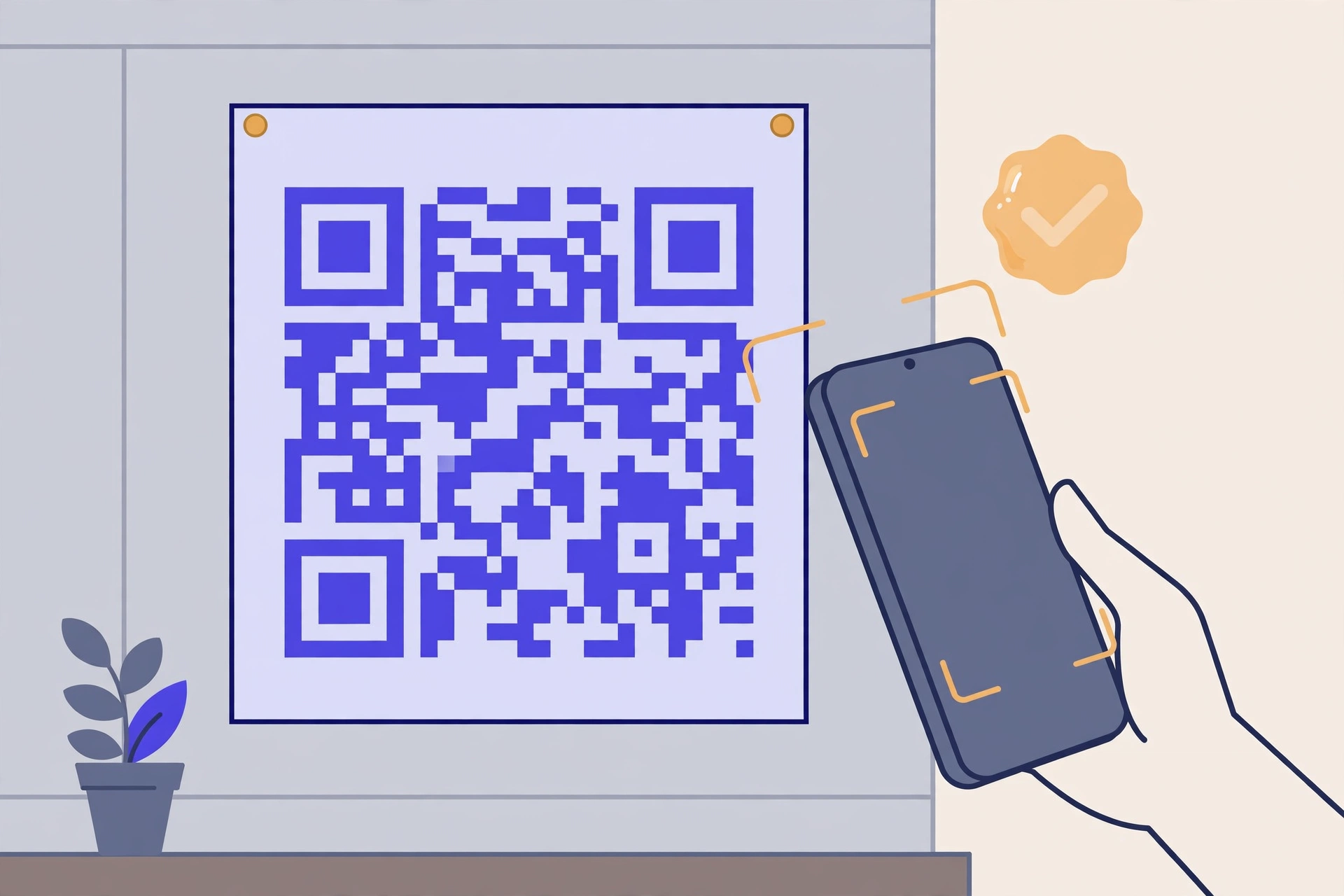
A printed QR code fails for boring, fixable reasons: the link was long, so the code came out dense; the export was small, so the printer softened it; the colours looked stylish and scanned badly; or someone trimmed the white margin the scanner needs. This guide works through the generator in the order that prevents them. Shorten the destination first, generate at a large Size with a dark code on a light background, download the PNG, and place it at a sensible physical size — at least about 2 cm (0.8 in) wide for arm's-length scanning, bigger if people will scan from farther away. Then print one test sheet and scan it with two phones before any full run. For why a scuffed code can still scan, see the companion guide on why damaged QR codes still scan — this page stays on generating and printing.
Shorten the payload before you generate anything
Every character you encode adds pattern to the code. A short link produces a code with larger, simpler blocks. A long link — tracking parameters, a deep product URL, a paragraph of text — produces a dense code packed with tiny blocks, and tiny blocks are what print handles worst. Ink spreads a fraction, printers soften edges, and the smallest blocks blur together first.
So do the shortening work first. Strip tracking parameters you don't need. Link to a short landing page that forwards people onward instead of encoding the final deep URL. For links and text, five minutes spent trimming the payload buys you a code that's far more forgiving on paper.
Generate and print-test in seven steps
Open the QR Code Generator in single mode, and keep the printer in mind from the first field.
- Shorten the destination first: use the shortest URL or text that still gets people to the right place.
- In single mode, paste the link into Text or URL and set Size to the largest practical export size.
- Set Code color to a dark colour and Background to white or a very light colour so the contrast stays strong.
- Click Generate QR code, check the preview, then click Download PNG to save the file.
- Place the PNG on your artwork without trimming the white margin around the code, and size it at least about 2 cm (0.8 in) wide for arm's-length scanning.
- Print one test sheet on the same printer, paper, and settings you plan to use for the full run.
- Scan the printed sheet with two different phones at the distance people will actually use, and fix the size or contrast before you print the full batch.
Step two earns a word of explanation. The Size setting controls the exported PNG's pixel dimensions. A big export doesn't force you to print big — it gives your layout clean pixels to scale into the design. A small export scaled up in a leaflet goes soft before the printer even gets a say.
Contrast, colour, and the margin you mustn't trim
Scanners read contrast, not colour. A black code on white is the safest pairing there is. What fails is the designer pairing: a pale gold code on cream, a white code reversed out of a dark photo, a brand colour picked because it matched the flyer rather than because a phone could read it. If you use the Code color field to tint the code, stay dark — deep navy, dark green, near-black — and keep the Background field light. Then test, because your eyes are a poor judge of what a camera sees under cafe lighting.
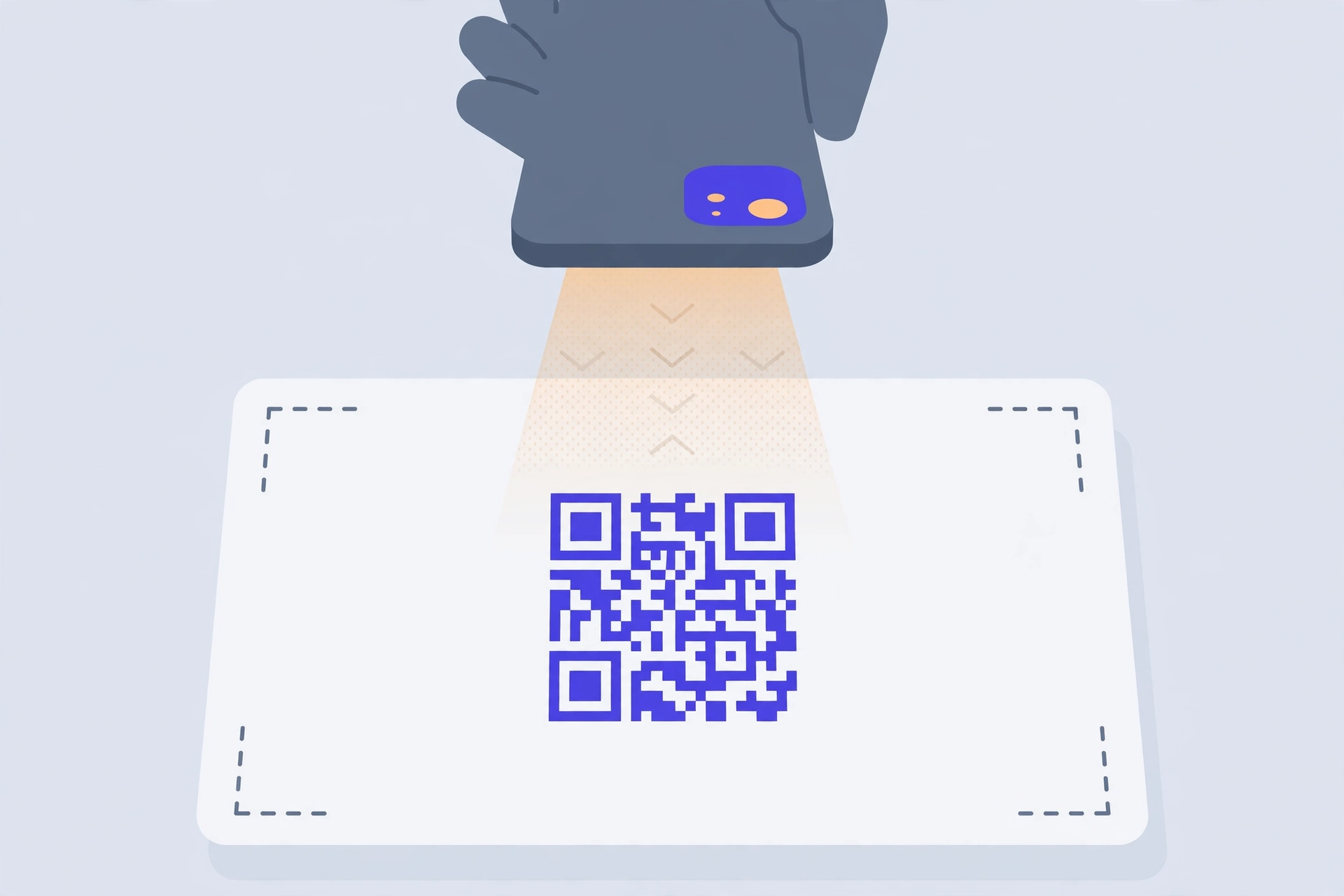
The margin has a name — the quiet zone — and it is part of the code. Scanners use that empty border to find the code's edges. Crop it, butt the code against a photo or a coloured panel, or let a trim line eat into it, and scanning gets flaky even though every block inside the code is perfect. Keep the full white border the PNG came with, and give it breathing room from text and images around it.
The other modes: Wi-Fi cards and bulk runs
Print jobs aren't always one code. For a guest Wi-Fi card, switch the mode selector to Wi-Fi and fill in Network name (SSID), Password and Security as they are set on the router — typed exactly, capitals and all. Generate, download, and put that code through the same print test.
For a batch — table numbers, shelf labels, one code per product — bulk mode takes Lines (one QR code per line) plus a Size, and the Generate all codes button builds the set. The print rules don't relax for a batch. Test-print a few of them, including the longest line in your list, since the longest payload makes the densest code. If that one scans off paper, the rest almost certainly will too.
The batch-of-500 mistake, and two runners-up
The expensive failure goes like this: the code scans beautifully on a monitor, so someone prints 500 flyers, and only then does anyone point a phone at the paper. The code's too small, or the contrast is too low, or the margin got trimmed in layout — and 500 sheets go in the bin. Steps six and seven exist to make that failure cost one sheet instead. A test print scanned with two phones at the real scanning distance catches nearly everything.
Runner-up one is printing a dense code tiny. A long URL squeezed into a 1 cm square might scan under perfect light at point-blank range, and fail everywhere else. If the payload can't shrink, the printed code has to grow. Runner-up two is the inverted code — light blocks on a dark background because it matched the poster. Some scanners cope; plenty don't. Print codes dark on light, every time.
The Verystep QR Code Generator builds a single code from a text or URL, a Wi-Fi code from a network name, password and security type, or a whole batch from one line per code. Set a large size, download the PNG, and test-print before your full run.
Last verified November 17, 2026 — modes and fields (Text or URL, Size, Code color, Background; Network name (SSID), Password, Security; Lines (one QR code per line)) and buttons checked against the Verystep QR Code Generator.
Frequently asked questions
How big should a printed QR code be?
As a working rule, at least about 2 cm (0.8 in) wide for scanning at arm's length — a menu, a flyer, a card on a table. The farther away the scanner stands, the bigger the code needs to be: a poster scanned from a step or two back should be much larger. Denser codes, made from longer links, need more room than simple ones at the same distance.
Why does my code scan on screen but not on paper?
Print changes the code. The printer softens edges, ink spreads slightly, and layout tools often shrink the code below the size it was designed for. Any one of those can push a marginal code over the edge. The fixes are the ones in this guide: a shorter payload, a large export, strong dark-on-light contrast, an untrimmed margin, and a test print scanned before the full run.
Can I make the QR code match my brand colours?
Within limits. The code colour can be tinted as long as it stays dark and the background stays light — deep navy or dark green on white scans fine. What doesn't work is low contrast: pale colours, metallic tones, or a light code reversed out of a dark background. If you restyle the colours, the test print is non-negotiable — that's where a pretty-but-unreadable code shows itself.
What is the white margin around the code, and can I crop it?
It's the quiet zone, the empty border a scanner uses to locate the code's edges. Don't crop it, and don't let text, images or a page trim crowd into it. Keep the full border the PNG came with, with clear space around it in your layout. A trimmed margin can look perfect and still scan unreliably.
How do I print QR codes for Wi-Fi or for lots of items at once?
Use the mode selector. Wi-Fi mode takes the Network name (SSID), Password and Security type and builds a code guests can scan instead of typing. Bulk mode takes one line per code plus a size, and Generate all codes builds the whole set. Either way, test-print first — for bulk runs, test the longest line, since it produces the densest code.
More guides
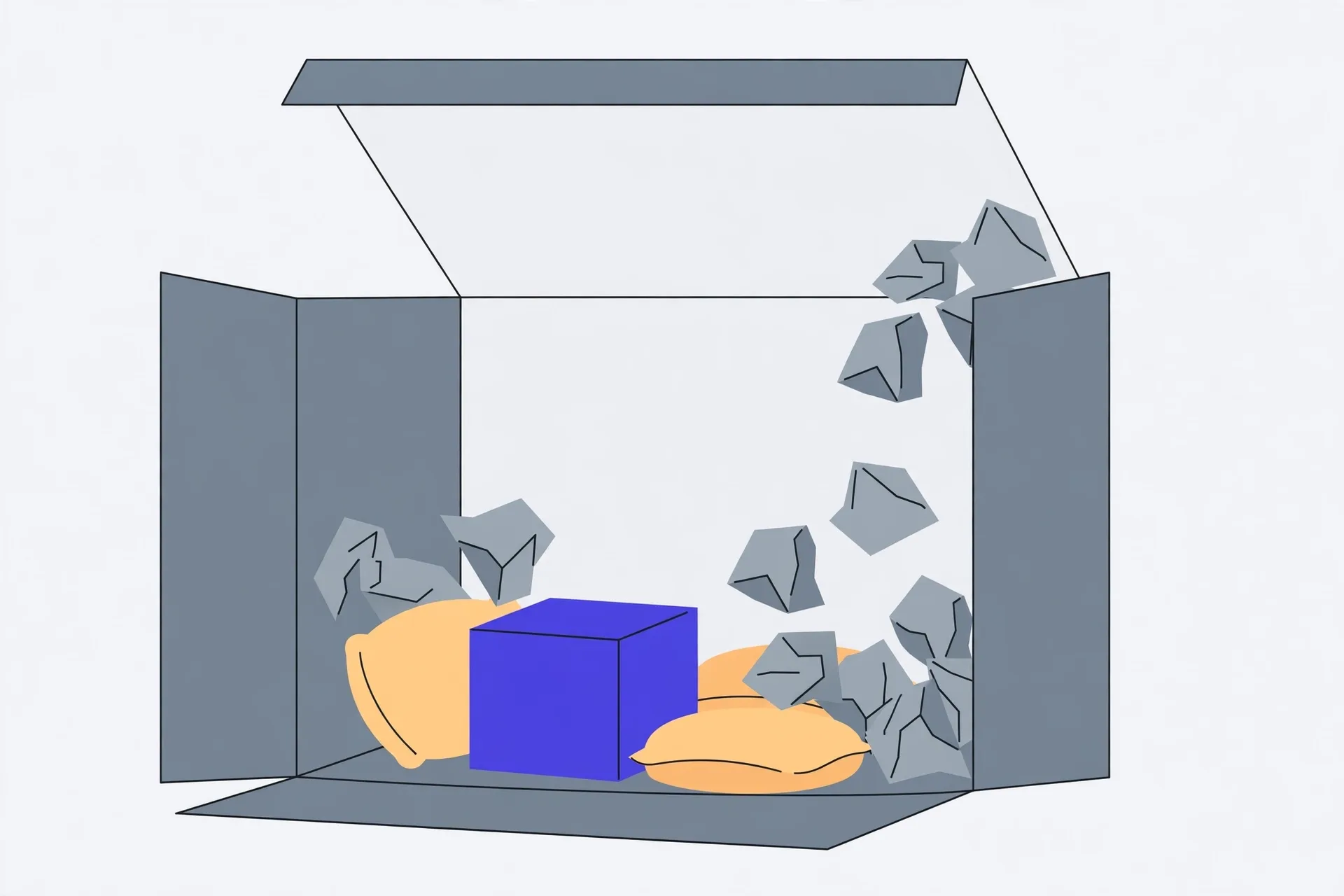
The PPWR Empty Space Ratio: Why the 50% Cap Hits Your Shipping Box First
Ask a room of online sellers what the PPWR will change first and most will say labels. The duty with a number in it is quieter: from 2030 at the earliest, no more than half the volume of your shipping box may be empty — and the filler you stuff into it counts as empty.
Counting a Return Window: The EU 14-Day Cooling-Off Period Starts the Day After Delivery
A shop page says “14 days to return”. Fourteen days from when — the order, the dispatch, the delivery? And counted how — in calendar days or working days? EU law answers both questions, and the answers are not the ones most countdown banners use.
How to Check Gift Return Eligibility Without a Receipt
Black Friday is over, the gifts are changing hands, and some of them are the wrong size, the wrong color or the second one you own. There is no receipt — there never is with a gift — so the question is not “can I get my money back?” but “which route does this store actually offer someone in my position, and how long do I have?”