How to Convert a JSON File to CSV for Excel
An API hands you a JSON file, and the person who needs the numbers wants a spreadsheet. This is the short path between the two: one array in, one tidy CSV out, ready for Excel.
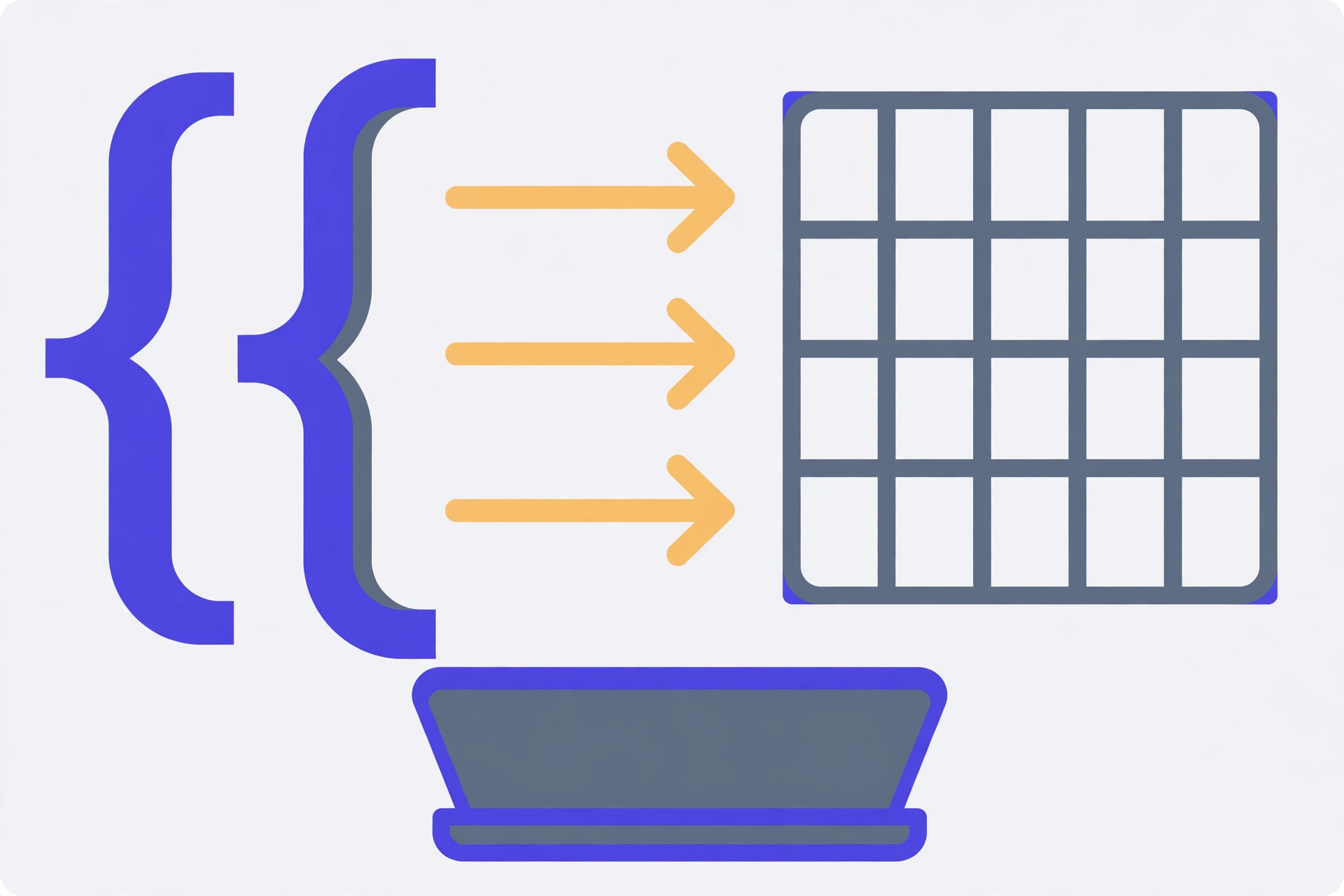
The converter works on a JSON array — a list of objects, one object per row you want in the spreadsheet. Paste the array into the JSON array field, or load a saved file with Choose a .json file. Click Convert to CSV and the keys of your objects become the column headers while each object becomes one data row. From there you can copy the CSV straight into a spreadsheet or download a .csv file. The one thing to check before you convert is consistency: every object should carry the same keys, or the rows that are missing a key leave gaps in that column.
Start with an array, not a loose object
Open your JSON and look at the very first character. For this conversion you want an array: the data starts with [ and ends with ], and inside it sits a series of objects wrapped in curly braces, one object for each row of the finished spreadsheet. An export of orders, users, products or sensor readings usually arrives in exactly that shape, because each object is one record and the array is the whole set.
If your file is a single object with no array around it, or one big object holding smaller objects inside it, don't force it through and hope. Convert what you have, then check the output row by row against the source before you trust it. That checking step is part of the job with anything that isn't a flat array of matching records.
Convert JSON to CSV in seven steps
Open the JSON to CSV Converter and work through the array once, slowly, before you convert.
- Copy your JSON array or save it as a .json file, making sure it starts with [ and ends with ] and holds one object per record.
- Open the JSON to CSV converter and paste the array into the JSON array box, or use Choose a .json file to load it from your device.
- Check that every object uses the same keys in the same spelling, so each value lands under the right column.
- Click Convert to CSV and read the output row by row, starting with the header row built from your keys.
- Fix any gaps or shifted values in the JSON itself, then convert again instead of patching the CSV by hand.
- Click Copy CSV to paste the result into a spreadsheet, or Download .csv to save the file for Excel.
- Open the downloaded file in Excel and check the first and last rows, the column count, and one total before you share or import it.
Step five is the one people skip, and it costs them later. If you patch a gap inside the CSV, your JSON and your spreadsheet now disagree, and the next conversion from the same source brings the gap straight back. Fix the source, convert again, and the two stay in sync.
A worked example: three orders, four columns
Say an online shop export gives you this array:
[{"order": 101, "item": "Notebook", "qty": 2, "price": 4.50}, {"order": 102, "item": "Pen set", "qty": 1, "price": 7.25}, {"order": 103, "item": "Mug", "qty": 3, "price": 9.99}]
Each object has the same four keys — order, item, qty, price — so the conversion is clean. The header row comes out as order,item,qty,price, followed by three data rows: 101,Notebook,2,4.50 then 102,Pen set,1,7.25 then 103,Mug,3,9.99. Four columns, three rows, nothing shifted. You can sanity-check it in seconds: the qty column adds up to 6, and the last row in the CSV is the last object in the JSON.

Now picture the second object missing its price key. The header row still lists price, because the other objects have it, but that row's price cell comes out empty. Nothing errors. The file opens fine and the gap just sits there, which is why step three — scanning for matching keys before you convert — earns its place.
Getting the file into Excel cleanly
The Download .csv route is the safer one for anything you'll keep. Save the file, then open it from inside Excel or by double-clicking it, and give the columns a quick once-over before you start sorting or charting. Check that text values with commas in them, like a product name written as "Mug, large", haven't split across two columns. Check that long ID numbers haven't been turned into scientific notation — that one happens on Excel's side of the fence, not the converter's.
The Copy CSV route suits quick jobs: a small table you want inside an existing workbook, or numbers you're pasting in to eyeball once. Paste it, check the first row landed as headers where you wanted them, and you're done.
Mistakes that produce a lopsided CSV
The most common one is inconsistent keys. One object says "price", the next says "Price", and the converter quite reasonably treats them as two different columns, leaving half the values in each. Pick one spelling in the JSON and make every object match it. Next is pasting a fragment: an array copied from the middle of a larger file, missing its opening bracket, won't parse as an array at all. Copy from the first [ to the last ] and you avoid the whole class of problem.
Last is trusting the row count without looking. If the JSON holds 500 objects, the CSV should hold 500 data rows plus the header. Count them, or at least check that the final object in the JSON is the final row in the CSV. A conversion that quietly dropped records at the end is rare, but the check that catches it costs almost nothing.
The Verystep JSON to CSV Converter takes a JSON array pasted into the JSON array box, or a file loaded with Choose a .json file, and turns it into CSV with Convert to CSV. Copy the result or download a .csv file, all in your browser with nothing uploaded.
Last verified November 17, 2026 — steps, fields and buttons checked against the live Verystep JSON to CSV Converter, and the worked example converted by hand to confirm the header row and three data rows.
Frequently asked questions
Does the converter upload my JSON file to a server?
No. The conversion runs in your browser on your own device. You can paste the array into the JSON array box or load a file with Choose a .json file, and either way the data stays on your machine while Convert to CSV does its work. That's handy for exports that contain customer or order details you'd rather not send anywhere.
Why does my CSV have empty cells in some rows?
Almost always because the objects in your array don't all share the same keys. The header row is built from the keys across your objects, so if one object is missing the price key, that row's price cell comes out empty. Open the JSON, add the missing key to the objects that lack it, and convert again rather than filling cells in by hand.
Can I convert a single JSON object instead of an array?
The tool is built for arrays of objects, where each object becomes a row. If your data is a single object, or objects nested inside other objects, convert it and then check the output row by row against the source before using it. For anything nested, flattening the data into one object per record first gives you a far more predictable spreadsheet.
Should I use Copy CSV or Download .csv?
Copy CSV is quickest when you're pasting a small table into a workbook you already have open. Download .csv is better when the file needs to be kept, shared or imported somewhere, because you get a fixed file on disk that's exactly what you checked. For a one-off look at the numbers, copy; for a record, download.
Excel mangled my long ID numbers. Where did that happen?
Inside Excel, not in the conversion. Excel guesses at column types when it opens a CSV, and long numbers can get displayed in scientific notation or lose leading zeros. The CSV itself still holds the original values. If the IDs matter, import the file through Excel's data import instead of double-clicking, and set that column to text before the data loads.
More guides

The PPWR Empty Space Ratio: Why the 50% Cap Hits Your Shipping Box First
Ask a room of online sellers what the PPWR will change first and most will say labels. The duty with a number in it is quieter: from 2030 at the earliest, no more than half the volume of your shipping box may be empty — and the filler you stuff into it counts as empty.

Counting a Return Window: The EU 14-Day Cooling-Off Period Starts the Day After Delivery
A shop page says “14 days to return”. Fourteen days from when — the order, the dispatch, the delivery? And counted how — in calendar days or working days? EU law answers both questions, and the answers are not the ones most countdown banners use.

How to Check Gift Return Eligibility Without a Receipt
Black Friday is over, the gifts are changing hands, and some of them are the wrong size, the wrong color or the second one you own. There is no receipt — there never is with a gift — so the question is not “can I get my money back?” but “which route does this store actually offer someone in my position, and how long do I have?”