How to Compare Two Supplier Quotes Side by Side
A quote only means something next to another quote for the exact same item, at the exact same quantity. Line them up properly and the price gap stops hiding in the small print of each separate sheet.

Comparing supplier quotes starts with sameness. Every quote has to price the same item or SKU, and every total has to be worked out at the same planned order quantity, because unit prices shift with volume. In the comparison tool you name the item first, set the quantity, then add each quote with + Add a quote — or import a batch through the Import quotes from a CSV file field. The table then shows what each quote costs in goods at the quantity you actually plan to order. Read that table alongside the original quotes, since lead time, minimum order, payment terms, and what's included don't live in a price table, and save the result with Download comparison (CSV) or Print comparison.
Same item, same quantity, or the comparison is fiction
Suppliers don't quote in a vacuum. A unit price is tied to a specific item, a specific spec, and a specific order size. Change any of those and you're not comparing prices anymore — you're comparing different offers that happen to sit in the same spreadsheet. That's why the tool asks for the item before it asks for any money. The Item / SKU being quoted field pins down what everyone's pricing. The Planned order quantity (units) field pins down how much of it you plan to buy. Until both are fixed, a cheaper quote might just be a quote for a lighter spec or a bigger order than you'll ever place.
Quantity matters more than most people expect. A supplier who looks expensive at 200 units can be cheapest at 2,000, because unit price steps down as orders grow. Compare at a quantity you won't order and the ranking belongs to somebody else's purchase.
Compare the quotes in seven steps
Open the Supplier Quote Comparison tool and set the item and quantity before you type a single price.
- Type the exact item or SKU into the Item / SKU being quoted field, copying it from the spec so every quote prices the same thing.
- Enter your planned order quantity in the Planned order quantity (units) field, and use that same quantity for the whole comparison.
- Click + Add a quote for each supplier quote and enter its unit price exactly as quoted.
- Or use Import quotes from a CSV file and the Import quotes (CSV) button to load several quotes at once instead of typing them.
- Read the comparison table at your planned quantity and check each quote's goods total, not just its unit price.
- Read each original quote alongside the table for lead time, minimum order, payment terms, and what is included before you judge the ranking.
- Click Download comparison (CSV) to save the table, or Print comparison to put a paper copy in the file.
The import route in step four suits a shortlist you've already gathered in a spreadsheet. Typing quotes in one by one suits two or three quotes on your desk.
A worked example: three quotes at 1,000 units
Say your planned quantity is 1,000 units of one item, and three suppliers have quoted on it. Quote A comes in at $2.40 a unit. Quote B is $2.15 a unit. Quote C is $2.55 a unit. Run those through at the planned quantity and the goods totals are plain: A totals $2,400, B totals $2,150, and C totals $2,550. You can check each one with a pocket calculator — it's just the unit price times 1,000.
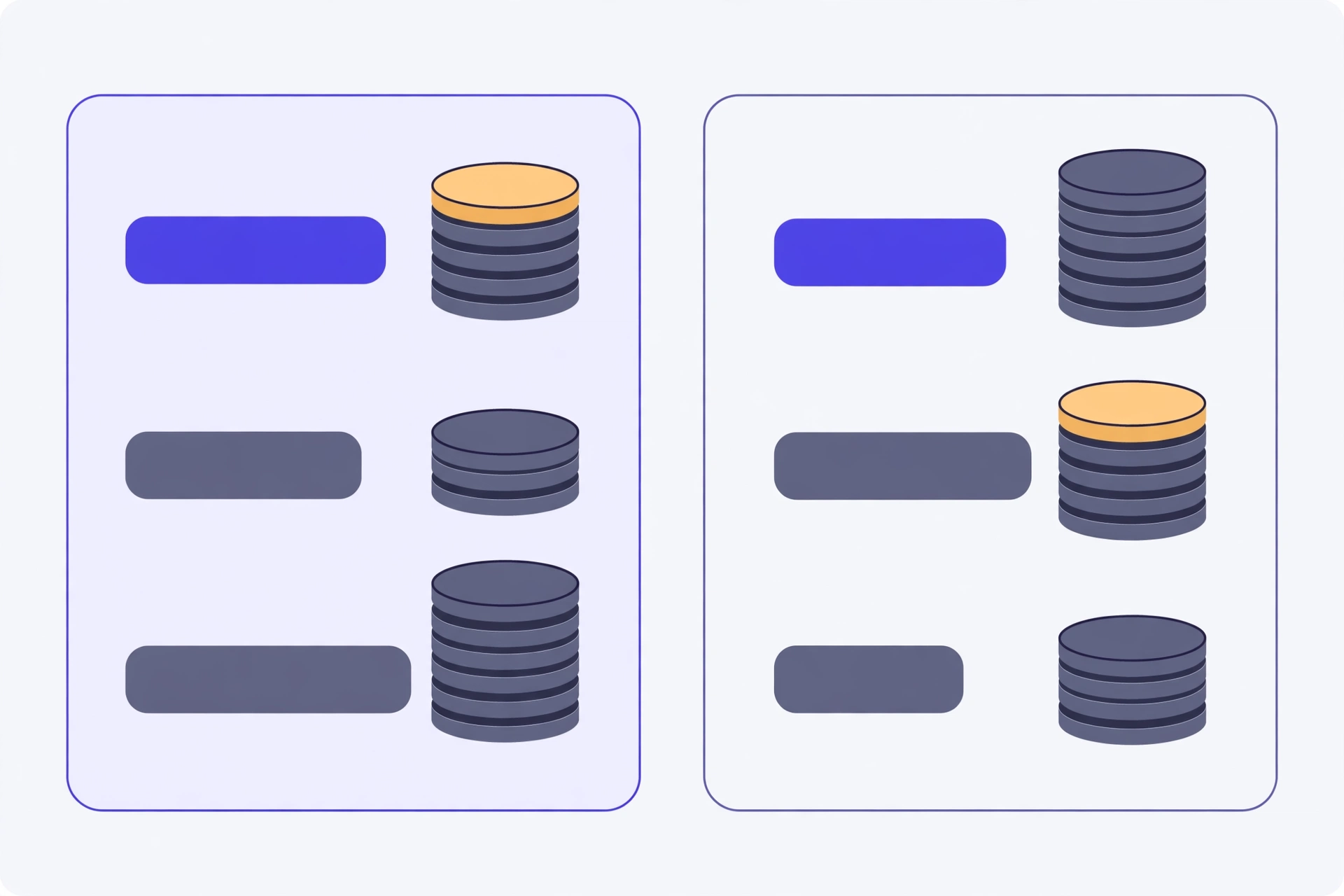
Look at the gap between A and B. It's $0.25 a unit, which sounds like nothing across a negotiating table. At 1,000 units that quarter is $250. Quote C sits $400 above B on goods alone. Unit prices are quoted small on purpose — they always look close. The total at your real quantity is the number you're actually committing to, so that's the number to rank first.
The cheapest goods total isn't the whole decision
Here's what the table can't tell you. It compares goods prices at one quantity, and that's all it compares. Lead time doesn't appear in it. Neither does a minimum order that might force you to buy more than you planned, or payment terms that ask for most of the money up front, or whether a quote bundles things another quote charges for separately. Two quotes with a $250 gap can swap places in real value once you read what's around the price.
So treat step six as part of the comparison, not an afterthought. Lay each original quote next to the table and read the terms off the quote itself. If the cheapest supplier needs ten weeks and the next one needs three, that difference belongs in your decision even though it never touches the goods total. The table settles the price question cleanly. The buying question takes the price answer plus the terms, and only you can weigh those.
Mistakes that quietly wreck a quote comparison
The common one is spec drift. One supplier quotes the item as specified, another quotes a near match — a thinner material, a smaller pack, a part without the finish you asked for — and wins on price because he's selling you less. If the SKU in the tool doesn't match the SKU on every quote word for word, stop and fix that first. Next is quantity drift: quotes gathered at different order sizes, entered as if they were priced alike. Re-quote or re-run at one planned quantity. Last is currency. If one quote is in dollars and another in euros, the table will happily rank the raw numbers. Convert every quote into one currency before you enter it, and write the rate you used on the printed copy so the comparison still makes sense months later.
The Verystep Supplier Quote Comparison tool takes the item or SKU you're buying, your planned order quantity, and each supplier's unit price, then lines the quotes up at that quantity. Add quotes one by one, import them from a CSV file, and download or print the finished comparison for your file.
Last verified November 17, 2026 — steps, field labels (Item / SKU being quoted; Planned order quantity (units); Import quotes from a CSV file) and buttons (+ Add a quote, Import quotes (CSV), Download comparison (CSV), Print comparison) checked against the Verystep Supplier Quote Comparison tool; worked totals are unit price times 1,000 units.
Frequently asked questions
Why do I have to set the planned quantity before entering quotes?
Because unit prices change with volume. A quote priced for 5,000 units will usually show a lower unit price than the same supplier's quote for 500 units, and neither one tells you what you'll pay at the quantity you actually plan to order. Fixing the planned quantity first means every total in the table is worked out at your order size, so the ranking is the ranking for your purchase.
Can I load several quotes at once instead of typing them?
Yes. The tool has an Import quotes from a CSV file field and an Import quotes (CSV) button, so a shortlist you've already collected in a spreadsheet can go in as one file. You can still add a late quote afterwards with + Add a quote. Check the imported rows against your source file once they're in — an import saves typing, it doesn't check your numbers for you.
The cheapest quote has a much longer lead time. How should I read that?
The comparison table ranks goods totals at your planned quantity, and lead time sits outside that table. Read the original quotes alongside it and weigh the terms yourself: lead time, minimum order, payment terms, and what's included in each price. A $250 saving that costs you seven extra weeks may or may not be worth it — the tool gives you the clean price ranking so that judgement starts from honest numbers.
Two of my quotes are in different currencies. What do I do?
Convert them into one currency before you enter anything. The table compares the numbers you type, so a euro figure and a dollar figure entered raw would be ranked as if they were the same money. Convert at a rate you note down, enter both quotes in that one currency, and keep the note with your downloaded or printed comparison.
What should I keep on file after the comparison?
The finished table, saved with Download comparison (CSV) or printed with Print comparison, plus the original quotes themselves. The table shows the price ranking at your planned quantity; the originals carry the terms you read alongside it. Together they're the record of why you picked the supplier you picked.
More guides
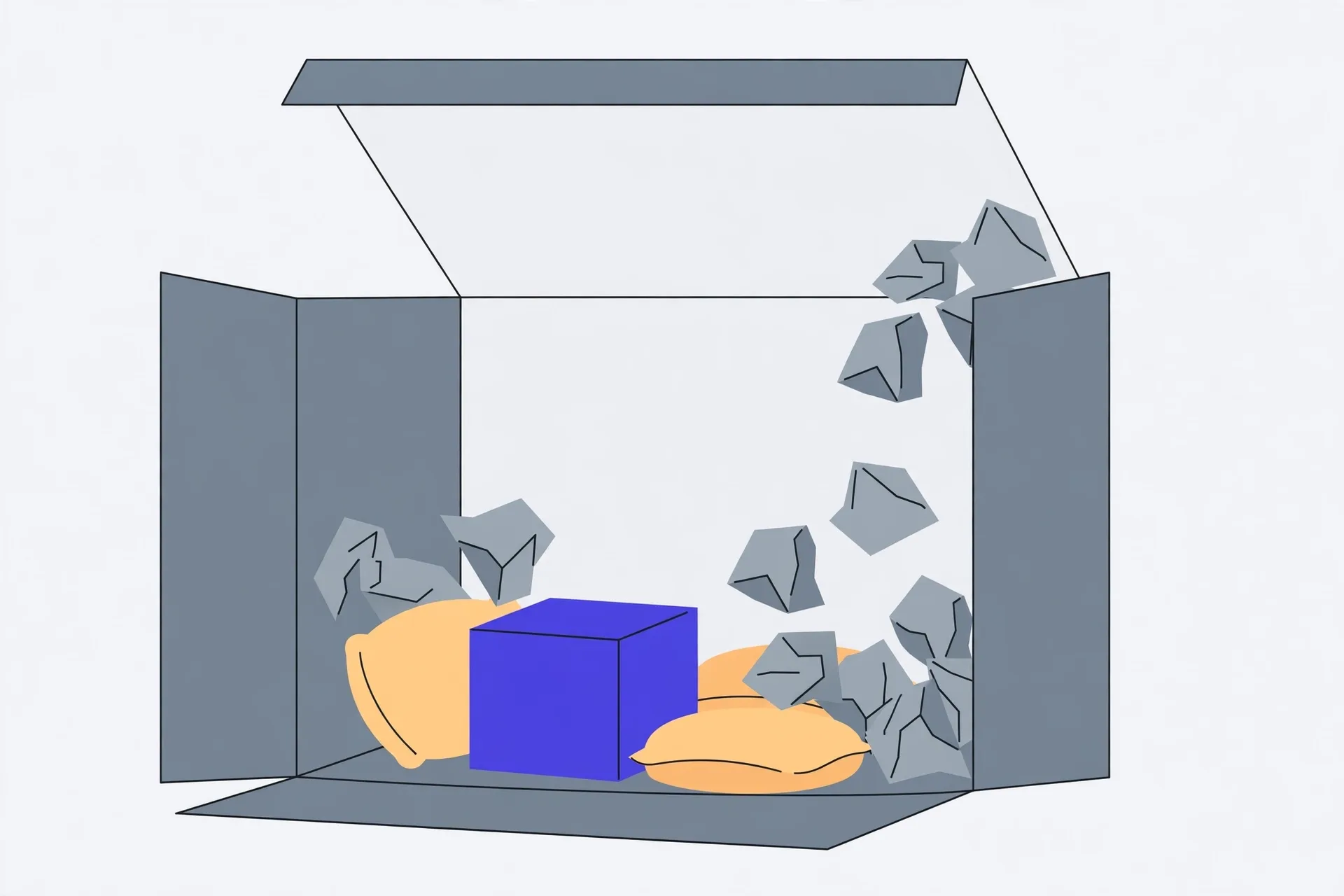
The PPWR Empty Space Ratio: Why the 50% Cap Hits Your Shipping Box First
Ask a room of online sellers what the PPWR will change first and most will say labels. The duty with a number in it is quieter: from 2030 at the earliest, no more than half the volume of your shipping box may be empty — and the filler you stuff into it counts as empty.
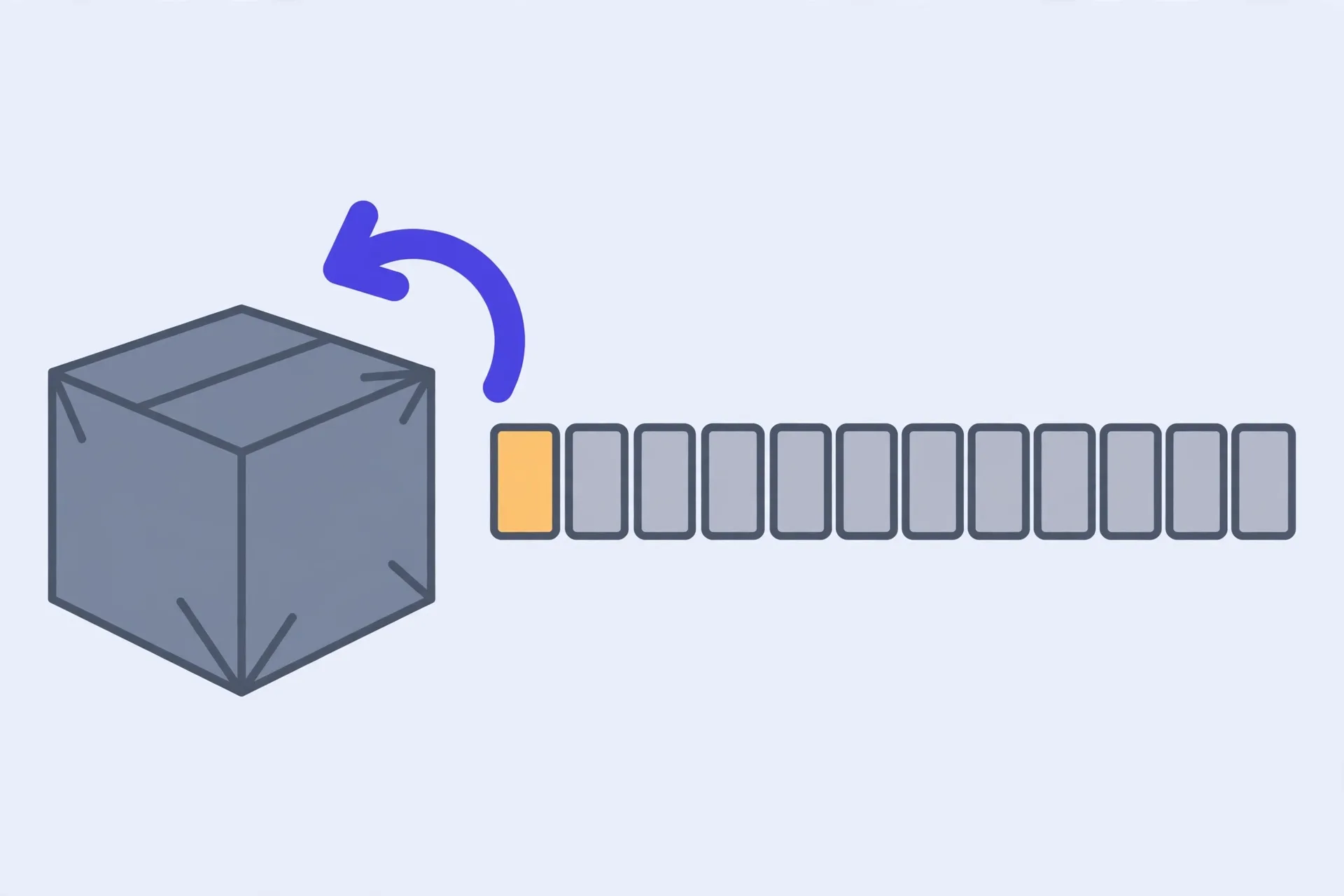
Counting a Return Window: The EU 14-Day Cooling-Off Period Starts the Day After Delivery
A shop page says “14 days to return”. Fourteen days from when — the order, the dispatch, the delivery? And counted how — in calendar days or working days? EU law answers both questions, and the answers are not the ones most countdown banners use.

How to Check Gift Return Eligibility Without a Receipt
Black Friday is over, the gifts are changing hands, and some of them are the wrong size, the wrong color or the second one you own. There is no receipt — there never is with a gift — so the question is not “can I get my money back?” but “which route does this store actually offer someone in my position, and how long do I have?”