Your Photos Are Carrying GPS: How to Check and Strip EXIF Data
The picture shows a room, a view, a product. The file underneath it may also be carrying the address.

Most phone photos embed EXIF metadata — camera model, date, settings — and, when the camera had location permission, a precise GPS coordinate pair that any map app can read. Whether that tag survives sharing depends on the channel: many large platforms strip metadata when they re-encode uploads, but original-file channels such as file attachments, email and original-quality cloud links pass it through untouched, and the two versions look identical. So check the file yourself, strip it in your browser if it carries location, and share the cleaned copy.
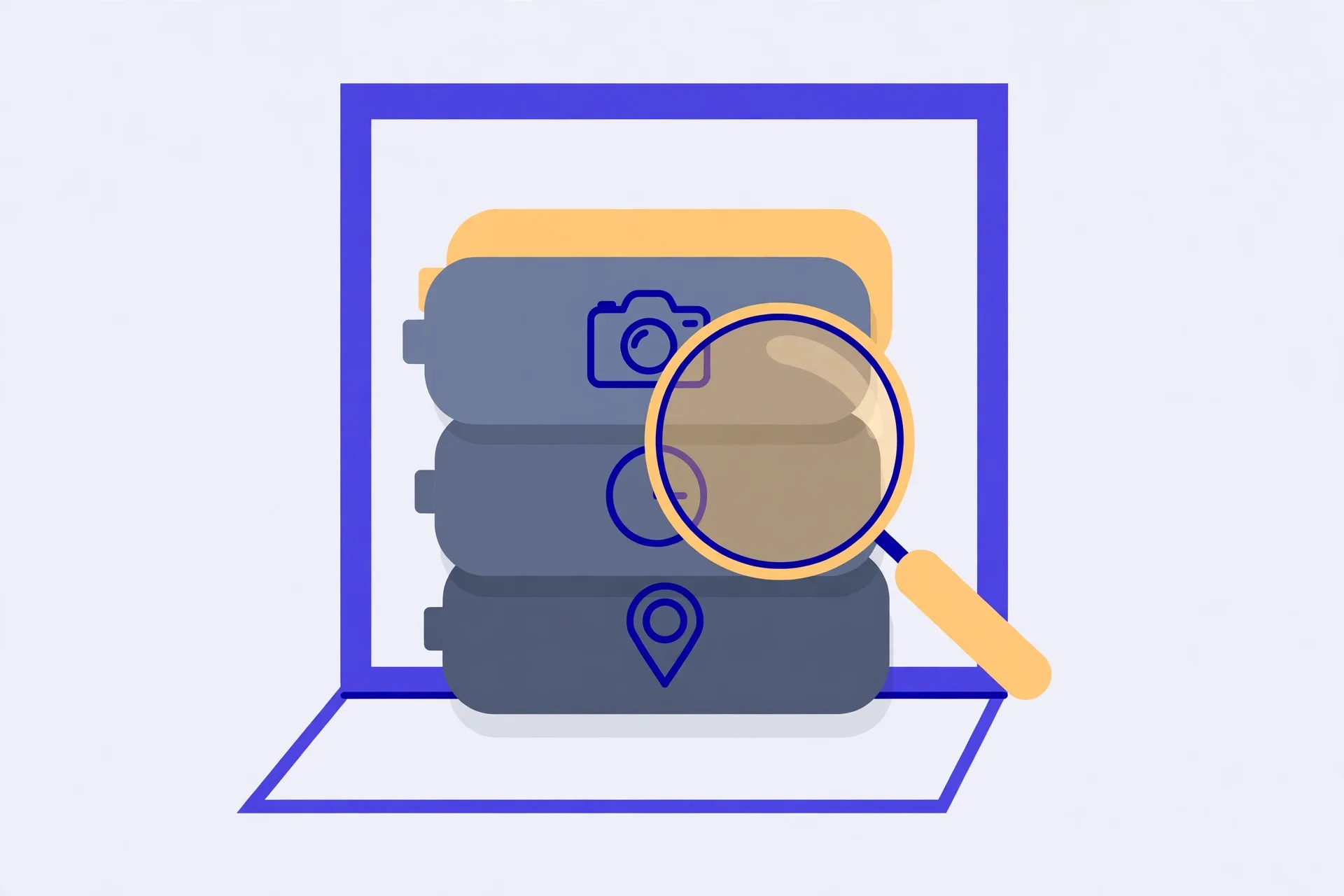
The photo is the picture plus a passenger file
Every photo your phone takes is really two things saved as one file. The first is the picture you see. The second is a block of metadata called EXIF — Exchangeable Image File Format — that the camera writes automatically at the moment of capture: the phone or camera model, the date and time, the lens and exposure settings, the software version, sometimes a small thumbnail of the image itself. You never asked for most of it. It is simply how digital cameras keep their notes.
Most of those notes are harmless, even useful — they are how your photo library sorts pictures by date. One of them is not harmless at all. If location services were on for the camera, the file also carries GPS coordinates: the latitude and longitude of where you were standing, precise enough to point at a house, not just a neighbourhood.
What the GPS tag actually contains
The location is stored as a pair of coordinates — degrees, minutes and seconds, with a hemisphere reference for each — plus often an altitude and a timestamp from the satellite fix. Read back as decimal coordinates, the pair drops straight into any map app. There is no fuzzing and no rounding to the nearest street. A photo taken in your kitchen carries your kitchen.
Think about which photos that touches. The marketplace listing shot on your driveway. The “working from home today” picture sent to a client as an original file. The holiday photo shared while you are still away, quietly announcing an empty house with coordinates attached. The picture itself shows a room or a view; the metadata underneath it gives the address.
When sharing strips it — and when it doesn’t
Here is the part that makes this slippery: whether the GPS tag survives depends entirely on how the photo travels. Many large social platforms re-encode uploads and strip metadata in the process, so a photo posted there usually arrives clean. But plenty of ordinary channels pass the original file through untouched — sending the photo as a file or document attachment, sharing an original-quality cloud link, emailing it, or uploading it to a smaller site, forum or marketplace that simply stores what it receives.
You cannot tell by looking. A stripped photo and a tagged photo display identically, which is why “the platform probably removes it” is a hope, not a check. The only reliable sequence is: inspect the file you are about to send, strip it yourself if it carries location, then send the cleaned copy through whatever channel you like.
Check and strip a photo, step by step
- Start from the original file on your device — not a copy that a chat app has already re-encoded, which may have lost (or kept) anything.
- Open the EXIF tool below and choose the photo. It is read locally in your browser, never uploaded — which matters, because uploading a photo to a web service to check its location would hand the location to that service.
- Click “Inspect metadata” and read the table. If the file holds GPS coordinates, the tool raises a privacy alert and shows the exact latitude and longitude it found.
- If there is anything you would not print under the photo, click “Download cleaned copy”. The tool re-renders the image in the browser and saves it as a fresh JPEG with EXIF, GPS and all other metadata gone.
- Share the cleaned copy. Keep the original where it was — privately — if you still want its date and location in your own library.
What stripping costs, and its limits
Stripping by re-rendering is total, and that cuts both ways. The cleaned copy loses every tag, not just the GPS: the date, camera settings and orientation notes go too, and because the copy is re-encoded as a JPEG, an original in another format comes back as a JPEG. For a photo you are sharing, that is usually exactly what you want. For your archive copy, it is a reason to strip a copy and keep the original, not to overwrite it.
Two more limits are worth knowing. First, stripping fixes the file, not the picture: a street sign, a house number or a distinctive skyline inside the image still says where it was taken, and no metadata tool can help with that. Second, not every photo carries GPS in the first place. If your camera app never had location permission, or the photo is a screenshot or a heavily processed export, the check may find nothing — which is a good result, and now it is a verified one instead of a guess.
The habit takes ten seconds: check before you send an original file anywhere public, the same way you would glance at a photo before posting it. You are already looking at the picture. Now look at the passenger file too.
The Verystep EXIF Viewer & Cleaner reads a photo’s metadata entirely in your browser and flags any GPS location it finds, with the exact coordinates. One more click downloads a cleaned copy re-rendered with all metadata stripped. Nothing is uploaded, so the check itself leaks nothing.
Frequently asked questions
Does every photo contain GPS data?
No. The GPS tag is only written when location services were available to the camera app at the moment of capture. Photos taken with location permission off, screenshots and many edited exports carry no coordinates. The point of checking is that you cannot tell which kind a file is by looking at the picture.
Can someone really get my address from a photo?
If the file carries GPS tags, yes — the coordinates are stored precisely, as degrees, minutes and seconds with hemisphere references, and pasting them into a map shows where the photo was taken, often to a specific house. That is exactly what the privacy alert in the tool below displays back to you.
If a platform says it strips metadata, am I safe?
On that platform, usually — many large services re-encode uploads and drop the tags. But the same photo sent as a file attachment, by email or through an original-quality sharing link keeps everything. Stripping the file yourself before sending covers every channel at once.
Does stripping EXIF damage the photo?
The cleaned copy is re-rendered and saved as a high-quality JPEG, so the picture itself looks the same. What disappears is invisible data: GPS, dates, camera settings and every other tag. Keep the original privately if you want those records in your own library.
Is it safe to check a sensitive photo with an online tool?
Only if nothing is uploaded. The tool below parses the file in your browser with JavaScript and processes the cleaned copy there too — the photo never leaves your device, so checking it cannot hand its location to a server.
More guides

BMI, BMR and TDEE: Three Numbers, Three Different Jobs
One is a ratio, one is an idling cost, one is a daily total. Compare them as if they were the same kind of number and every one of them will mislead you.

Time Zone Math: Why Your Meeting Keeps Landing at 3 A.M.
Nobody on your team is bad at arithmetic. The offset they memorised quietly expired — that's the whole story behind the 3 a.m. meeting.

JSON Without Tears: Structure, and the Five Errors Everyone Makes
One missing comma can break a whole API call — and the error message will blame the wrong line. Here's the tree underneath the text, and the five mistakes that account for nearly every broken file.