How to Shrink a PDF That an Email Server Rejected
The bounce says your attachment was too large and the deadline hasn't moved. Here's how to read the limit the server actually enforces, shrink the PDF under it with the right preset, and know exactly what you traded away to get there.
When an email server rejects a PDF, the bounce message names the limit you're really up against, and many servers reject attachments around 20-25 MB. The Verystep PDF Compressor shrinks the file by re-rendering each page as a JPEG at the same page size and rebuilding the PDF from those pictures. Three Quality presets control the trade: Screen - smallest at 0.6x scale and JPEG quality 0.6, Balanced at 1.0x and 0.75, Print at 1.5x and 0.85. The honest costs come first in this guide: the output's text is a picture, so it can't be selected or searched, and a born-digital text PDF can come out larger, which the tool tells you plainly. Nothing is uploaded; the work happens in your browser, and the result panel shows before and after sizes plus the % saved.
Read the rejection before you touch the file
The bounce lands in your inbox with the cheerful subject line about undeliverable mail, and buried in the technical text is the only number that matters: the size limit the receiving server enforced. Find it before you compress anything. Compressing blind, to some size you guessed, is how people shrink a file three times and still get rejected. Many servers reject attachments somewhere around 20-25 MB, but your recipient's server gets its own vote, and the rejection message is where it casts it. Note your file's current size too, from its properties or file listing. The gap between those two numbers decides everything that follows.
Now the trade-offs, stated plainly before you start, because this tool earns its keep on scans and photo-heavy documents and is the wrong shape for some others. It shrinks a PDF by re-rendering every page as a JPEG picture at the same page size, then rebuilding the PDF from those pictures. That means the text in the compressed copy is no longer selectable and no longer searchable. You can't copy a paragraph out of it or find a word with Ctrl+F. It also means a born-digital text PDF, the kind exported straight from Word or a report writer, may come out larger than it went in, because crisp vector text was already stored efficiently and a JPEG of the page can weigh more. When that happens the tool says so plainly instead of pretending. Keep both facts in mind as you pick a preset.
Shrink the PDF in seven steps
The whole job takes a couple of minutes, and most of it is the checking at either end: the limit before, the readability after.
- Read the rejection message and write down the exact size limit it names, plus the size of the file you tried to send.
- Open the PDF Compressor and choose your file in the PDF file to compress picker.
- Pick a Quality preset by purpose: Screen - smallest (0.6x scale, JPEG quality 0.6) for email, Balanced (1.0x, 0.75) for everyday sharing, or Print (1.5x, 0.85) for paper.
- Click Compress PDF and wait while each page is re-rendered as a JPEG in your browser.
- Compare the before and after sizes and the % saved against the limit from step one.
- Open the compressed copy and flip through it, checking that small text is still readable at the size it will actually be read.
- Download the compressed file, attach that copy to the email, and keep the original somewhere safe.
Step six is the one people skip under deadline pressure, and it's the one that protects the person at the other end. A contract page that compressed beautifully by the numbers can still turn its smallest print into grey mush at Screen quality. Thirty seconds of flipping through the output, zoomed to the size your reader will actually use, tells you whether to send it or step up a preset.
Pick the preset by where the file is going
Screen - smallest renders pages at 0.6x scale with JPEG quality 0.6. It's built for exactly your situation: an attachment that has to fit under a mail server's limit and will be read on a screen. A scanned document that left the scanner at 30 MB has enormous room to give, because scanner defaults capture far more detail than a screen can show. Screen is where the dramatic percentages live, and for a scan or a photo-heavy deck it's usually the right first try.
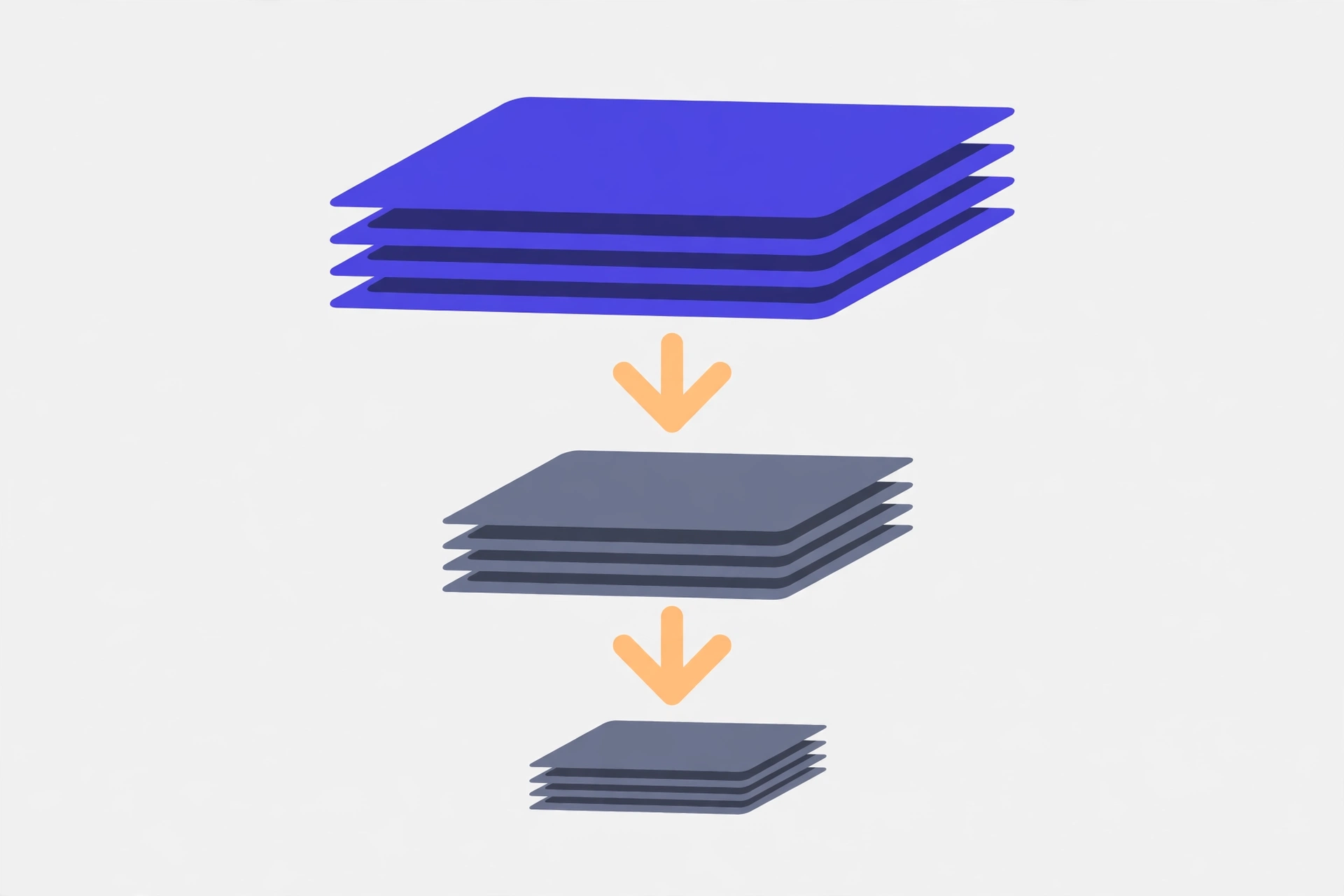
Balanced renders at 1.0x scale with JPEG quality 0.75. Pick it for everyday sharing where the file is already close to the limit and only needs a nudge, or where the document mixes text and images and you want a gentler touch. Print renders at 1.5x scale with JPEG quality 0.85, and it exists for one job: the compressed copy will be printed on paper, where low resolution shows up fast and small text has to survive ink. Print shrinks the least of the three. If a file still won't fit after a Print pass, the honest answer is usually that this copy shouldn't be the printed one. Send the Screen version for the deadline and the full original by another route for the print run.
Worked check, with round numbers. Your scan is 28 MB and the bounce named a 25 MB limit. You don't need a miracle, you need about 11% off, and Balanced will very likely get you there with quality to spare. Same file, stricter server, a 10 MB limit: now you need roughly two thirds gone, and that's Screen territory. Matching the preset to the gap, instead of always reaching for the smallest, is the whole skill here.
When it comes out larger, and other hard limits
Sometimes the result panel tells you the compressed file is bigger than the original. That's not a malfunction. A born-digital text PDF stores its pages as compact text and drawing instructions, and re-rendering those pages as JPEG pictures can weigh more than the original encoding, especially at Balanced or Print. The tool reports the honest numbers either way. When it happens, believe it: send the original if it fits, and if it doesn't fit, your problem isn't compression settings. Split the document, or send a download link instead of an attachment.
Two more hard limits. The cap is 100 pages, because every page is rendered and held in your browser's memory until the new PDF is assembled, and longer documents run phones and older laptops out of room. Split a longer document and compress the parts. And a password-protected PDF cannot be opened by this tool at all. Remove the password in the app that set it, then compress the unlocked copy. One more thing worth verifying once, for your own peace of mind: the file never leaves your device. Open your browser's Network tab while a compression runs and watch nothing go out. The page works with the network disconnected, too, which settles the question better than any promise on the page could.
Mistakes that keep the bounce coming back
The commonest mistake is compressing to a guessed limit. People assume 25 MB because that's a number they've heard, shrink to 24 MB, and get rejected by a server enforcing 20. The rejection message told you the real figure; work to it, and leave yourself a margin under it rather than landing a few kilobytes beneath the line. Second mistake: re-attaching the original. Under deadline stress, the file picker opens on the same folder and the same filename, and the 28 MB original goes out again. Download the compressed copy, check its size in the folder before you attach, and only then send. Third: compressing an already-compressed copy a second time. Each pass re-renders pictures of pictures, and quality falls off a cliff while size barely moves. Always start from the original. Fourth: sending the compressed copy as your only copy. The output's text can't be searched or selected, and someday someone will need to search it. The original stays in your files; the compressed version is a delivery copy, nothing more.
The Verystep PDF Compressor takes your file in the PDF file to compress picker and offers three Quality presets: Screen - smallest (0.6x scale, JPEG quality 0.6), Balanced (1.0x, 0.75) and Print (1.5x, 0.85). Click Compress PDF and it shows the before and after sizes with the % saved, all in your browser. The file is never uploaded, and you can confirm that in your browser's Network tab.
Last verified November 20, 2026 — PDF file to compress picker, Screen - smallest (0.6x scale, JPEG quality 0.6), Balanced (1.0x, 0.75) and Print (1.5x, 0.85) Quality presets and the Compress PDF button checked against the live Verystep PDF Compressor, before and after sizes with % saved confirmed in the result display, and the stated limits confirmed: 100-page cap, password-protected PDFs cannot be opened, and born-digital text PDFs may come out larger.
Frequently asked questions
Why did my compressed PDF come out larger than the original?
Because of how this compressor works: it re-renders each page as a JPEG picture. A born-digital text PDF already stores its pages very efficiently as text and drawing instructions, so a picture of the page can weigh more. The tool shows you the before and after sizes honestly either way. Scans and photo-heavy PDFs, which carry the real bulk, are the files that shrink dramatically.
Which preset should I use for an email attachment?
Screen - smallest (0.6x scale, JPEG quality 0.6) in most cases, since the attachment only has to be read on a screen and has to fit under the server's limit. If your file only just misses the limit and quality matters, try Balanced (1.0x, 0.75) first. Save Print (1.5x, 0.85) for copies that will actually be printed.
Will the text in my compressed PDF still be searchable?
No. Each page becomes a JPEG picture of the page, so the text can't be selected, copied or found with Ctrl+F. The pages look the same and print the same, but treat the compressed file as a delivery copy and keep the original as your searchable master.
Is my PDF uploaded to a server while it compresses?
No. The file is read, rendered and rebuilt entirely in your browser on your device. You can verify it yourself: watch the Network tab in your browser's developer tools during a run and nothing is sent, and the page still compresses with the network disconnected.
What if my PDF has more than 100 pages or a password?
The tool caps out at 100 pages, because every page is held in browser memory while the new PDF is assembled, so split a longer document and compress the parts separately. A password-protected PDF can't be opened at all: remove the password in the app that set it, then compress the unlocked copy.
More guides
The PPWR Empty Space Ratio: Why the 50% Cap Hits Your Shipping Box First
Ask a room of online sellers what the PPWR will change first and most will say labels. The duty with a number in it is quieter: from 2030 at the earliest, no more than half the volume of your shipping box may be empty — and the filler you stuff into it counts as empty.
Counting a Return Window: The EU 14-Day Cooling-Off Period Starts the Day After Delivery
A shop page says “14 days to return”. Fourteen days from when — the order, the dispatch, the delivery? And counted how — in calendar days or working days? EU law answers both questions, and the answers are not the ones most countdown banners use.
How to Check Gift Return Eligibility Without a Receipt
Black Friday is over, the gifts are changing hands, and some of them are the wrong size, the wrong color or the second one you own. There is no receipt — there never is with a gift — so the question is not “can I get my money back?” but “which route does this store actually offer someone in my position, and how long do I have?”