How to Make a GIF From Video Frames or Images
A GIF isn't a video clip. It's a stack of stills with a delay on each one — and once you see it that way, the order, interval and size settings stop being guesswork.
The GIF Maker stacks still images into an animated GIF89a file: add 2 to 50 images in the Images — they become frames in the order shown field, reorder them with the ↑ and ↓ buttons or remove one with ✕, then set the Frame interval (ms), the Frame size and the Looping option before clicking Make GIF. The interval is rounded to the nearest 10 ms inside a 20–10,000 ms range, so ten frames at 200 ms play as a two-second loop. Images are fitted whole and centred on white, never cropped or stretched, and each frame holds at most 256 colours. This guide covers the build itself, how to pick an interval and size, and the format limits that explain why a GIF can look different from its source images.
A GIF is just a stack of stills with a delay attached
Forget the video-editor mindset for a minute. You're not cutting footage here. You're stacking still pictures in a row, telling the file how long each one stays on screen, and telling it whether to start over at the end. That's the whole job, and it's why a set of frames pulled from a video and a set of drawings or screenshots end up going through the exact same steps.
Order does most of the storytelling. Put ten product shots in the wrong sequence and the animation reads as random, even if every picture is sharp. Put them in the order a person would flip through them — wide shot first, detail last, say — and the same ten files suddenly make sense. So don't rush the sorting stage. It's the part viewers actually notice. The timing and size settings matter, sure, but they can't rescue a stack that's in the wrong order.
One limit shapes everything else: you can add at least 2 images and at most 50. Each frame can hold at most 4,194,304 pixels — that's 2048 × 2048, for reference. Go past either limit and the tool tells you plainly instead of freezing. That's a kindness. A frozen tab tells you nothing.
Make the GIF in seven steps
Work top to bottom through the controls once, and don't change two settings at a time. If the result looks off, you'll want to know which change did it.
- Open the GIF Maker and add at least two images in the Images — they become frames in the order shown field.
- Check the order in the list and move any frame with its ↑ or ↓ button, or remove it with ✕ if it doesn't belong.
- Set Frame interval (ms) for the pace you want, such as 200 ms for a calm two-second loop from ten frames.
- Choose a Frame size — Size of the first image, At most 800 px wide, At most 480 px wide or At most 320 px wide.
- Pick a Looping option: Loop forever, Play once, Loop 3 times or Loop 5 times.
- Click Make GIF and watch the preview play through at least twice before you save anything.
- Download the finished GIF and open it once outside the tool to check the order, pace and file size.
That last check outside the tool isn't paranoia. Browsers, chat apps and social feeds don't all loop a GIF the same way, and a file that plays nicely in the preview can feel rushed somewhere else. Open it where you actually plan to post it. Ten seconds of checking beats re-uploading three times.
Pick an interval and a size that match the job
The Frame interval (ms) field sets how long each frame stays up, and the tool rounds whatever you type to the nearest 10 ms, inside a range of 20–10,000 ms. GIF stores delays in hundredths of a second, so that rounding isn't the tool being fussy — it's the format itself. Ten frames at 200 ms give you a 2-second loop. The same ten frames at 100 ms take one second and feel twice as urgent. Same pictures. Completely different mood.
So what should you pick? For a slideshow or a step-by-step sequence, 200–500 ms per frame reads calm and deliberate, and people can actually follow along. For something that should feel like motion — a hand turning a product, a short screen action — try 80–120 ms. For a flip-book feel, where you've drawn or shot each stage yourself, 40–80 ms is the range that sells the movement. If you're not sure, start at 200 ms. You can rebuild in seconds, and a slightly slow first draft is easier to judge than a frantic one.
Frame size is the other lever, and it controls file weight more than anything else. Size of the first image keeps the frame at whatever that first file brings. At most 800 px wide, At most 480 px wide and At most 320 px wide cap the width instead, which is what you want for chat apps and feeds. A 320 px GIF won't look great full-screen. It isn't meant to. It's meant to load fast and loop cleanly in a thread, and at that job the smaller cap wins every time.
Mismatched sizes, colour limits and soft edges
Your images don't have to match each other in size. Every image is fitted whole inside the frame, centred on white, and never cropped or stretched out of shape. The first image sets the frame, unless you've picked one of the width caps. A tall phone screenshot next to a wide camera shot will both survive intact — they'll just sit on white padding where their shapes don't fill the frame. Want a cleaner edge-to-edge look? Crop or resize everything to one size before you upload the set. The tool won't do that part for you, by design.
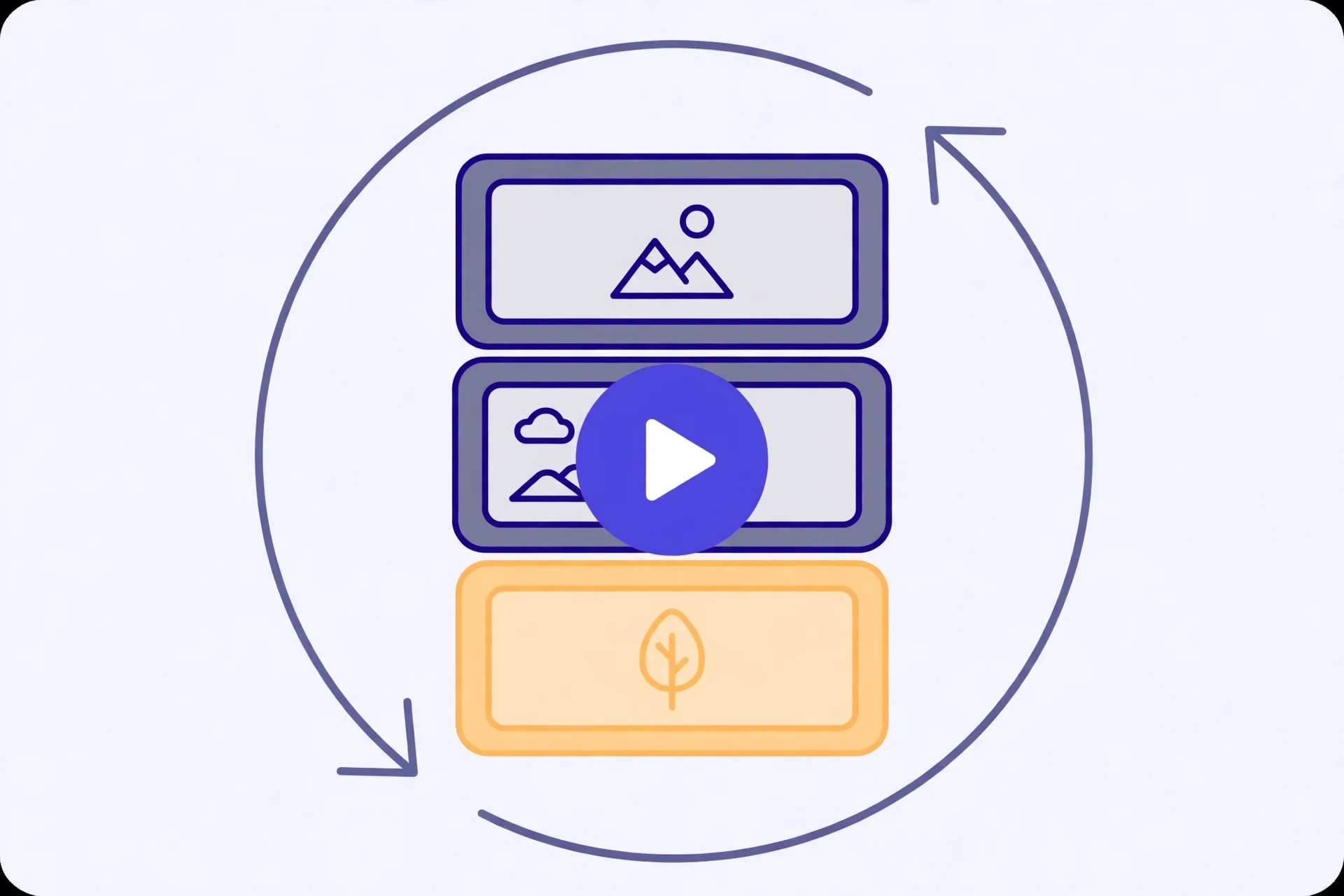
Colour is the format's hard ceiling. A GIF frame holds at most 256 colours, picked fresh from your images by the encoder. Photographs carry millions of colours, so smooth skies, skin and gradients can come out banded or grainy. Text, logos, drawings and screenshots use few flat colours, and they survive beautifully. Shrinking the frame size hides a lot of the banding too, which is one reason most web GIFs are small.
Transparency is just as coarse. A pixel is fully transparent or fully opaque — there's no in-between. Soft edges from a PNG, the kind with a gentle fade, will fringe or flatten against the white frame here. If your source art has a soft drop shadow or a feathered cut-out, expect a visible edge in the GIF. That's not a bug you can settings your way out of. It's GIF89a being GIF89a.
Mistakes that make a GIF feel wrong
The classic one is picking an interval by guessing once and never previewing. 200 ms sounds slow on paper. In a loop it can feel brisk, and 80 ms can feel like a strobe light if your frames jump around a lot. Preview twice, every time. Your eyes will tell you more in four seconds than any rule of thumb here can.
Next up: leaving Loop forever on for an animation that tells a short story with an ending. A before-and-after pair or a three-step reveal often lands better with Play once, Loop 3 times or Loop 5 times, because the viewer gets a finish line. Looping forever suits ambient motion — steam rising, a spinner, a blinking cursor. Match the loop to the content, not to the default.
File size catches people last. Fifty large photo frames make a heavy download, and some platforms will compress or refuse a GIF that big. If your file feels sluggish to share, don't cut frames first. Drop the width cap from 800 px to 480 px or 320 px and rebuild. You'll keep the full sequence and lose the weight. The encoder underneath is gif.js (MIT), the output is a standard GIF89a file, and the whole build runs locally in your browser — your images aren't uploaded anywhere while any of this happens.
The Verystep GIF Maker takes your images in the Images — they become frames in the order shown field, with a Frame interval (ms), a Frame size and a Looping choice, and on Make GIF it assembles a standard GIF89a file in your browser. Nothing is uploaded — your images never leave your device.
Last verified November 19, 2026 — the Images field, Frame interval (ms) range and rounding, Frame size options, Looping options and Make GIF button checked against the live Verystep GIF Maker, and the timing example re-checked by hand (10 frames × 200 ms = 2 seconds).
Frequently asked questions
How many images do I need, and how many can I add?
You need at least two — a single image has nothing to animate. The tool accepts up to 50 images, and each frame can hold at most 4,194,304 pixels, for example 2048 × 2048. A set that breaks either limit gets a plain message instead of a frozen tab.
What frame interval should I use?
It depends on the feel you want. 200–500 ms per frame reads as a calm slideshow or step-by-step sequence, 80–120 ms starts to feel like motion, and 40–80 ms suits a hand-drawn flip-book. Ten frames at 200 ms make a two-second loop. The tool rounds your entry to the nearest 10 ms and keeps it inside 20–10,000 ms.
My images are different sizes. Will they be cropped?
No. Every image is fitted whole inside the frame, centred on white, and never cropped or stretched. The first image sets the frame size unless you pick a width cap — At most 800 px wide, At most 480 px wide or At most 320 px wide. For an edge-to-edge look, resize your images to one size before adding them.
Why do my photos look banded or grainy in the GIF?
Because a GIF frame holds at most 256 colours and your photos contain millions. The encoder picks the 256 that do the least damage, and smooth areas like skies and gradients show the compromise as banding. Text, logos and screenshots use few flat colours and survive well, and shrinking the frame size hides much of the banding.
Why do soft transparent edges look fringed?
GIF transparency is all or nothing: a pixel is fully transparent or fully opaque, with no semi-transparent middle. Soft PNG edges with a gentle fade therefore fringe or flatten against the white frame used here. It's a limit of the GIF89a format itself, not a setting you can change in the tool.
More guides
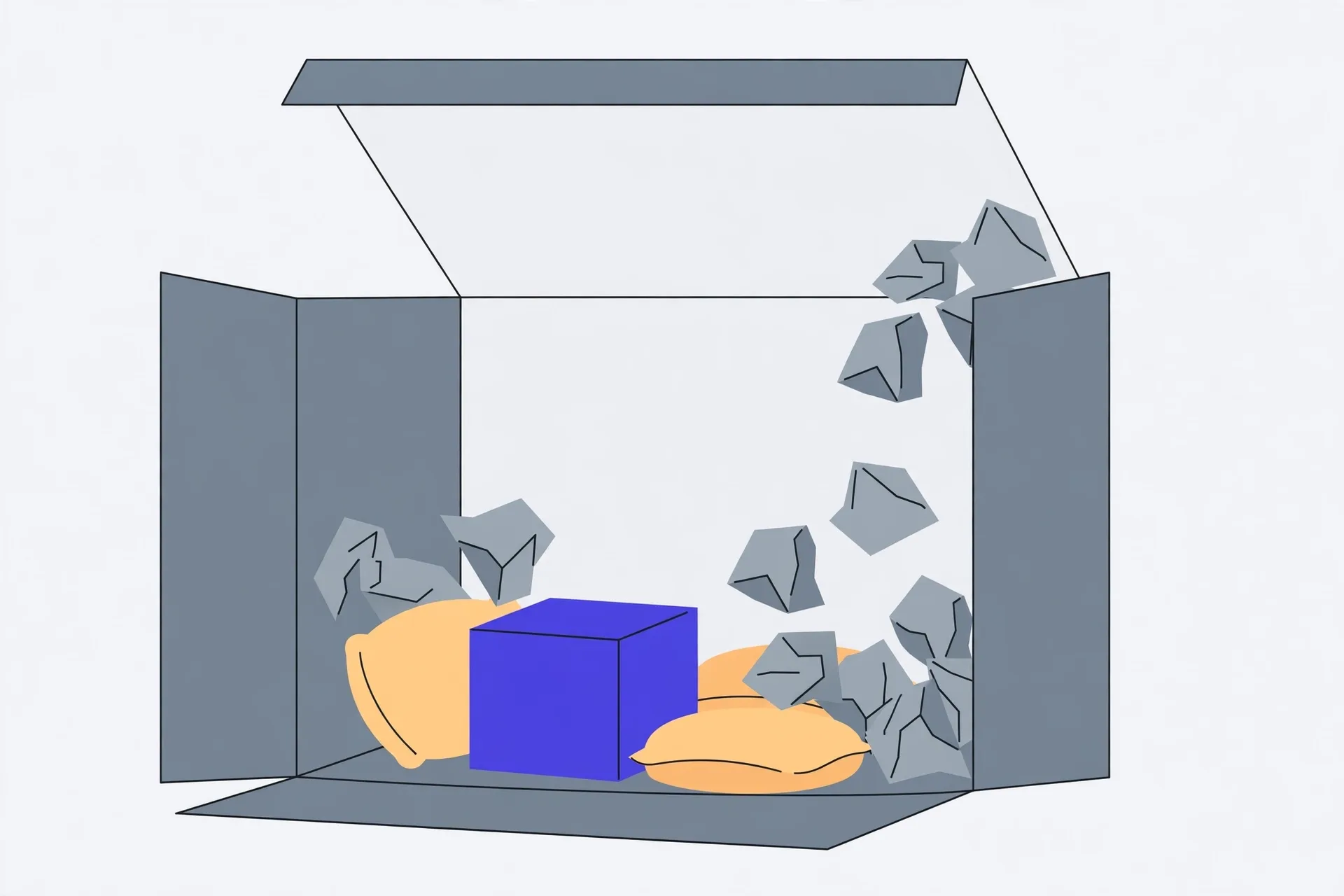
The PPWR Empty Space Ratio: Why the 50% Cap Hits Your Shipping Box First
Ask a room of online sellers what the PPWR will change first and most will say labels. The duty with a number in it is quieter: from 2030 at the earliest, no more than half the volume of your shipping box may be empty — and the filler you stuff into it counts as empty.
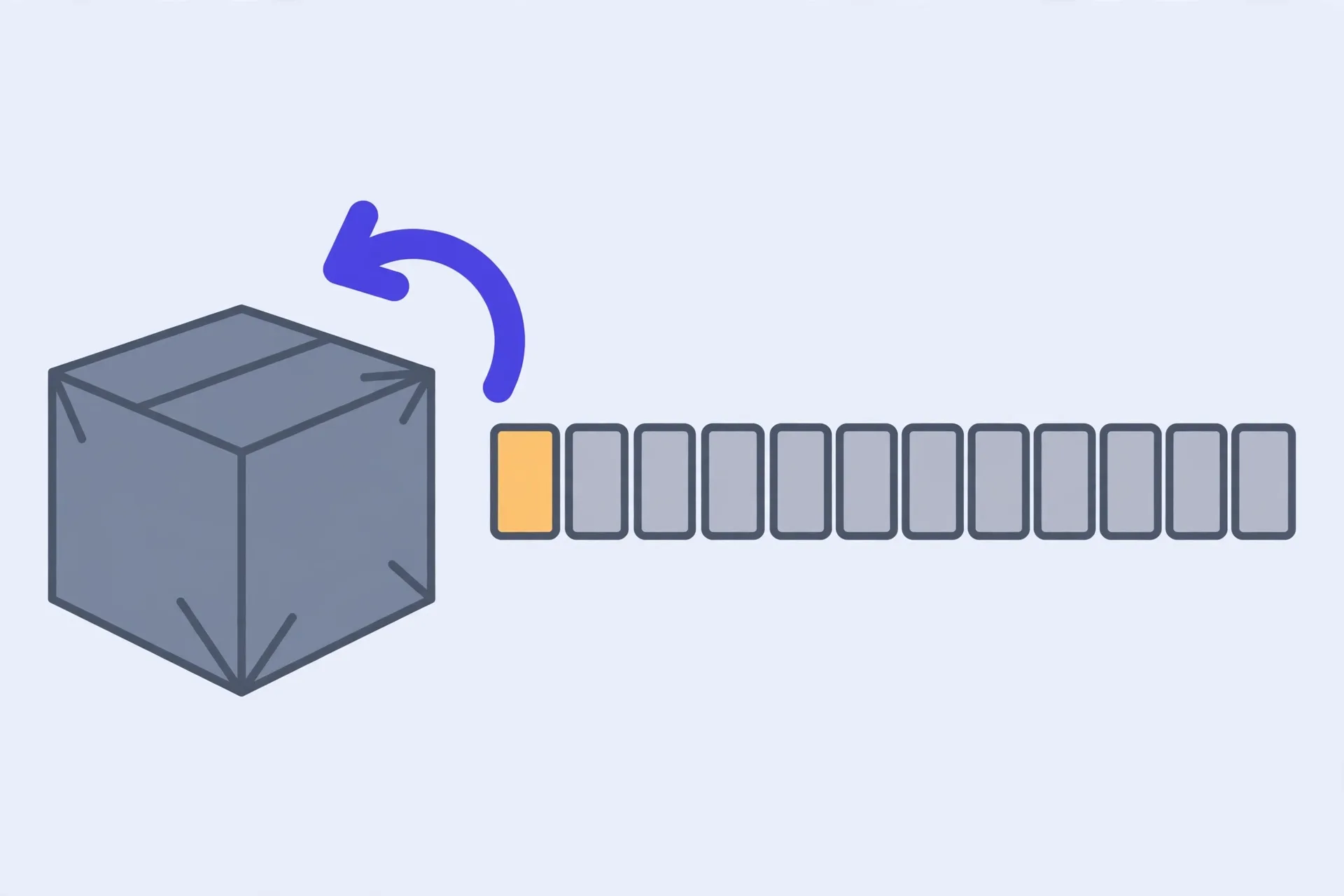
Counting a Return Window: The EU 14-Day Cooling-Off Period Starts the Day After Delivery
A shop page says “14 days to return”. Fourteen days from when — the order, the dispatch, the delivery? And counted how — in calendar days or working days? EU law answers both questions, and the answers are not the ones most countdown banners use.
How to Check Gift Return Eligibility Without a Receipt
Black Friday is over, the gifts are changing hands, and some of them are the wrong size, the wrong color or the second one you own. There is no receipt — there never is with a gift — so the question is not “can I get my money back?” but “which route does this store actually offer someone in my position, and how long do I have?”