How to Generate an Nginx Config for a New Site
A new site needs a server block before Nginx will serve a single page. You can write one from memory, typos and all, or you can fill in six fields and start from a block that already parses.

The Nginx Config Generator builds one server block from the choices you make on the page. You fill in Domain, Document root and Port for HTTP mode, then decide four toggles: HTTPS Off or On, PHP via FastCGI, gzip, and Redirect www to apex. Turn HTTPS on and the block listens on 443 ssl with Let's Encrypt certificate paths, and the Port field is ignored. Turn PHP on and you get a location block that passes PHP requests to FastCGI. Leave both off and you get a plain static site. When the block looks right, use Copy config to paste it where you need it, or Download .conf to save it as a file. Whatever route you take, run nginx -t before you reload — always.
What a server block actually does
Think of a server block as Nginx's routing note for one site. It says: when a request arrives for this domain, listen on this port, and serve files from this folder on disk. That's the core of it. The Domain field becomes the server_name line, the Document root becomes the root line, and the Port becomes the listen line in HTTP mode. Everything else in the generator is an optional extra layered on top of those three lines.
That framing helps when you read the output. You aren't staring at a mysterious template. You're checking three decisions you just made, plus whichever extras you switched on. If the domain is misspelled in the field, it'll be misspelled in server_name too, and Nginx will happily serve the wrong name or nothing at all. So read the generated block once, top to bottom, before you copy it anywhere. It takes twenty seconds and it's the cheapest review you'll ever do.
Generate a server block in seven steps
Open the Nginx Config Generator and work through the fields in the order the page presents them.
- Type your domain into the Domain field exactly as visitors will use it, with no https:// in front of it.
- Type the folder that holds your site files into the Document root field, using the full path on the server.
- Set the Port for HTTP mode, usually 80, knowing that turning HTTPS on will ignore this field.
- Choose HTTPS Off for a plain HTTP site, or HTTPS On to listen on 443 ssl with Let's Encrypt certificate paths.
- Turn on PHP via FastCGI only if the site runs PHP, and turn on gzip if you want text responses compressed.
- Turn on Redirect www to apex if you want the www name to send visitors to the bare domain, then read the generated block in full.
- Click Copy config to paste the block into your server, or Download .conf to save it as a file, then run nginx -t before you reload.
Step seven carries the one rule in this guide that isn't optional. Run nginx -t before every reload, every time, even when you only changed one line and you're sure it's fine. That command checks the whole configuration for syntax errors without restarting anything. If it complains, Nginx keeps running on the old, working config while you fix the new one. If you skip it and reload a broken config, the reload can fail and take a healthy site down with it.
A worked example: a plain static site with gzip
Say you're putting a static site online at example.com, with its files in /var/www/example. You'd type example.com into Domain, /var/www/example into Document root, and 80 into Port. Leave HTTPS Off and PHP via FastCGI off, turn gzip on, and leave the www redirect off for now. That's a complete, honest description of a simple site, and the output matches it line for line.
The block opens with server_name example.com; so Nginx knows which requests it answers. Next comes listen 80; because you're in HTTP mode on the standard port, and root /var/www/example; pointing at the folder you named. Below that sits the gzip section you asked for: gzip on, a gzip types line covering CSS, JSON, JavaScript and XML, and a minimum length of 1024, so tiny responses aren't compressed for no gain. There's no PHP block, no certificate lines and no redirect, because you didn't ask for any of them.
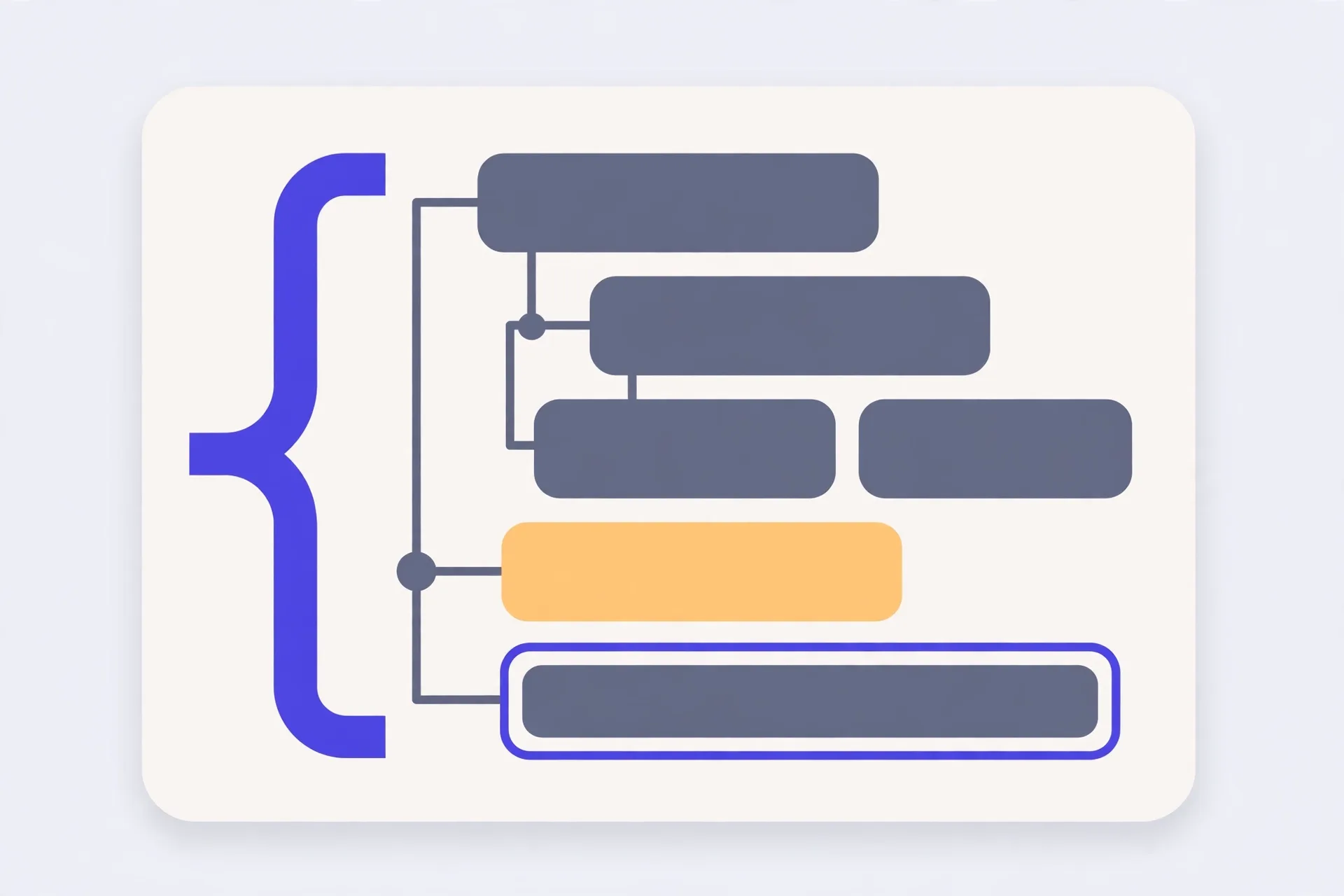
Read that output against your inputs once. Domain matches, root matches, port matches, gzip is present, and nothing extra snuck in. That match — what you set is exactly what you got — is the whole point of generating the block instead of copying one from an old project and editing it in place.
When you turn HTTPS and PHP on
Flip HTTPS to On and two things change. The listen line becomes listen 443 ssl, and the block gains ssl_certificate and ssl_certificate_key lines pointing at the Let's Encrypt paths for your domain. The Port field stops mattering at that point — it's ignored, because HTTPS mode has its own port. One practical warning: those certificate lines point at files that need to exist. If you haven't issued a certificate for the domain yet, nginx -t will fail on the missing files, so get the certificate in place before you reload with the HTTPS block live.
Turn on PHP via FastCGI and the block gains a location block for PHP requests, passing them to fastcgi_pass unix:/run/php/php-fpm.sock. That's the socket PHP-FPM listens on, so Nginx hands the script over, PHP runs it, and Nginx sends back the result. A static site doesn't need this at all — leave the toggle off and there's simply no PHP block in the output. And the last toggle, Redirect www to apex, adds a redirect so anyone who types the www version lands on the bare domain instead. Pick one canonical name and stick with it; that's what the toggle is for.
Mistakes that break a fresh config
The classic is reloading without testing. We've covered it, but it bears repeating because it's how most self-inflicted outages start: nginx -t first, reload second, no exceptions. Close behind it is a document root that doesn't exist on the server yet, or exists but holds nothing. The config is valid, Nginx reloads happily, and every visitor gets an error because there's no site in the folder the root line names. Create the folder and put at least an index file in it before you reload.
Next is expecting the generator to add things it doesn't offer. It builds the block from the fields and toggles described here — domain, root, port, HTTPS, PHP, gzip and the www redirect — and it doesn't invent extra directives or security headers on your behalf. If your setup needs more than that, add it yourself after generating, then test again. Last is a quiet one: editing the copied block by hand, introducing a missing semicolon, and assuming the generator produced a broken file. It didn't. The test output from nginx -t will tell you the line number. Trust it, fix that line, and test once more.
The Verystep Nginx Config Generator takes a domain, a document root and a port, with toggles for HTTPS, PHP via FastCGI, gzip and redirecting www to the apex, and builds the server block for you. Copy the config or download a .conf file, all in your browser.
Last verified November 18, 2026 — steps, fields, toggles and buttons checked against the live Verystep Nginx Config Generator, and the worked example generated by hand to confirm the server_name, listen, root and gzip lines.
Frequently asked questions
What does the Port field do if I turn HTTPS on?
Nothing — it's ignored. The Port field only applies in HTTP mode, where it becomes the listen line, usually listen 80. Turn HTTPS On and the generated block uses listen 443 ssl instead, along with ssl_certificate and ssl_certificate_key lines pointing at the Let's Encrypt paths for your domain. Set the port for your HTTP setup, and don't worry about it once HTTPS is on.
Do I need the PHP via FastCGI toggle for a static site?
No. Leave it off and the generated block contains no PHP handling at all, which is exactly right for plain HTML, CSS and JavaScript. Turn it on only when the site actually runs PHP. The toggle adds a location block that passes PHP requests to fastcgi_pass unix:/run/php/php-fpm.sock, where PHP-FPM picks them up and runs them.
What does the gzip section actually compress?
Text-based responses, once they're big enough to be worth it. With gzip on, the block includes a gzip types line covering CSS, JSON, JavaScript and XML, and a minimum length of 1024, so responses smaller than that are sent as they are. Images and other already-compressed files aren't in the list, because compressing them again gains almost nothing.
Should I use Copy config or Download .conf?
Copy config is quickest when you're already working in a terminal or editor on the server and can paste the block straight into place. Download .conf is better when you want a file you can keep, review, or move to the server yourself. Either way, the content is the same block — and either way, run nginx -t before you reload.
Why does nginx -t fail after I add the HTTPS block?
Most often because the certificate files don't exist yet. The HTTPS block references ssl_certificate and ssl_certificate_key paths under Let's Encrypt for your domain, and the test fails if those files aren't there. Issue the certificate for the domain first, confirm the files are in place, then run nginx -t again before reloading.
More guides

The PPWR Empty Space Ratio: Why the 50% Cap Hits Your Shipping Box First
Ask a room of online sellers what the PPWR will change first and most will say labels. The duty with a number in it is quieter: from 2030 at the earliest, no more than half the volume of your shipping box may be empty — and the filler you stuff into it counts as empty.
Counting a Return Window: The EU 14-Day Cooling-Off Period Starts the Day After Delivery
A shop page says “14 days to return”. Fourteen days from when — the order, the dispatch, the delivery? And counted how — in calendar days or working days? EU law answers both questions, and the answers are not the ones most countdown banners use.

How to Check Gift Return Eligibility Without a Receipt
Black Friday is over, the gifts are changing hands, and some of them are the wrong size, the wrong color or the second one you own. There is no receipt — there never is with a gift — so the question is not “can I get my money back?” but “which route does this store actually offer someone in my position, and how long do I have?”