How to Encrypt and Decrypt Text With AES (Safely, Locally)
You need to send a recovery code, a private note, or a small secret without leaving it as plain text. This turns it into one copyable bundle that only the right password can open.

The tool uses AES-GCM with a 256-bit key. Your password isn't the key itself. It's run through PBKDF2-SHA-256 for 100,000 iterations, with the password handled as UTF-8, to derive that key. Every encryption also picks a fresh random 16-byte salt and a fresh random 12-byte IV, so encrypting the same text twice gives you two different bundles. The result you copy is base64 of salt, then IV, then ciphertext stuck together in that order, and the GCM authentication tag sits as the last 16 bytes of the ciphertext. You work with three fields only — Password, Text to encrypt, and Ciphertext bundle — and two buttons, Encrypt and Decrypt. Nothing you type is stored or uploaded, which is the whole point, and also why a lost password means a lost message.
What you're making, in plain terms
Think of the output as a sealed envelope with the instructions for opening it printed on the outside, minus the password. The salt and the IV travel inside the bundle in the clear. They aren't secret. They just need to be different every time, so the same password and the same text don't produce the same ciphertext twice. The ciphertext itself is the scrambled text, and the tag at the end lets decryption check that nothing was cut, pasted over, or quietly altered on the way to you.
That check matters more than it sounds. With AES-GCM, decryption doesn't just unscramble. It verifies first. If the password is wrong, or a single character in the bundle got mangled in a chat app, decryption fails cleanly instead of handing you half-readable junk. You'll get no partial text to guess from. That's a feature, even when it's annoying in the moment, because a tool that guesses at damaged ciphertext would be lying to you.
One more thing to get straight before you start. This is for short text — a code, a note, a key, a paragraph or two. It isn't a file vault, and it isn't a backup system. If the text matters long term, you still need a proper home for the password, ideally a password manager, and a second copy of the bundle somewhere that isn't the same chat thread you sent it through.
Encrypt text in seven steps
Open the AES Encryption tool and keep the bundle and the password on separate paths from the very start.
- Choose a strong password you'll remember or store in a password manager, because there's no reset if you lose it.
- Open the AES Encryption tool and type that password into the Password field.
- Paste or type the plain text into the Text to encrypt field and check it once for stray spaces or a cut-off ending.
- Click Encrypt and wait for the base64 bundle to appear in the Ciphertext bundle field.
- Copy the whole bundle exactly as shown and save it where the recipient will find it, without trimming any characters.
- Send the password through a different channel from the bundle, never in the same message.
- To test it, paste the bundle back into Ciphertext bundle, re-enter the password, click Decrypt, and confirm the original text returns.
Step seven isn't busywork. Do the test while the plain text is still in front of you, not next week when someone's locked out. A thirty-second round trip proves the password you wrote down is the password you actually used, the bundle copied in full, and the recipient's steps will work. If the test fails, re-copy the bundle first. Most failures trace back to a truncated paste, not to the maths.
What's actually inside that base64 string
The bundle looks like one long lump of letters, numbers, plus signs, and slashes, usually ending in an equals sign or two. Under the base64, though, it has a strict layout, and knowing it helps when you're troubleshooting or explaining to a colleague why the string can't just be shortened.
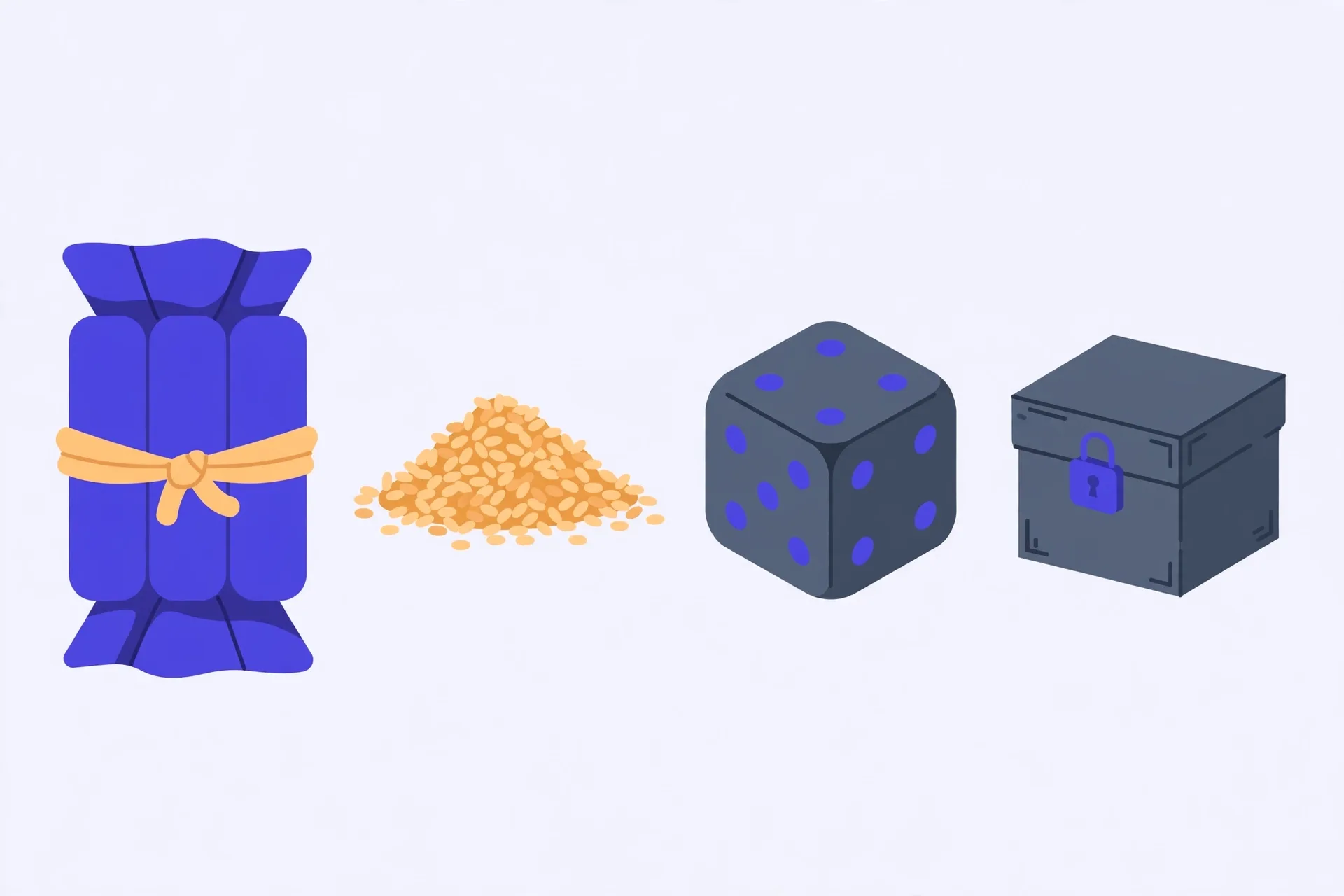
First come 16 bytes of salt. The salt feeds PBKDF2 alongside your password, so two people using the same password still end up with different keys for different messages. Next come 12 bytes of IV, the random starting point for GCM for this one encryption. Then comes the ciphertext, which is the same length as your text in bytes, plus those final 16 bytes of tag. Because the salt and IV are random each time, you'll never get the same bundle twice for the same input — and you shouldn't trust any tool where you do. Predictable output for repeated input is a warning sign, not a convenience.
It also means you can't compare bundles by eye to check whether two messages say the same thing. They'll look unrelated even if the plain text is identical. If you need to know, decrypt both. That's the honest way, and it's quick.
Decrypting, and sharing without undoing the work
Decrypting is the mirror image. Paste the full bundle into Ciphertext bundle, type the password into Password exactly as it was set — capitals, spaces, and all — and click Decrypt. The tool splits the bundle back into salt, IV, and ciphertext, re-derives the key with the same PBKDF2-SHA-256 settings and 100,000 iterations, checks the tag, and only then shows you the text. A wrong password fails cleanly at that check. So does a bundle that lost its last few characters in transit, which is why you should never retype a bundle by hand.
How you share decides whether any of this was worth doing. Bundle in email, password in a messaging app. Bundle in a shared doc, password said out loud on a call. What you don't do is put both in one place, because anyone who finds that one place now has everything. It sounds obvious, and yet it's the mistake that undoes most careful encryption in real life — not weak settings, just tidy filing.
And keep your expectations in the right place. The tool never stores or uploads your text, password, or bundle, so closing the tab clears the lot. That's good for privacy. It also means there's no account, no history, and no recovery desk. Your password manager entry and your saved bundle are the system. Treat them that way.
Mistakes that lock people out
The classic is a trimmed bundle. Someone copies the string, a line wrap or a chat preview eats the tail, and the tag check fails forever after. Copy with a single click if you can, paste into a plain text file to check the length looks consistent, and never store the bundle as a screenshot. Next is password drift: you set the password with an extra space at the end, or your phone autocapitalised the first letter, and the saved version doesn't match. Typing it visibly once, in the test in step seven, catches that while it's still fixable.
Last is reusing one password for every bundle you ever send. It feels efficient until one share goes wrong and everything you've ever encrypted with it needs re-doing. A password manager makes a fresh password per bundle almost free. Use that. The tool already does its part — fresh salt, fresh IV, a proper tag check on every single run. The habits around it are your part.
The Verystep AES Encryption tool takes a password in the Password field and your text in Text to encrypt, then Encrypt builds a single base64 bundle you can copy from Ciphertext bundle. Decrypt reverses it with the same password, entirely in your browser.
Last verified November 18, 2026 — fields, buttons and parameters checked against the live Verystep AES Encryption tool: AES-GCM, 256-bit key, PBKDF2-SHA-256 at 100,000 iterations, 16-byte salt, 12-byte IV, and the base64 salt, IV, ciphertext layout.
Frequently asked questions
Why does the same text encrypt differently every time?
Because each encryption generates a fresh random 16-byte salt and a fresh random 12-byte IV. Both are stored at the front of the bundle, so decryption can still find them, but they change the derived key and the GCM starting point every run. Identical input therefore produces a completely different base64 bundle each time, which is exactly what you want.
What happens if I enter the wrong password?
Decryption fails cleanly and you get no text back. The tool re-derives a key from the password you gave, checks the GCM authentication tag — the last 16 bytes of the ciphertext — and that check won't pass for the wrong key. There's no partial output and no hint about how close you were, so check capitals and stray spaces and try again.
Is my text or password sent to a server?
No. Encryption and decryption run locally in your browser, and nothing you enter is stored or uploaded. That's why there's no recovery option: once you close the tab, the tool holds nothing. Save the bundle and keep the password in a password manager if you'll need the text again.
Can I shorten the bundle or leave part of it out?
No. The bundle is base64 of the salt, the IV, and the ciphertext in that order, and every part is needed. Drop characters and the layout breaks or the tag check fails. Always copy the whole string from Ciphertext bundle, from the first character to the last, and don't retype it by hand.
What password should I use?
A long one you don't reuse elsewhere — a few random words or a generated string from a password manager both work well. It'll be handled as UTF-8 and stretched with PBKDF2-SHA-256 for 100,000 iterations, which slows guessing down, but that doesn't rescue a short or predictable password. Length and uniqueness do the heavy lifting.
More guides
The PPWR Empty Space Ratio: Why the 50% Cap Hits Your Shipping Box First
Ask a room of online sellers what the PPWR will change first and most will say labels. The duty with a number in it is quieter: from 2030 at the earliest, no more than half the volume of your shipping box may be empty — and the filler you stuff into it counts as empty.
Counting a Return Window: The EU 14-Day Cooling-Off Period Starts the Day After Delivery
A shop page says “14 days to return”. Fourteen days from when — the order, the dispatch, the delivery? And counted how — in calendar days or working days? EU law answers both questions, and the answers are not the ones most countdown banners use.
How to Check Gift Return Eligibility Without a Receipt
Black Friday is over, the gifts are changing hands, and some of them are the wrong size, the wrong color or the second one you own. There is no receipt — there never is with a gift — so the question is not “can I get my money back?” but “which route does this store actually offer someone in my position, and how long do I have?”