How to Convert YAML to JSON (and Catch the Traps)
The conversion itself is one click. The work is knowing what JSON quietly drops, what YAML quietly reinterprets, and how to read the line and column when the parser refuses. This guide covers the run and the traps in one pass.
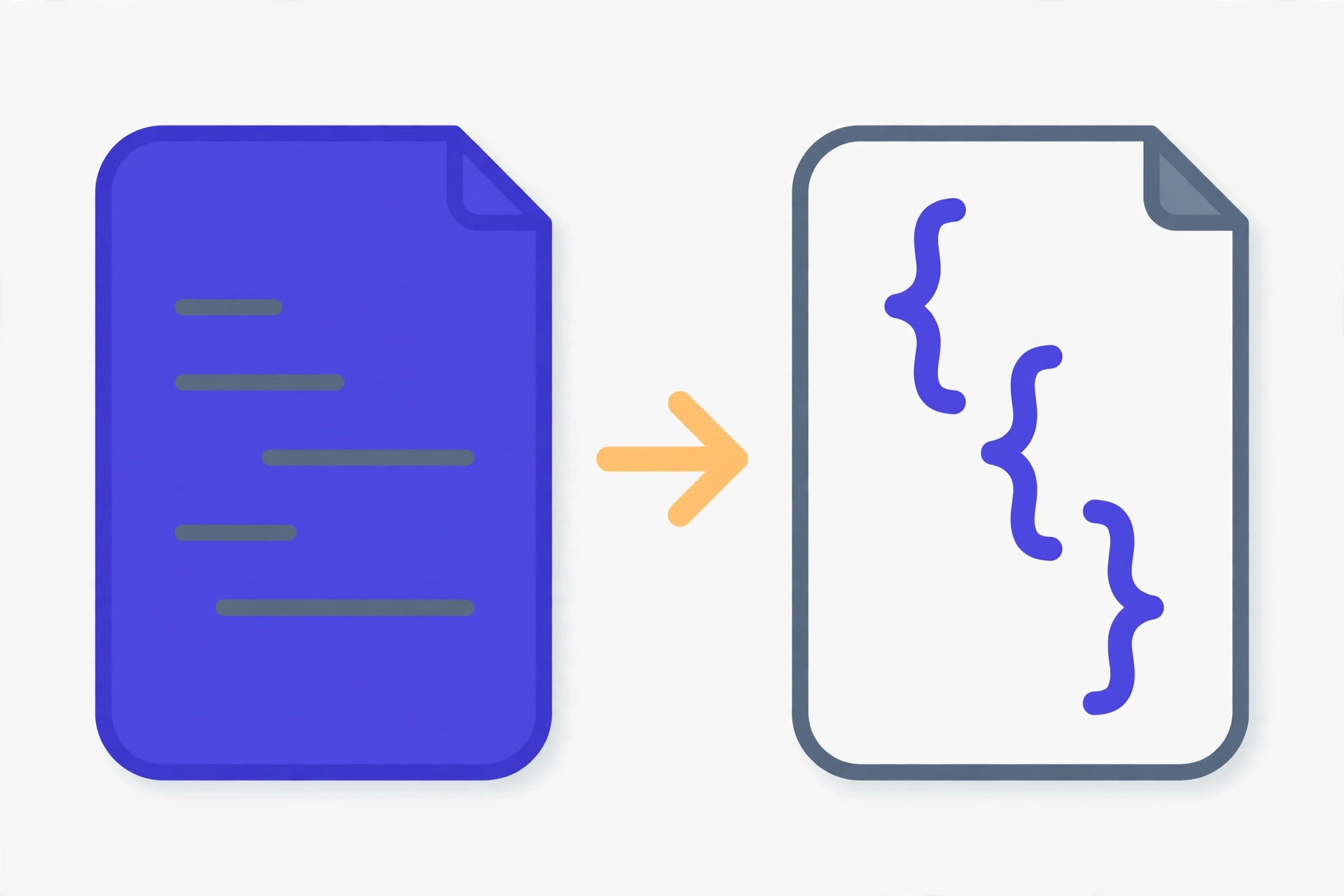
The YAML JSON Converter uses a real parser, js-yaml, running in your browser. You set the direction toggle to YAML -> JSON, paste into the YAML input field, choose Indent (spaces) 2 or 4, and click Convert. From there, Copy output, Download, Use output as input and Clear cover the usual next moves, and the toggle also runs JSON -> YAML when you need the return trip. The traps matter more than the mechanics. JSON has no comments, so YAML comments are dropped. Multi-document files split by --- are not supported, so convert one document at a time. Tabs and loose indentation break parsing, unquoted values like 0123 do not survive as you might expect, and non-string YAML keys come out stringified. When something fails, the error names a line and column. Start there.
Why a real parser, and why the traps are structural
YAML looks like tidy notes. JSON looks like the same notes after a strict editor has been through them. Converting between them feels like it should be a reformat, and for simple config it nearly is. Underneath, though, the two formats do not hold the same things. YAML allows comments, keys that are not strings, and several documents in one file. JSON allows none of that. A converter built on a real parser, and this one runs js-yaml in your browser, will parse your YAML properly and then hand you the closest JSON that can legally exist. The gaps between the two are where the traps live, and they are structural, not bugs.
That framing changes how you work. If the output differs from what you pictured, the first question is not what went wrong with the tool. It is which YAML feature has no JSON home. A comment you wanted to keep, a document separator you expected to split the output, a key that was a number: each one gets resolved in a fixed, predictable way once you know the rules. This guide runs the conversion first, then walks through each trap with the fix attached.
One habit helps from the start. Convert a small piece first if your file is large. A ten-line sample surfaces the traps that affect your data, strings that need quotes, keys that will change shape, while the fix is still cheap. Scaling up a conversion you have not eyeballed is how a quiet reinterpretation ends up in a config file nobody rechecks.
Convert in seven steps
The controls are few: a direction toggle, an input field, an indent choice, and a row of action buttons. Here is the full run in order.
- Set the direction toggle to YAML -> JSON before you paste anything.
- Paste your YAML into the YAML input field, one document at a time.
- Choose Indent (spaces) 2 or 4 to set how the JSON output is spaced.
- Click Convert and read the JSON output, or read the error message and its line and column if the conversion fails.
- Fix tabs, bad indentation or a stray --- separator in the input, then click Convert again.
- Click Copy output to copy the JSON, or Download to save it as a file.
- Click Use output as input when you want to convert the result straight back or onward, and Clear when you want a clean slate.
Two of those buttons earn a note. Use output as input feeds the result back as the new input, which pairs naturally with flipping the direction toggle: convert YAML to JSON, send the output back in, flip to JSON -> YAML, and you can see exactly what a round trip does to your file. Clear wipes the slate so a stale paste never contaminates the next conversion. And the indent choice is cosmetic but not trivial: 2 spaces is the common default for config and diffs, 4 reads easier on screen for deeply nested output. Pick for the reader, not for the parser, because the parser does not care.
A tiny conversion, before and after
Here is a short config going through. The YAML input reads like this:
name: floof-api
port: 8080
debug: false
tags:
- api
- staging
Set Indent (spaces) to 2, click Convert, and the JSON output reads like this:
{
"name": "floof-api",
"port": 8080,
"debug": false,
"tags": ["api", "staging"]
}

Read the pair closely and you can see the grammar change. Keys gain quotes, because JSON keys are always strings. The indented list under tags becomes an array in square brackets, on one line here because it is short. The scalar values keep their types: 8080 stays a number, false stays a boolean, and floof-api stays a string even without quotes in the YAML, because plain text that is not a number or a keyword reads as a string. Colons and indentation did the structuring on the left; braces, brackets and commas do it on the right. Same data, stricter punctuation.
The traps, one by one
Comments vanish. JSON has no comment syntax at all, so every # note in your YAML is dropped in conversion. That is correct behaviour and it still stings when the comment carried a warning or a reason. If a comment matters, move its content somewhere that survives, a description field in the data itself, before you convert.
Multi-document files fail. YAML lets one file hold several documents separated by --- lines. This converter does not support those streams; it converts one document at a time and a --- separated file will error rather than quietly convert the first document and discard the rest. Split the file yourself, convert each document on its own, and keep track of which output belongs to which source.
Tabs and indentation break things. YAML structure is indentation, spaces only. A tab character pasted in from an editor, or a list indented one space off from its siblings, is the usual cause when a parse fails. The error message names a line and a column, so go straight there instead of rereading the whole file. Check that spot for a tab, a missing space or an extra one, fix it, and convert again. Nine times out of ten the named line is either the fault or the first place the fault becomes visible.
Leading zeros reinterpret values. Under the YAML 1.2 core rules js-yaml follows, an unquoted value like 0123 is a trap: it does not reliably stay the string of digits you typed, and it can come out changed or rejected depending on the digits involved. If 0123 is a code, a ZIP or an ID where the zero carries meaning, quote it in the YAML as "0123" and it stays a string, zero intact. The same quoting habit protects any value you need treated as text: version strings, long IDs, anything with leading zeros or digits you never intend to do arithmetic on.
Keys change shape. YAML allows non-string keys, numbers and booleans used as keys. JSON does not, so non-string keys are stringified in the output: a key of 8080 becomes "8080". The data survives, the type does not, and code downstream that expected a numeric key will not find one. Scan your output keys after converting anything unusual.
Reading errors, and the limits of the format
When a conversion fails, resist the urge to edit at random. The error names a line and a column. Open your input at that line, look at the character near that column, and ask which of the usual causes fits: a tab, indentation that drifts from the level above it, an unquoted string containing a colon, a --- separator you forgot was in the file. Fix one thing, click Convert again, and let the next error, if there is one, name the next spot. Parsers report the first fault they hit, so a file with three faults takes three short rounds, and that is still faster than proofreading forty lines by eye.
Know the ceiling, too. This is a format converter, not a schema checker. It will happily convert YAML that parses into JSON that your application then rejects, because valid syntax and valid-for-your-system are different claims. Anchors, aliases and other YAML-only machinery get resolved or dropped according to what JSON can hold, and anything your YAML expressed through comments or document structure is gone by design. Convert, then validate the JSON wherever it is headed, and keep the original YAML until the converted file has passed a real use. The original is your only copy of everything JSON could not carry.
The Verystep YAML JSON Converter runs a real js-yaml parser in your browser. Set the direction toggle to YAML -> JSON, paste into the YAML input field, choose Indent (spaces) 2 or 4, then click Convert. Copy output, Download, Use output as input and Clear handle what happens next, and errors name the line and column so you can find the fault fast.
Last verified November 20, 2026 — direction toggle (YAML -> JSON / JSON -> YAML), YAML input field, Indent (spaces) 2 or 4 options and the Convert, Copy output, Download, Use output as input and Clear buttons checked against the live Verystep YAML JSON Converter, and the worked example recomputed offline with js-yaml semantics: the six-line YAML config (name, port, debug, tags list) converts to the JSON object shown, with keys quoted, the tags list as an array, 8080 as a number and false as a boolean.
Frequently asked questions
Why did my comments disappear from the JSON?
Because JSON has no comment syntax. There is nowhere in a JSON file for a comment to live, so the converter drops YAML comments during conversion. If a comment carries information you need to keep, move it into the data itself, for example as a description value, before you convert.
Can I convert a YAML file with several documents in it?
Not in one pass. Multi-document streams separated by --- are not supported here, and the file will error instead of converting. Split it into individual documents and convert one document at a time, keeping each JSON output matched to the document it came from.
Why did 0123 change when I converted it?
Because unquoted, a value like 0123 falls into the leading-zero trap under the YAML 1.2 core rules the parser follows, and it does not survive as the plain string of digits you typed. If the zero matters, as it does in codes and IDs, write the value quoted, as "0123", and it stays a string with the zero intact.
The error names a line and column. What do I check there?
Check that spot for the usual causes: a tab character, indentation that does not line up with the level above, or a stray --- separator. Tabs and indentation are the most common culprits. Fix the one fault, click Convert again, and work through any next error the same way, since the parser reports faults one at a time.
What happened to my numeric keys in the JSON output?
They were stringified. YAML allows non-string keys, but JSON keys must be strings, so a key like 8080 comes out as "8080". The value attached to it is unchanged, but anything reading the JSON should expect string keys, because that is the only kind JSON has.
More guides

The PPWR Empty Space Ratio: Why the 50% Cap Hits Your Shipping Box First
Ask a room of online sellers what the PPWR will change first and most will say labels. The duty with a number in it is quieter: from 2030 at the earliest, no more than half the volume of your shipping box may be empty — and the filler you stuff into it counts as empty.
Counting a Return Window: The EU 14-Day Cooling-Off Period Starts the Day After Delivery
A shop page says “14 days to return”. Fourteen days from when — the order, the dispatch, the delivery? And counted how — in calendar days or working days? EU law answers both questions, and the answers are not the ones most countdown banners use.

How to Check Gift Return Eligibility Without a Receipt
Black Friday is over, the gifts are changing hands, and some of them are the wrong size, the wrong color or the second one you own. There is no receipt — there never is with a gift — so the question is not “can I get my money back?” but “which route does this store actually offer someone in my position, and how long do I have?”