How to Turn Images Into a Single PDF
Twelve loose scans help nobody. One PDF, pages in order, does. Here's how to stack your images, pick a page size and margins, and check the file before it leaves your machine.
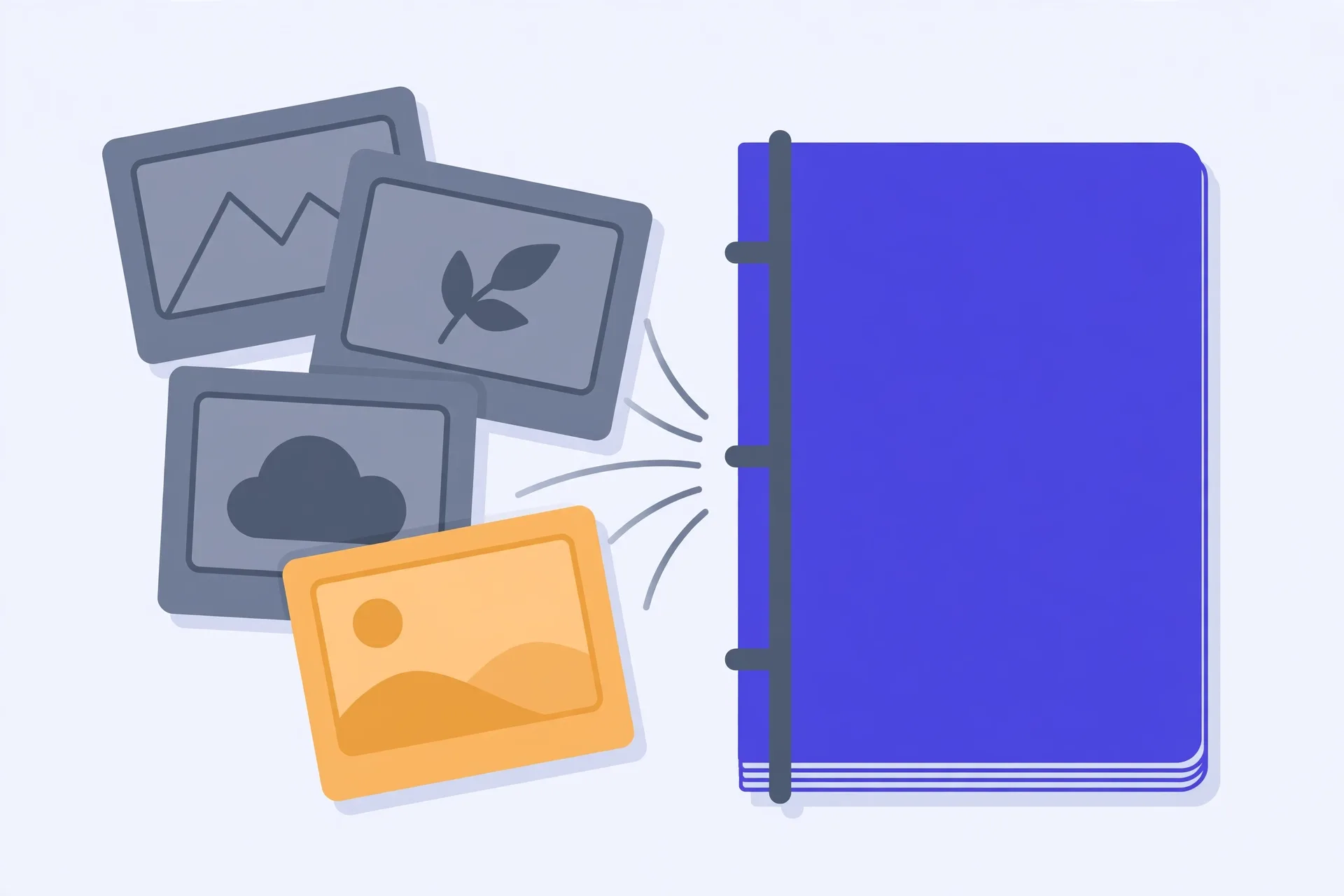
The Image to PDF converter assembles one PDF from your images entirely in your browser: drop JPG, PNG, WebP and most other browser-readable images onto the drop zone, arrange them with the arrow buttons, rotate any sideways scans, choose A4 pages, Letter pages or Fit page to image, pick a margin, and click Convert to PDF. Pages render at 150 DPI with JPEG encoding, A4 and Letter turn to a wide orientation on their own for wide images, and nothing is uploaded at any point. This guide covers the build itself, the page-size and margin choices, the HEIC snag that stops iPhone photos loading, and the one check worth doing before you send the file anywhere that matters.
What you're building, and what stays on your device
You've got a folder of images — phone photos of a signed form, scans of receipts, screenshots of a chat you need to keep — and the person at the other end wants a document. Not twelve attachments they'll open in the wrong order. One PDF. That's the job here: each image becomes one page, in the order you set, inside a single file you can send once.
The build happens in your browser. Reading the files, laying out the pages and writing the PDF all happen on your device, and nothing is uploaded to a server at any stage. Close the tab and the images and the PDF are gone. That's not a small detail when the pages are ID scans, contracts or receipts. You shouldn't have to hand copies of those to a stranger's server just to stack them in order.
Most everyday images work straight away: JPG, PNG, WebP and most other browser-readable formats. One format doesn't, and it catches iPhone owners out constantly. HEIC photos won't load in most browsers — only Safari decodes HEIC natively — so you'll need to convert those to JPG first with the HEIC tool on this site, then bring the JPGs here. Do that before you start stacking, or you'll be rebuilding the list halfway through.
Turn images into one PDF in seven steps
Order matters more than any setting on this page. Get the sequence right first, then worry about page sizes.
- Gather the images you need and convert any HEIC photos to JPG first, using the HEIC tool if your browser can't open them.
- Drop the images onto the drop zone, or click to choose files from your device.
- Arrange the images with the arrow buttons so the pages run in the order you want a reader to see them.
- Rotate any sideways scans so every page sits upright before you build the file.
- Choose a page size under Options — A4 pages, Letter pages or Fit page to image — to match how the PDF will be read or printed.
- Pick a margin — No margin, Small margin, Wide margin or Custom margin typed from 0 to 200 pt — keeping Small margin if you're unsure.
- Click Convert to PDF, then click Download PDF and open the file once to check every page before you send it.
Changed your mind halfway? Click Clear all and start the list again. It's quicker than dragging a muddled set of pages into shape, and since the rebuild takes seconds, there's no cost to scrapping a draft and doing it cleanly. Nobody sees the drafts. Only the final file leaves your machine.
Page size and margins: pick for the reader, not for yourself
You get three page sizes under Options. A4 pages and Letter pages are the standard paper sizes, and they're the right pick when someone will print the document or read it inside a system that expects uniform pages — an application portal, a school submission, an office file. Pick the one that matches your reader's paper, not yours. A Letter reader printing A4 pages gets odd scaling, and the other way round isn't any prettier.
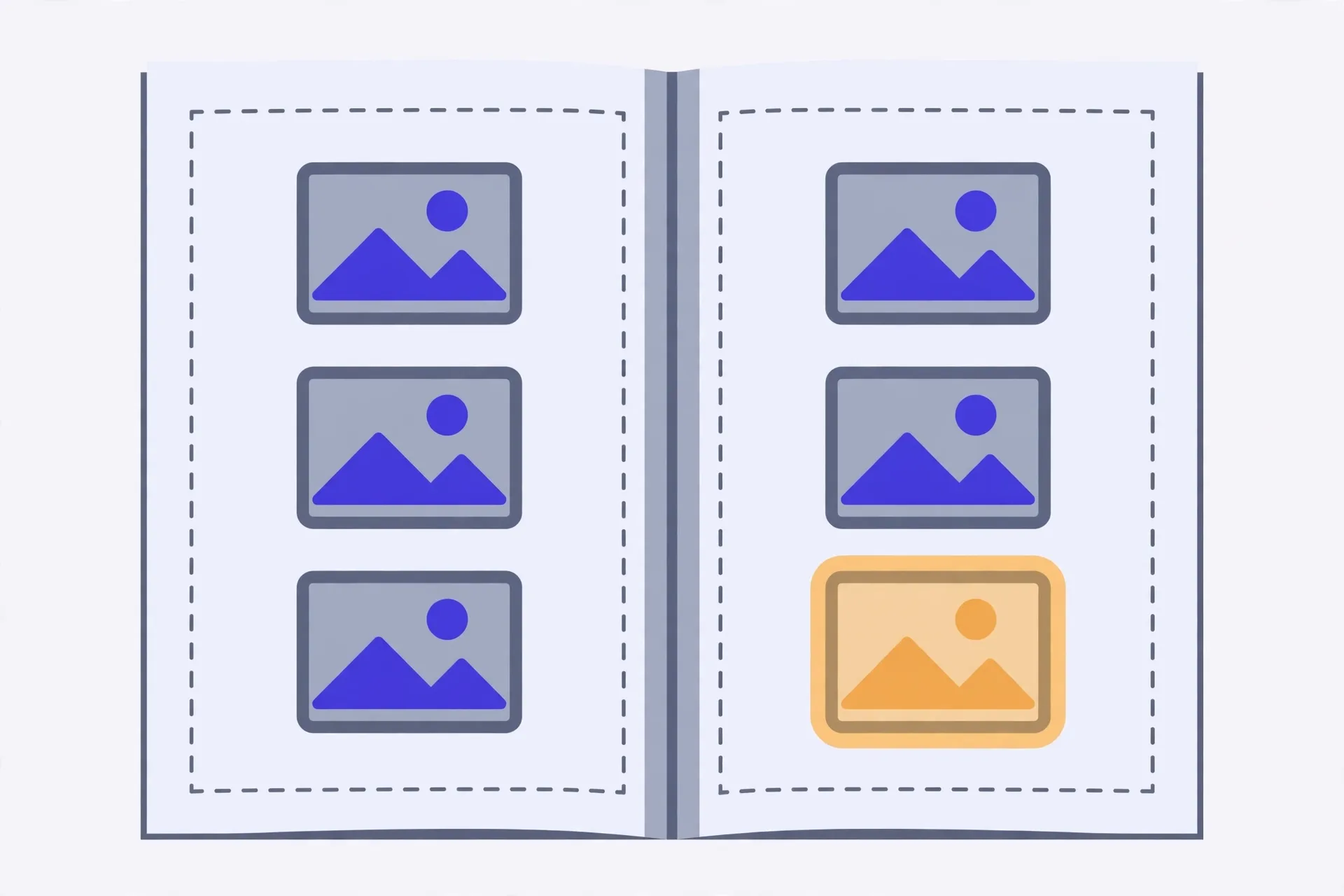
Fit page to image takes the other approach. Every page is made exactly its image's size, so nothing is scaled to fit a sheet. That's the faithful choice for scans you want preserved as they are. It's less tidy when your images all differ in size — pages jump around as a reader scrolls — but nothing gets shrunk, and for a mixed set of screenshots that trade-off is often worth it.
Margins are simpler. No margin runs each image to the edge of the page. Small margin is the default, and it's the one to keep for most documents, since it leaves the breathing room printers and signing tools expect. Wide margin gives you more white space around the page, handy if someone will annotate a printout. Custom margin lets you type an exact value from 0 to 200 pt when a requirement names a number. Wide images need no special handling on A4 or Letter, by the way — those page sizes turn to a wide orientation on their own, so a wide photo isn't squeezed into a portrait page.
Order, rotation and the pages that go wrong
The PDF follows your list order exactly. First image, first page. Last image, last page. There's no separate page editor after the build, and there doesn't need to be — if page four and page five are swapped, fix the list with the arrow buttons and click Convert to PDF again. Ten seconds. Don't send a file with an apologetic note saying the pages are out of order when the fix is that cheap.
Rotation is the other pre-build check, and it's the one people skip. Phone scans come in sideways more often than anyone admits, especially photographed documents shot in a hurry. A sideways page in a submitted PDF looks careless and reads badly — the reviewer has to tilt their head or hunt for a rotate button in their viewer. Turn each sideways scan upright in the list before you convert. It takes a glance per page.
What about a page that's simply missing? That happens when an image failed to load — usually a HEIC file in a non-Safari browser, sometimes a format the browser can't read at all. Count your pages before you convert and count the PDF pages after you download. If the numbers don't match, one image didn't make it in, and it's far better to spot that at your desk than to hear about it from the person who needed page nine.
Quality, limits and the check before you send
Pages are rendered at 150 DPI and encoded as JPEG. For documents, photos and screenshots, that's plenty — text stays sharp on screen and in normal printouts, and the file stays a sane size to send. Know the boundary, though. This isn't the tool for archival work at 600 DPI, and it doesn't produce formal PDF/A files. If a submission names a DPI figure or a PDF/A requirement, check that requirement first and use a desktop workflow that meets it. Don't guess and hope.
There's no fixed limit on how many images you can add. The real limit is your device's memory, because every image is held in the tab at print resolution while the PDF is built. Dozens of ordinary photos? Fine. Hundreds of huge scans on a low-memory phone or an old laptop can strain the tab, and the sensible move there is to split the job into a few smaller PDFs rather than fight a freezing browser. You'll finish sooner, honestly.
So here's the last habit, and it's the one that saves embarrassment. Open the downloaded PDF once before you send it anywhere official. Flip through it. Are the pages in order, upright, complete? Does the first page look like a first page? That thirty-second check catches the swapped contract pages, the sideways receipt and the missing scan while they're still your problem to fix in private — not the reviewer's problem, on the record, with your name on the file.
The Verystep Image to PDF converter takes JPG, PNG, WebP and most other browser-readable images dropped onto its drop zone, lets you order them with arrow buttons and rotate sideways scans, then builds one PDF at your chosen page size and margin when you click Convert to PDF. Everything stays on your device — nothing is uploaded — and Download PDF appears once the file is ready.
Last verified November 19, 2026 — drop zone, page-size and margin options, Convert to PDF and Download PDF flow checked against the live Verystep Image to PDF converter, and a test set recomputed by hand into a PDF and page-checked (order, wide-page flip and 150 DPI rendering confirmed).
Frequently asked questions
Why won't my iPhone photos load in the converter?
They're almost certainly HEIC files. Most browsers can't decode HEIC — only Safari does it natively — so the images never appear in the list. Convert them to JPG first with the HEIC to JPG tool on this site, then drop the JPGs into this converter. Once they're JPGs, they'll load like any other image.
Are my images uploaded while the PDF is built?
No. Reading the files, rendering the pages and writing the PDF all happen locally in your browser. There's no server step at all, and closing the tab clears everything. That's why the tool suits scans of IDs, contracts and receipts — the files never leave your device.
Can I change the page order after the PDF is made?
Not inside the PDF — there's no page editor — but you don't need one. Rearrange the image list with the arrow buttons and click Convert to PDF again. The new file follows the new list order exactly, and rebuilding takes seconds, so fixing a swapped pair of pages costs you almost nothing.
Which page size should I choose: A4, Letter or Fit page to image?
Match the reader. A4 pages or Letter pages when the document will be printed or filed in a system expecting standard paper — pick whichever size your reader uses. Fit page to image when you want each page kept at its image's exact size, which suits faithful scan archives but looks untidy when image sizes vary. On A4 and Letter, wide images turn the page to a wide orientation automatically.
Is the PDF good enough for an official submission?
For typical upload portals, yes: it's a standard PDF with clean 150 DPI pages. Check it once in your viewer before sending — order, rotation, completeness. But if the submission states a formal DPI figure or a PDF/A requirement, this isn't the tool for it. It renders at 150 DPI with JPEG encoding and doesn't produce PDF/A files, so use a desktop workflow for those cases.
More guides
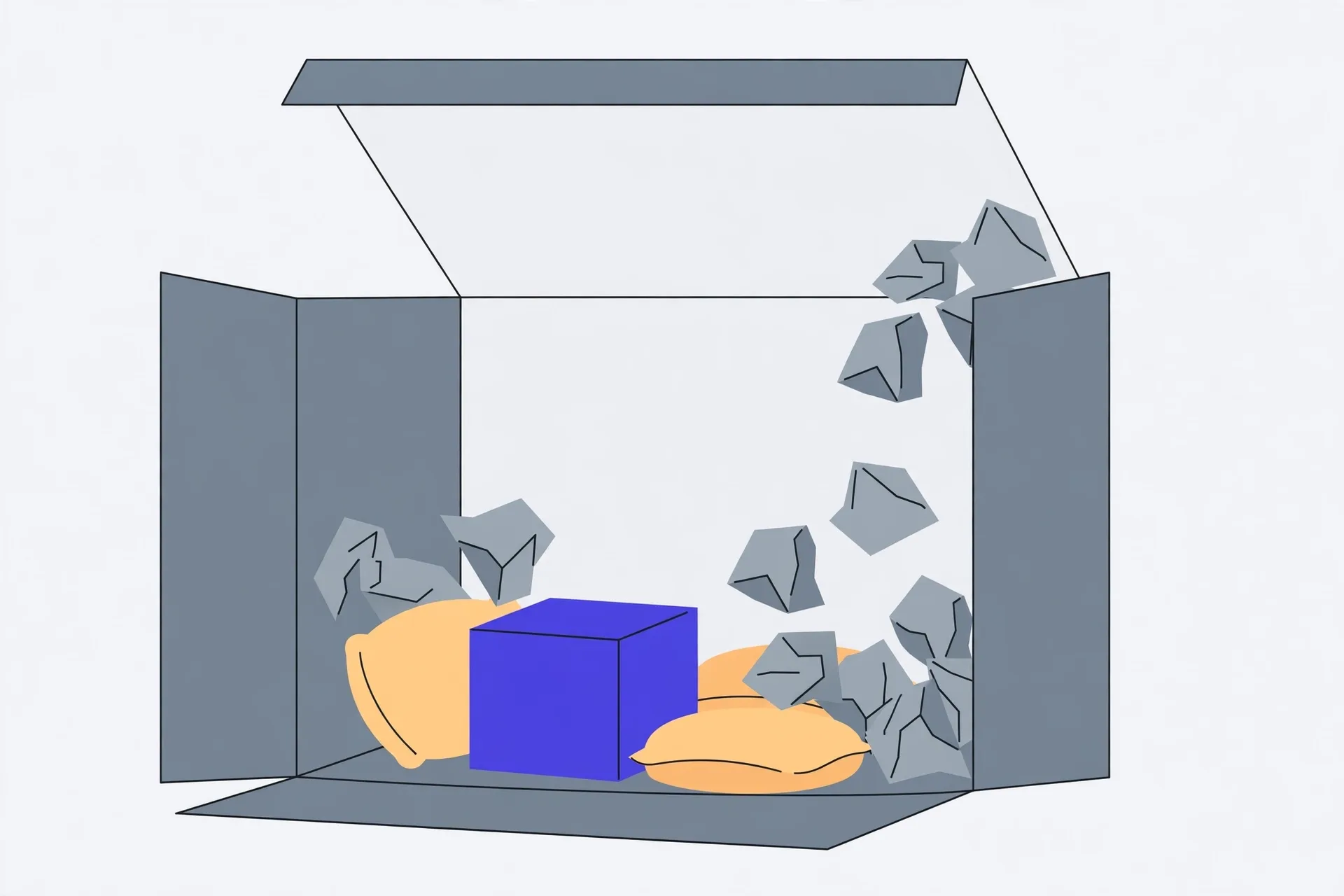
The PPWR Empty Space Ratio: Why the 50% Cap Hits Your Shipping Box First
Ask a room of online sellers what the PPWR will change first and most will say labels. The duty with a number in it is quieter: from 2030 at the earliest, no more than half the volume of your shipping box may be empty — and the filler you stuff into it counts as empty.
Counting a Return Window: The EU 14-Day Cooling-Off Period Starts the Day After Delivery
A shop page says “14 days to return”. Fourteen days from when — the order, the dispatch, the delivery? And counted how — in calendar days or working days? EU law answers both questions, and the answers are not the ones most countdown banners use.
How to Check Gift Return Eligibility Without a Receipt
Black Friday is over, the gifts are changing hands, and some of them are the wrong size, the wrong color or the second one you own. There is no receipt — there never is with a gift — so the question is not “can I get my money back?” but “which route does this store actually offer someone in my position, and how long do I have?”