How to Convert HEIC Photos in Bulk (and Fix the Ones That Fail)
Converting one HEIC photo is easy. Converting two hundred without stalling your phone or losing track of what's done takes a queue, small batches, and a plan for the files that fail.
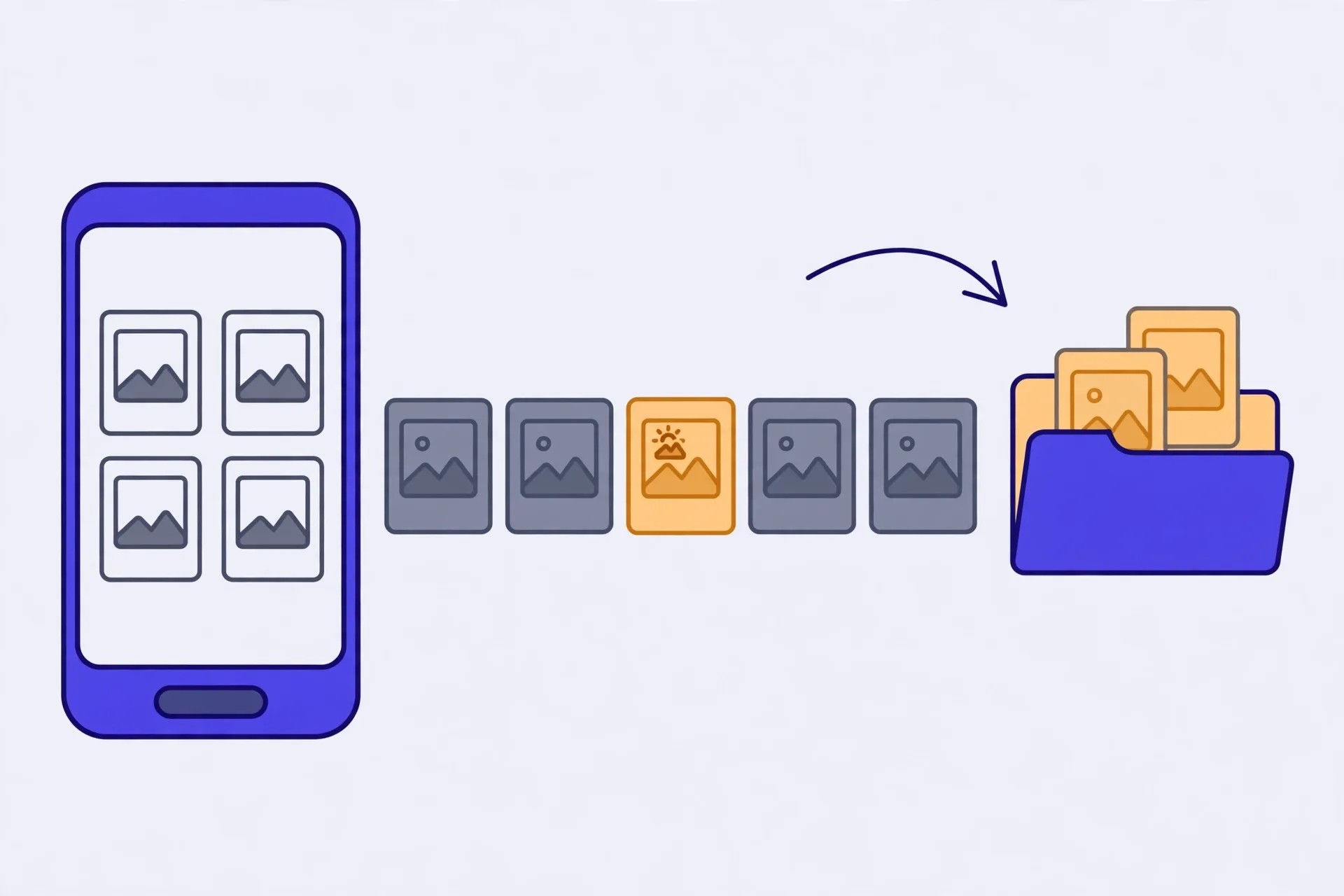
The HEIC to JPG Converter converts batches entirely in your browser: use Choose HEIC photos (you can select several) to pick a batch, set Output format to JPG for sharing or PNG for lossless editing files, set the JPG quality slider if you picked JPG — it defaults to 92% — then click Convert and download each converted file from the links that appear. There are no artificial limits, but large batches use memory, so the tool's own guidance is to convert about a dozen at a time on phones. The first conversion is slow because the heic2any decoder, about 1 MB, loads on first use and is then cached. This guide covers the batch workflow only, plus what to do when a run stalls or a single file fails.
Bulk conversion is a queue, not a single click
If you want the background on why iPhones save photos this way, read the companion concept guide, HEIC to JPG Explained — this page skips the format history and covers only the hands-on job: getting a folder of HEIC files converted, in batches, without losing track of what's done. One line of context is enough here: HEIC has been the iPhone default since iOS 11, and Windows plus plenty of websites still can't open it, which is why you're converting at all.
Bulk work fails in boring ways. Not dramatic crashes — just a stalled tab, a batch you can't remember finishing, or forty downloads with names you didn't check. So treat the job like a queue. Pick a batch, convert it, download it, check a file or two, then move on. That rhythm feels slower for the first batch. By the fourth batch it's the reason you aren't redoing anything.
Everything runs on your device. Your photos never leave it, there's no upload queue and no account. That's worth knowing before you start, because it explains the one quirk you'll hit straight away: the first conversion is slow, and that's normal. We'll get to why in the failure section below — for now, just don't judge the tool by its first run.
Convert a batch in seven steps
Settle into this sequence and repeat it batch by batch. Don't vary it halfway through a folder, or you'll lose track of which files you've already handled.
- Open the HEIC to JPG Converter and use Choose HEIC photos (you can select several) to pick the batch.
- Keep the batch modest — about a dozen files at a time, especially if you're working on a phone.
- Set Output format to JPG for sharing, or PNG if you need lossless files for editing work.
- If you chose JPG, set the JPG quality slider — leave it near the 92% default unless file size matters more.
- Click Convert and wait for the first run to finish instead of clicking again while it loads.
- Download each converted file from the links that appear, and open one or two before you move on.
- Repeat with the next batch until the folder is done, and keep the originals until every download opens.
Why cap the batch at about a dozen? The tool sets no artificial limit on count or file size, but every photo in a batch sits in memory while it converts. On a desktop with plenty of RAM you can push bigger batches and you'll probably get away with it. On a phone, a dozen at a time is the tool's own guidance, and it's good guidance. A stalled batch of sixty helps nobody — you end up splitting it anyway, after waiting.
JPG or PNG, and what the quality slider really does
Output format is a per-batch decision, not a set-and-forget preference. Pick JPG for photos you're sharing, emailing or uploading somewhere — the files are much smaller and every device and website accepts them. Pick PNG only when you need lossless files for editing work, where you'll open the image in an editor and save it again. PNG keeps every pixel. It also keeps the file big, and for a holiday snap sent to family that's weight with no payoff.
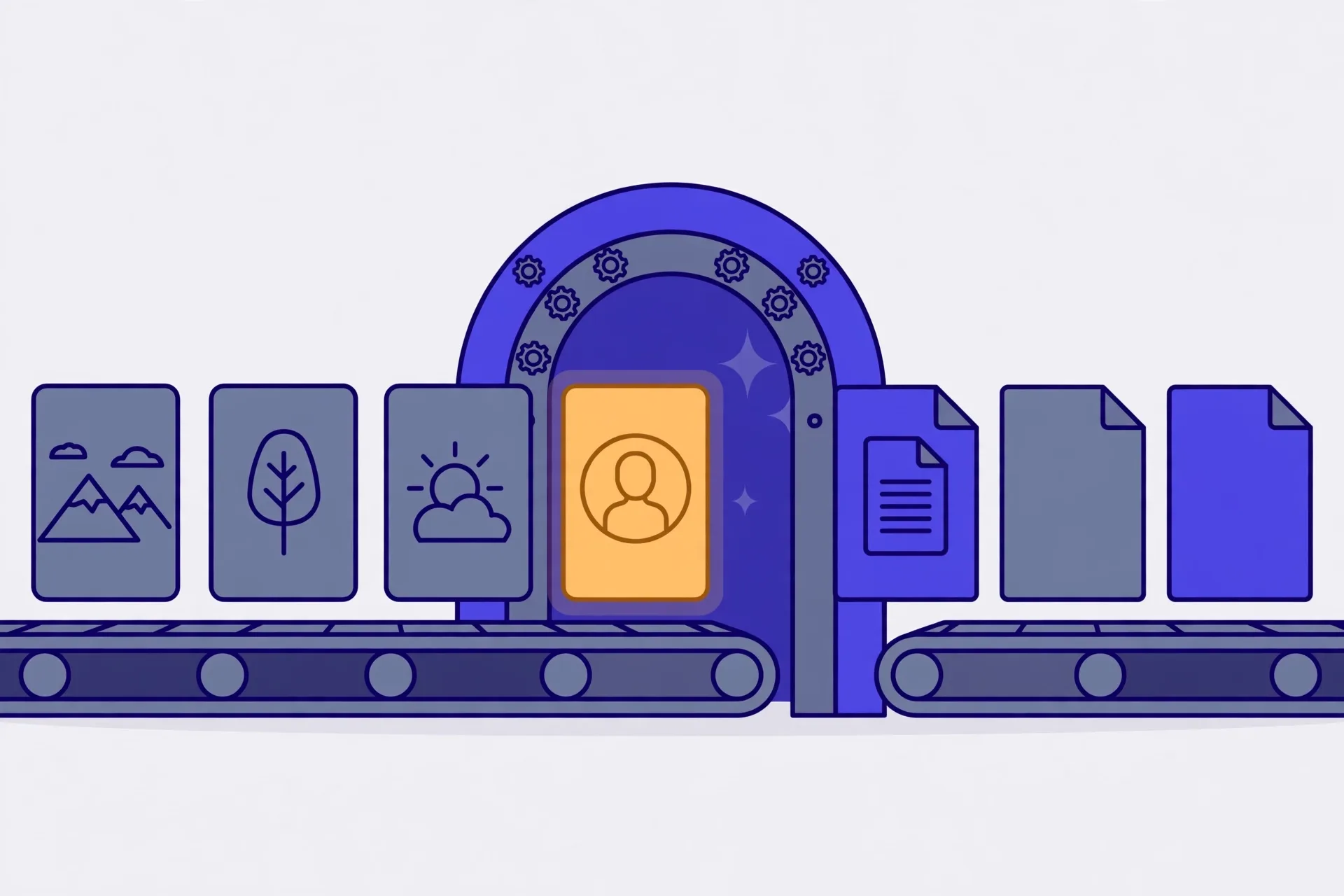
The JPG quality slider only appears in your decisions when JPG is selected. It defaults to 92%, and for most photos that default is the right call — the files look clean and stay reasonably small. Drag it down only when file size genuinely matters more than fine detail, say for a listing upload with a strict size cap. And here's the catch people miss: if a converted photo looks soft or blocky, don't re-convert the whole folder at a higher setting on a hunch. Re-convert one photo, compare it side by side, and only then redo the batch if the difference is real.
Picked PNG when you meant JPG? You'll notice fast, because the downloads are far bigger than you expected. There's no fix inside the finished files — just re-run that batch with JPG selected. It takes a minute. Converting a PNG back to JPG afterwards with a second tool takes longer and adds a needless step, so re-running the batch is the cleaner fix.
When a conversion stalls, slows down or fails
Start with the first-run stall, because it isn't a failure at all. The decoder, heic2any, is about 1 MB of code. It loads the first time you convert, then your browser caches it, so later conversions start right away. On a slow connection that first load can take a while, and the page can look like it's doing nothing. Wait it out. Don't click Convert again — a second click doesn't speed the load up, and it muddies which run you're waiting on. If the second batch is also slow, that's a different problem. The first one gets a pass.
A huge batch that grinds to a halt is a memory problem, not a broken file. Each photo is held in the tab while it decodes, so sixty large photos at once can stall a phone or an older laptop. Close nothing in a panic. Let the tab recover or reload it, then split the folder into batches of about a dozen and work through them in order. You'll finish sooner than one giant stalled run would have, and you'll know exactly which batch you're on.
One file failing while its neighbours convert fine points at the file itself. It may be corrupt, or it may be a variant the decoder can't handle. Don't let it block the folder. Set it aside, finish the batch without it, then try that file on its own. Converting singly isolates the problem: if it fails alone too, re-export it from your Photos app or transfer it again from the phone, then try the fresh copy. If the fresh copy also fails, the original is the problem, and no setting in this tool will change that.
Habits that keep a big folder painless
Download as you go. It's tempting to convert five batches and download everything at the end, but that leaves converted files sitting in a page you could close by accident. Download each batch right after it converts, while you still remember which batch it was. Close the tab and the page's work is gone — the downloads on your disk aren't.
Check early, not at the end. Open the first converted file from the first batch and look at it properly: right orientation, right quality, right format. A wrong setting caught after twelve files costs you one batch. The same wrong setting caught after a hundred files costs you an afternoon. Spot-check one file per batch after that, and you're covered without turning the job into an inspection marathon.
Keep the originals until the whole folder checks out. HEIC files are smaller than their JPG conversions, so storage isn't a good reason to delete as you go, and the original is your only fallback if a conversion turns out soft, misnamed or missing. Once every batch is downloaded and a sample from each one opens cleanly, do what you like with the originals. Until then? They stay. That one habit turns every failure in this guide from a loss into a retry.
The Verystep HEIC to JPG Converter takes files through Choose HEIC photos (you can select several), converts them to JPG or PNG with the JPG quality slider when JPG is selected, and on Convert hands you a download link for each file. Decoding runs on your device with heic2any — your photos never leave it.
Last verified November 19, 2026 — the Choose HEIC photos (you can select several) field, Output format options, JPG quality slider default of 92% and Convert button checked against the live Verystep HEIC to JPG Converter, including the first-use decoder load behaviour.
Frequently asked questions
Why is the first conversion so slow?
The heic2any decoder is about 1 MB of code and it loads the first time you convert. After that your browser caches it, so later conversions start right away. Wait for the first run to finish rather than clicking Convert again — a second click doesn't speed the load up.
How many photos should I convert at once?
There's no artificial limit, but every photo in a batch uses memory while it converts. The tool's guidance is about a dozen at a time on phones, and that's a sensible cap on older laptops too. A huge batch that stalls helps nobody — split the folder and work through it in order.
Should I pick JPG or PNG?
JPG for photos you share, email or upload: the files are much smaller and everything opens them. PNG only when you need lossless files for editing work. If you picked PNG by mistake and the downloads are far bigger than expected, just re-run that batch with JPG selected.
One photo failed while the rest converted. What do I do?
Finish the batch without it, then try that file on its own. Converting singly isolates the problem. If it fails alone too, re-export it from your Photos app or transfer it again from the phone and try the fresh copy — a file that still fails after that is likely corrupt or an unsupported variant.
Are my photos uploaded during conversion?
No. Decoding happens on your device with the heic2any decoder, in your browser. Your photos never leave your device, there's no server queue, and closing the tab clears the page — which is why you should download each batch right after it converts.
More guides
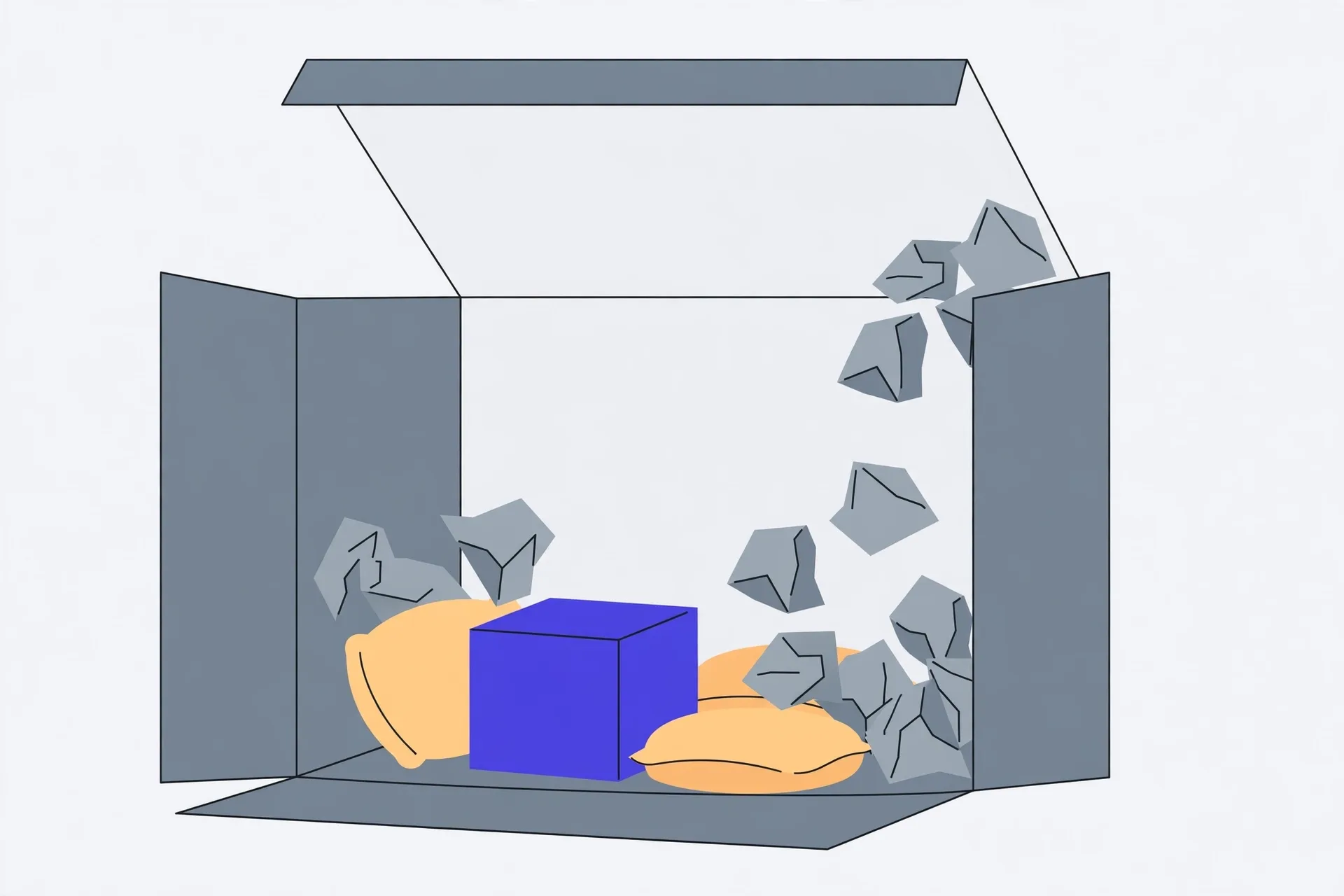
The PPWR Empty Space Ratio: Why the 50% Cap Hits Your Shipping Box First
Ask a room of online sellers what the PPWR will change first and most will say labels. The duty with a number in it is quieter: from 2030 at the earliest, no more than half the volume of your shipping box may be empty — and the filler you stuff into it counts as empty.
Counting a Return Window: The EU 14-Day Cooling-Off Period Starts the Day After Delivery
A shop page says “14 days to return”. Fourteen days from when — the order, the dispatch, the delivery? And counted how — in calendar days or working days? EU law answers both questions, and the answers are not the ones most countdown banners use.
How to Check Gift Return Eligibility Without a Receipt
Black Friday is over, the gifts are changing hands, and some of them are the wrong size, the wrong color or the second one you own. There is no receipt — there never is with a gift — so the question is not “can I get my money back?” but “which route does this store actually offer someone in my position, and how long do I have?”