How to Convert Excel to JSON Without Uploading the File
Your spreadsheet never has to leave your machine to become JSON. The file is read in your browser, the conversion happens on the page, and you check the output before anything gets saved.
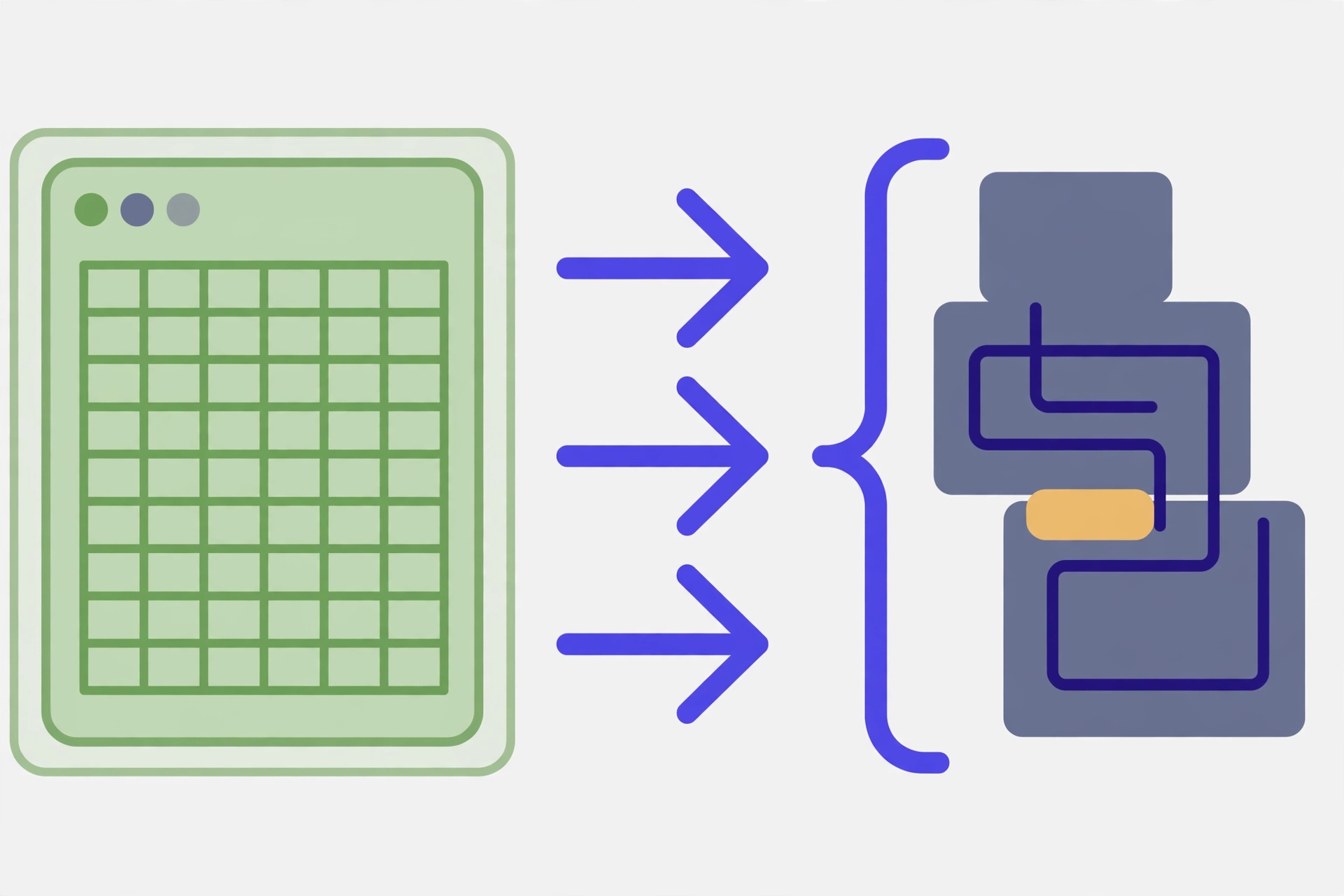
The Excel to JSON Converter takes a spreadsheet file (.xlsx, .xls or .csv), reads it locally in your browser and turns the sheet you pick into JSON. One toggle decides the shape of the result. With First row is a header on, you get an array of objects, one per data row, keyed by the names in your header row. With it off, you get an array of arrays, header row included as the first entry. This guide converts a small three-row product sheet both ways, shows what each shape looks like, and walks through the checks that catch a wrong sheet or a wrong toggle before the file reaches an API or an import step.
The privacy point, stated plainly
Most converters ask you to upload the file to a server, wait, and download whatever comes back. This one doesn't. You pick the file from your device, and your browser reads it on the page. The file is never uploaded. Nothing is sent off, stored or kept. That matters when a sheet holds stock counts, supplier names, prices or anything else you wouldn't email to a stranger just to change its format.
It also makes the workflow fast to repeat. Wrong sheet? Pick the right one and convert again. Wrong shape? Flip the toggle and convert again. Each run happens locally, so there's no upload queue and no reason to batch your checks. Convert, look, adjust, convert again.
Convert the file in seven steps
Open the Excel to JSON Converter. The page asks for one thing up front: a field labelled Spreadsheet file (.xlsx, .xls or .csv). Everything else appears around the JSON output once the file is read.
- Click the Spreadsheet file field and pick your .xlsx, .xls, or .csv file from your device.
- Use the Sheet selector to choose the exact sheet that holds the data you want.
- Set the First row is a header toggle on if you want an array of objects, or leave it off if you want an array of arrays.
- Click Convert to JSON and wait for the JSON output to fill in.
- Inspect the first object and the last object in the output and check that the keys and values match your sheet.
- Fix the sheet or the toggle if the keys look wrong, then convert again before you save anything.
- Use Copy JSON to paste the result where you need it, or click Download .json to save it as a file.
Step five isn't a formality. The first entry shows you whether the keys came out right. The last entry shows you whether the whole sheet made it through, or whether the output stops early. Thirty seconds of reading saves a failed import later.
A worked example: a three-row product sheet
Say the sheet is a small stock list. The header row is sku,name,stock. Under it sit three rows: A-101/Hose clamp/340, A-102/Bracket/125 and B-200/Valve/58. Leave the toggle on, so the first row is treated as a header, and click Convert to JSON. The output is an array of three objects. The first object is keyed by the header names and reads sku A-101, name Hose clamp, stock 340. The second pairs A-102 with Bracket and 125. The third pairs B-200 with Valve and 58. Header names became keys. Data rows became objects. That's the shape most APIs and import tools expect.

Now flip the toggle off and convert again. The shape changes completely. You get an array of arrays, and the header row itself shows up as the first array: sku, name, stock, followed by one array per data row. Nothing is labelled, because there are no keys. That shape suits tools that read by position, column one, column two, column three. Neither output is wrong. They're answers to different consumers, and the toggle is where you say which consumer you're feeding.
Getting the output where it needs to go
Once the output reads right, you've got two exits. Copy JSON puts the whole result on your clipboard. Paste it straight into an API test, a config file or a ticket, wherever text is accepted. Download .json saves it as a proper .json file, which is the better pick when the file needs a name, a folder and a future. Send the file, attach the file, commit the file.
One habit worth building: download after you inspect, not before. It's tempting to convert and save in one motion, then check the saved file if something complains downstream. Checking on screen first means the file you save is the file you already read. If you do need a second shape later, say arrays for one system and objects for another, just flip the toggle and download again with a clear filename for each.
Checks that catch a bad conversion
Start with the Sheet selector. Workbooks collect tabs over time, and last quarter's sheet often sits one click away from this quarter's, same columns, older numbers. If the first object shows a product you retired months ago, you're probably converting the wrong sheet. Check the selector before you question anything else.
Next, the toggle. If an API expects objects and your output opens with a bare array holding the words sku, name and stock, the toggle was off. The header row got converted as data. Flip it on and convert again. The reverse case exists too: a positional importer handed objects will stall on keys it never asked for. Shape first, then content.
Last, look for shifted keys. Merged cells in the header area and a blank first row both push the real headers out of position, so the converter keys your objects by empty or merged labels instead of sku, name and stock. You'll see it in the first object as odd key names that don't match your columns. Fix it in the sheet itself: unmerge the header cells, delete the blank row so the header sits in row one, then pick the file and convert again. Don't patch the JSON by hand. The next export would break the same way.
The Verystep Excel to JSON Converter reads a .xlsx, .xls or .csv file right in your browser, lets you pick the sheet and set the header toggle, and shows the JSON output on the page. Use Copy JSON for a quick paste, or Download .json to save the result as a file.
Last verified November 17, 2026 — steps, fields, toggle wording and buttons checked against the live Verystep Excel to JSON Converter; the file is read in the browser and never uploaded.
Frequently asked questions
Is my file really not uploaded anywhere?
Right. The converter runs in your browser. You pick the file from your device, the page reads it locally, and the JSON output appears on screen without the file being sent to a server. That's the whole design of the tool, and it's why it's safe to use on sheets you'd rather keep on your own machine.
Which file types can I convert?
The Spreadsheet file field accepts .xlsx, .xls and .csv files. Pick whichever version of the sheet you have. If the same data exists in more than one format, the .xlsx copy is usually the cleanest source, since it carries the workbook's sheets exactly as you see them in Excel.
What's the difference between the header toggle on and off?
On, the first row is a header and the output is an array of objects keyed by those header names, like sku, name and stock. Off, you get an array of arrays, and the header row is included as the first array. Pick objects when a person or an API will read values by name. Pick arrays when the receiving tool reads values by column position.
My output has the header words as data. What went wrong?
The First row is a header toggle was off, so the header row was converted like any other row. Turn the toggle on and click Convert to JSON again. If the keys still look wrong after that, check the sheet for merged header cells or a blank first row, fix those in the sheet, and convert once more.
The numbers in my JSON don't match the sheet I expected. Why?
You're most likely looking at a different sheet in the same workbook. Use the Sheet selector to switch to the sheet you meant, then convert again and re-check the first and last objects. Old tabs with the same columns are the classic cause: the conversion is fine, the source tab wasn't.
More guides

The PPWR Empty Space Ratio: Why the 50% Cap Hits Your Shipping Box First
Ask a room of online sellers what the PPWR will change first and most will say labels. The duty with a number in it is quieter: from 2030 at the earliest, no more than half the volume of your shipping box may be empty — and the filler you stuff into it counts as empty.

Counting a Return Window: The EU 14-Day Cooling-Off Period Starts the Day After Delivery
A shop page says “14 days to return”. Fourteen days from when — the order, the dispatch, the delivery? And counted how — in calendar days or working days? EU law answers both questions, and the answers are not the ones most countdown banners use.

How to Check Gift Return Eligibility Without a Receipt
Black Friday is over, the gifts are changing hands, and some of them are the wrong size, the wrong color or the second one you own. There is no receipt — there never is with a gift — so the question is not “can I get my money back?” but “which route does this store actually offer someone in my position, and how long do I have?”