How to Embed a Verystep Tool on a Wix Site
Wix gives you two ways in — paste the code, or just hand it the address.
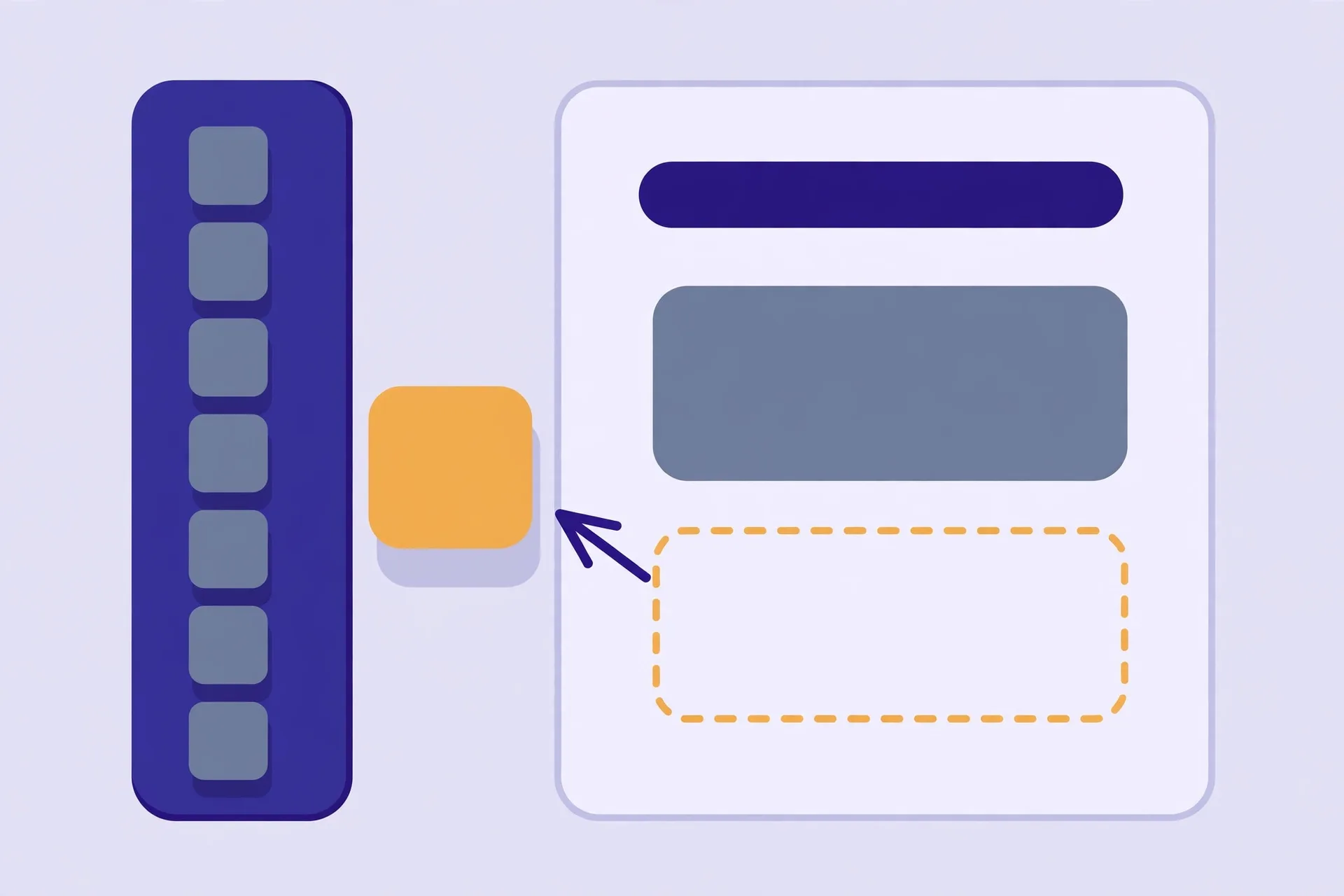
To embed a Verystep tool on Wix, add the “HTML iFrame” element (under Embed Code) and paste the tool’s embed snippet into it, then size the element to fit. Wix also offers “Embed a Site”, where you paste the tool’s embed URL on its own. No plan upgrade is needed for either route.
Which Wix element should you use?
Wix has two embed routes and they land in the same place. Embed HTML (the HTML iFrame element) takes the full snippet from a tool’s embed box — use this one; it carries the right title and lazy loading. Embed a Site takes just a web address, so you would paste the embed URL itself (the https://verystep.com/embed/… part). Both end up showing the live tool inside a frame on your page. Pick the code route and you are done in under two minutes.
Step by step
- Open the tool and copy its embed code — the example below uses the BMI Calculator.
- In the Wix editor, click Add Elements, then Embed Code, then Embed HTML (the HTML iFrame element).
- Click Enter Code on the element that appears, paste the snippet, and confirm.
- Drag the element where you want it and stretch it to the full width of your content column.
- Set the element’s height so the whole tool fits — if the bottom is cut, drag the bottom edge down or raise the height value.
- Check the mobile editor view separately; Wix keeps a distinct mobile layout, and the frame may need its own height there.
- Publish.
Worked example
The exact snippet from the BMI Calculator’s embed box:
<iframe src="https://verystep.com/embed/bmi/" title="BMI Calculator" width="100%" height="520" loading="lazy" style="border:0"></iframe>
Inside Wix, the element’s own width and height settings win over the numbers in the snippet, so do your sizing on the canvas, not in the code.
If something looks wrong
The tool looks cropped at the bottom. The element is shorter than the tool. Select it and increase its height — Wix does not auto-grow iframe elements.
It looks fine on desktop but squashed on mobile. Switch the editor to the mobile view and resize the element there too. Wix remembers the two layouts independently, which is a blessing and a trap.
Blank frame. Re-open the element’s code and check the paste survived whole — a missing closing tag or a URL that lost its https:// will leave an empty box. More platform quirks are collected on the embed overview page.
Keep going
On a different builder? The same routine, translated: Squarespace uses a Code Block, Weebly an Embed Code element, and WordPress a Custom HTML block.
The worked example below embeds the Verystep BMI Calculator. Open its page, scroll to the embed box under the FAQs and copy the code — the same box sits on all 170 Verystep tool pages.
Frequently asked questions
What is the difference between Embed HTML and Embed a Site on Wix?
Embed HTML takes the full iframe snippet from the tool’s embed box; Embed a Site takes only the URL (https://verystep.com/embed/…). Both display the same live tool. The snippet route is recommended because it includes the tool’s title and lazy loading.
Do I need a paid Wix plan to embed a tool?
No. The HTML iFrame element is part of the standard editor and is not gated behind a premium plan.
Why is my embedded tool a different height on mobile?
Wix maintains separate desktop and mobile layouts. An element sized on desktop keeps its own mobile size until you adjust it in the mobile editor view.
Can I embed a tool on a Wix page more than once?
Yes — add one element per tool. Each frame loads independently, so two or three tools on one page are fine.
More guides
How to Embed a Verystep Tool in WordPress (Self-Hosted)
Self-hosted WordPress is the easiest embed there is: one block, one paste, done.

How to Embed a Verystep Tool on WordPress.com (and the Plan Catch)
Same editor as self-hosted WordPress — but your plan decides whether the iframe survives.

How to Embed a Verystep Tool on Squarespace (Code Block, Core Plan or Higher)
The Code Block takes the snippet — but only if your plan lets code run.