How to Embed a Verystep Tool in Webflow (Code Embed Element)
One element, one paste — provided your site plan turns custom code on.

In Webflow you embed a Verystep tool with the Code Embed element: add it to the page, paste the tool’s snippet, and style the wrapper like any other element. Custom code is a paid feature, though — it needs an active paid Site plan (or a paid Workspace). On a free starter site the element accepts the code but the published page will not run it.
The plan question, first
Webflow treats custom code as a paid capability. The Designer will let you drop a Code Embed element onto a free site and paste into it, which makes the limitation easy to miss: the embed only renders once the site has a paid Site plan (or your Workspace plan covers custom code). If your published page shows an empty gap where the tool should be, check the plan before you debug the snippet — the snippet is almost certainly fine. Other platforms’ gates are collected on the embed overview.
Step by step
- Open the tool and copy its embed code — the example below is the JSON Formatter & Validator.
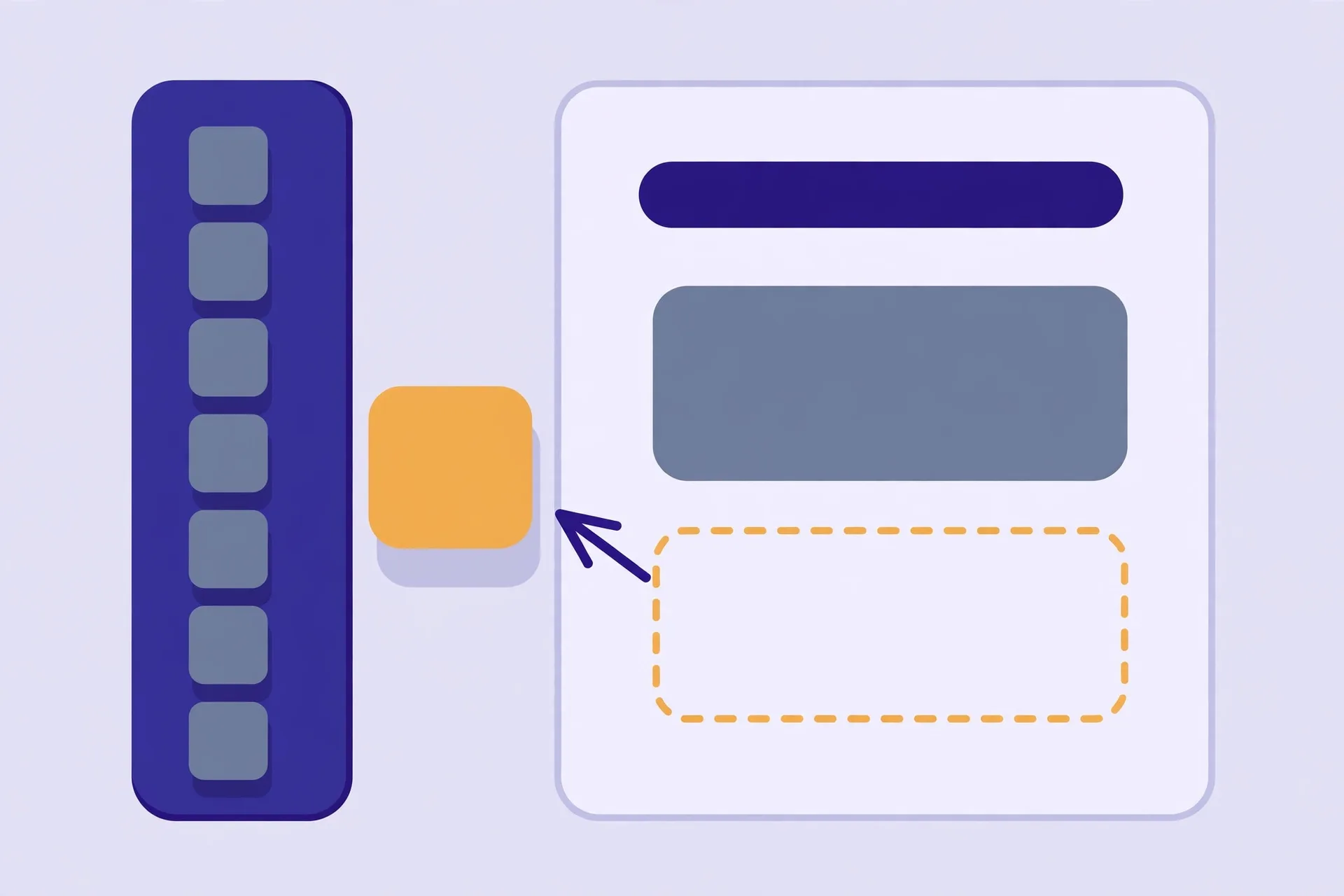
- In the Webflow Designer, open the Add panel and drag a Code Embed element into the page where the tool belongs.
- Paste the snippet into the HTML Embed Code editor and save.
- Select the element and set its width to 100% of its container; the snippet already asks for full width.
- If the tool clips, raise the snippet’s height (520 by default) in steps of 40 — Webflow will not auto-size the frame.
- Publish to your staging domain first and test there before pushing to production.
Worked example
The exact snippet from the JSON tool’s embed box:
<iframe src="https://verystep.com/embed/json/" title="JSON Formatter & Validator" width="100%" height="520" loading="lazy" style="border:0"></iframe>
A designer’s note: wrap the embed element in the same container class you use for article content. The tool inherits nothing from your styles — it brings its own — but keeping the frame inside your normal content width stops it stretching edge-to-edge on wide screens.
If something looks wrong
Empty space on the published site, fine in the Designer. That is the free-plan behaviour: custom code is visible while designing, inert once published without a paid plan.
The frame loads but the tool is too short. Height again. Developer tools like the JSON formatter are tall; 640–720 is a realistic range in a narrow column.
The embed works on staging but not production. Both are published from the same plan, so look at the paste: a snippet copied into a rich text element instead of a Code Embed element gets escaped and will not run.
Keep going
Design-led alternatives: Framer takes the same snippet in its Embed component, and Squarespace uses a Code Block — with its own plan caveat to check first.
The worked example below embeds the Verystep JSON Formatter & Validator — a natural fit for documentation and dev-tool pages. Its code sits in the embed box under the FAQs.
Frequently asked questions
Do I need a paid Webflow plan to embed a tool?
Yes. Custom code — including Code Embed elements with iframes — requires a paid Site plan for the site (or a paid Workspace plan). On free starter sites the element exists in the Designer but does not run on the published page.
Why does the embed show in the Designer but not on my live site?
That mismatch is the plan gate. The Designer previews your code; publishing on a free plan leaves custom code inert. Add a paid Site plan and the same page renders the tool with no further changes.
Can I style the embedded tool to match my site?
You can style the frame — width, margins, borders around it — but the tool’s interior keeps Verystep’s own styling. That is deliberate: the tool stays recognisable and keeps working when we update it.
Does the embed slow my Webflow page down?
Very little. The snippet uses loading="lazy", so the frame only loads when a visitor scrolls near it, and the tool itself is a single lightweight page.
More guides

How to Embed a Verystep Tool in WordPress (Self-Hosted)
Self-hosted WordPress is the easiest embed there is: one block, one paste, done.

How to Embed a Verystep Tool on WordPress.com (and the Plan Catch)
Same editor as self-hosted WordPress — but your plan decides whether the iframe survives.
How to Embed a Verystep Tool on a Wix Site
Wix gives you two ways in — paste the code, or just hand it the address.