Verystep Guides Verystep Guides
How to Resize and Crop a Photo to an Exact Size
The brief says 1200 by 630 and your photo is the wrong shape entirely. Crop to the shape first, then set the size, and nothing gets stretched.
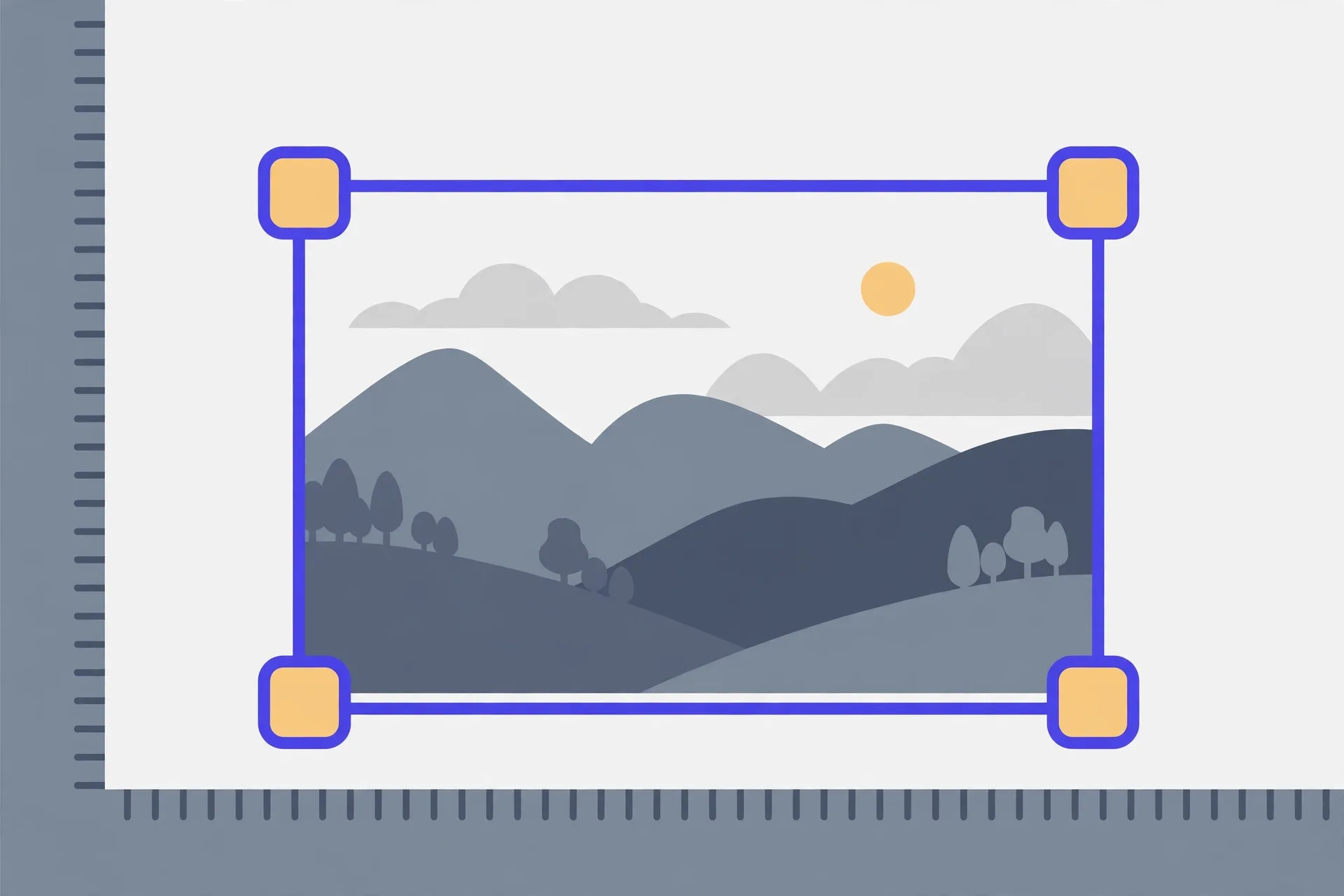
An exact size is two numbers, a width and a height in pixels, and the order you work in decides whether the result looks right. Start from the required size and work out the shape it describes. Then crop your photo to that same shape, keeping the subject clear of the edges. Only after the shape matches do you resize to the exact pixels. Keep the aspect ratio locked for a plain shrink. Turn the lock off only if you have already fixed the shape with the crop. Export, open the saved file, and confirm its dimensions match the brief digit for digit.
Start with the number you were given
Every exact-size job starts with a brief. A banner slot wants 1200 by 630. A marketplace wants a square, 1000 by 1000. An ID system wants a set portrait size. Write the two numbers down and look at the shape they describe before you open any tool. Is it wide, square, or tall? Your phone photo is probably none of those, or not quite, and that gap between shapes is the whole job.
Check your photo's current pixel size too. If it is larger than the target in both directions, you're shrinking, and the result should stay sharp. If it's smaller, you're enlarging, and no setting can invent detail that wasn't there. Knowing which side of that line you're on changes what you can honestly promise from the export. The Verystep resizer shows the current size as soon as the photo loads, in your browser, with no upload involved.
The steps, in order
Shape first, size second. That order is the whole method, and each step below protects it.
- Write down the exact width and height in pixels that the site or document asks for.
- Open the photo and check its current pixel size so you know whether you are shrinking or enlarging.
- Crop first to the same shape as the target, keeping the main subject well inside the frame.
- Turn the aspect ratio lock on for a plain resize, and turn it off only when a deliberate crop will fix the shape.
- Resize the cropped image to the exact target width and height in pixels.
- Export the file, then open the saved copy and confirm its dimensions match the target exactly.
- View the export at 100% and check faces, edges and any detail near the crop border before you use it.
Crop first, resize second
People get this backwards all the time. They resize to the target numbers first, see the shape is still wrong, then try to fix it, and end up stretching or squashing the picture to force a fit. Do the crop first and that fight never starts. Cropping chooses which part of the photo survives and sets its shape at the same time. Resizing after that is plain arithmetic, the same shape at a new size.
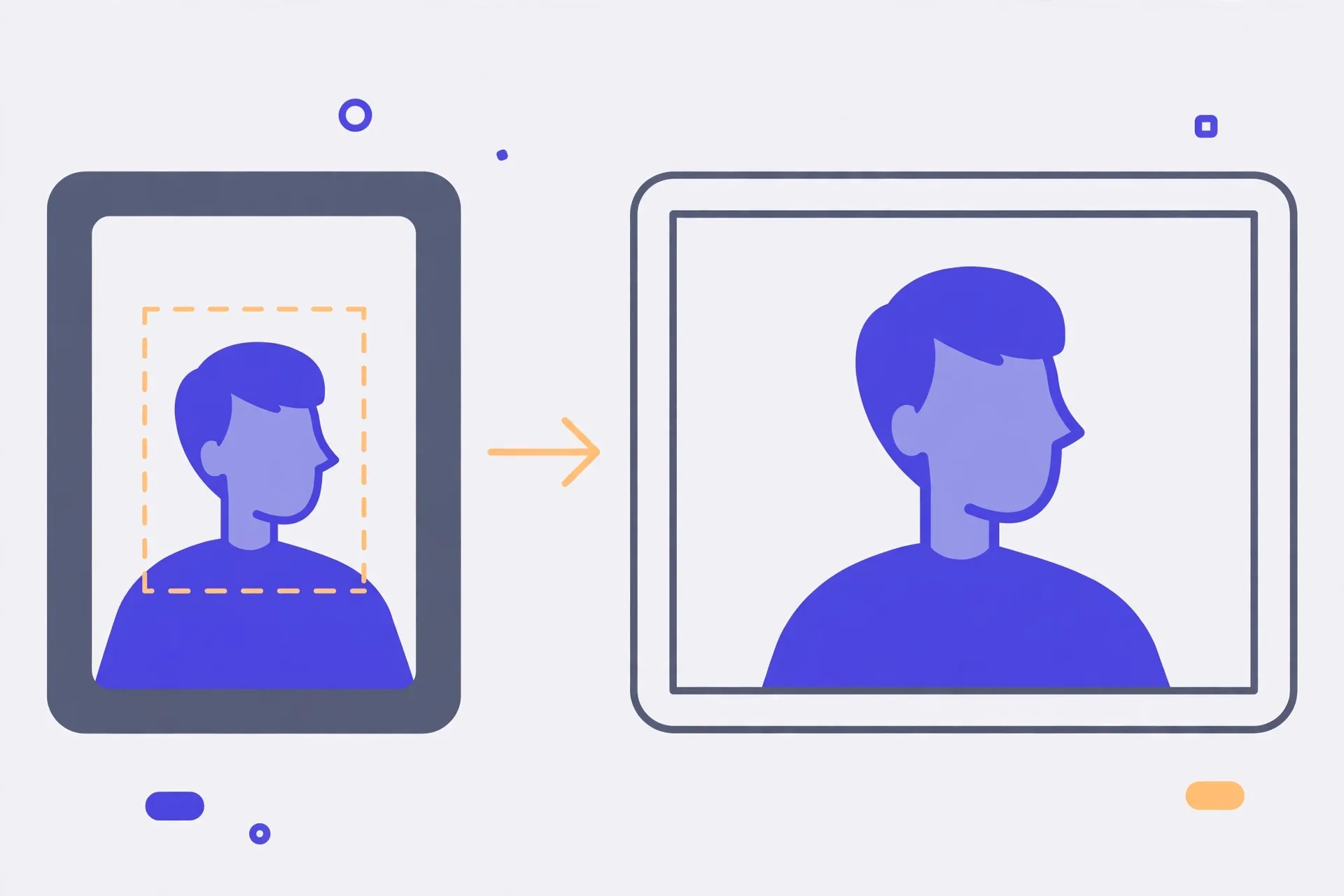
The aspect ratio lock is your guard while you resize. Locked, width and height move together, so the picture can grow or shrink but never distort. Leave it on for any ordinary resize. The only honest reason to turn it off is a tiny correction where you know exactly what you are doing, and even then a fresh crop is usually the cleaner fix. If a face looks wider than it did in the original, the lock was off. Go back.
Keeping the subject inside the frame
A crop that fits the numbers can still ruin the photo. Heads clipped at the top, a product cut off at one side, a face pushed so close to the edge it feels cramped. While you set the crop, keep the main subject clear of every border, with a bit of breathing room on all sides. Eyes and faces want space above them. A product shot wants the whole object visible, corners and all.
Think about where the image will sit, too. Wide banners often get trimmed again by the site on smaller screens, with the sides going first. Put the subject near the middle for those, not out at an edge the phone view will cut. Then export and do the plain check nobody does: open the saved file, read its dimensions in the file details, and hold them against the brief. 1200 by 630 means exactly that. 1200 by 628 is a failed upload waiting to happen on a strict system, and you can catch it in five seconds at your desk.
Mistakes that give the game away
Stretching is the big one. Turn the lock off, type a wide target for a square photo, and every face in the shot turns broad and wrong. People notice stretched faces at a glance, even if they can't say what's off. If the shapes differ, crop. Never pull.
Upscaling is the quieter disappointment. Take a tiny 300-pixel image, resize it up to 1200, and the file obeys you. The pixels are all there. The sharpness is not. The export looks soft and a bit watery, because the tool had to guess the detail between the original pixels. Sometimes a small enlargement is fine for an on-screen slot. Often the better call is to find a larger original, retake the photo, or ask for a smaller placement. Say so early rather than handing over a blurry file and hoping nobody zooms in.
And check the export, not the settings screen. Settings can look right while an old crop or a stray number quietly changes the output. The saved file is the truth. Open it, measure it, look at it at full size. Then send it.
The Verystep Image Resizer works in your browser, with no upload to a server. Load your photo, crop it to the shape you need, type the exact width and height in pixels, and export. Open the saved file and check its dimensions before you hand it over, so the size is right the first time.
Frequently asked questions
What does aspect ratio lock actually do?
It keeps width and height in the same proportion as the image you started that resize with. Type a new width and the height follows, so the picture shrinks or grows without changing shape. Turn it off and the two numbers move on their own, which is how photos get stretched. For a normal resize, leave it on.
My photo is the wrong shape for the target. What do I do?
Crop it to the target shape first, then resize. Say the target's wide and your photo's square. Crop a wide band out of the square, choosing the part that holds the subject, then resize that band to the exact pixels. The shape matches before the size is set, so nothing needs to stretch.
Can I resize a small photo up to a big target?
You can, and the file will report the right dimensions, but it won't look sharp. Enlarging spreads the detail you've got over more pixels and guesses the gaps. A modest step up often passes on screen. A big jump, like 300 pixels up to 1200, looks soft. A larger original is the real fix.
How do I check the exported size is really exact?
Open the saved file, not the tool, and look at its details or properties, where the dimensions are listed in pixels. Compare both numbers against the brief. Plenty of systems reject a file that's even a pixel or two off, so this quick check is worth doing every single time.
Does resizing here upload my photo to a server?
No. The Verystep resizer runs in your browser, on your device. You load the photo, crop and resize it locally, and save the result from the page. That suits personal photos and work images alike, since the file never leaves your machine just to change its size.
More guides
How to Use an Auto Loan Calculator to Compare Two Offers
Two dealers can quote payments that look almost identical and still be selling you loans that cost hundreds of dollars apart. The calculator shows you where the gap hides.
How to Build a Debt Payoff Order: Avalanche vs Snowball, Step by Step
Paying extra money toward debt only works if the extra money has a target. This guide builds that target: an ordered list, made two different ways, so you can see exactly where each spare dollar goes.
How to Project Compound Growth (and Read the CAGR Mode)
This calculator does two jobs in one place: it projects a balance forward at a rate you set, and it works backwards from two balances to the steady rate that links them.