Verystep Guides Verystep Guides
How to Convert XML to JSON (and Pretty-Print Both)
The conversion itself takes one click. The work is checking the shape that comes out — where the attributes went, and whether repeated elements became the array you expected.
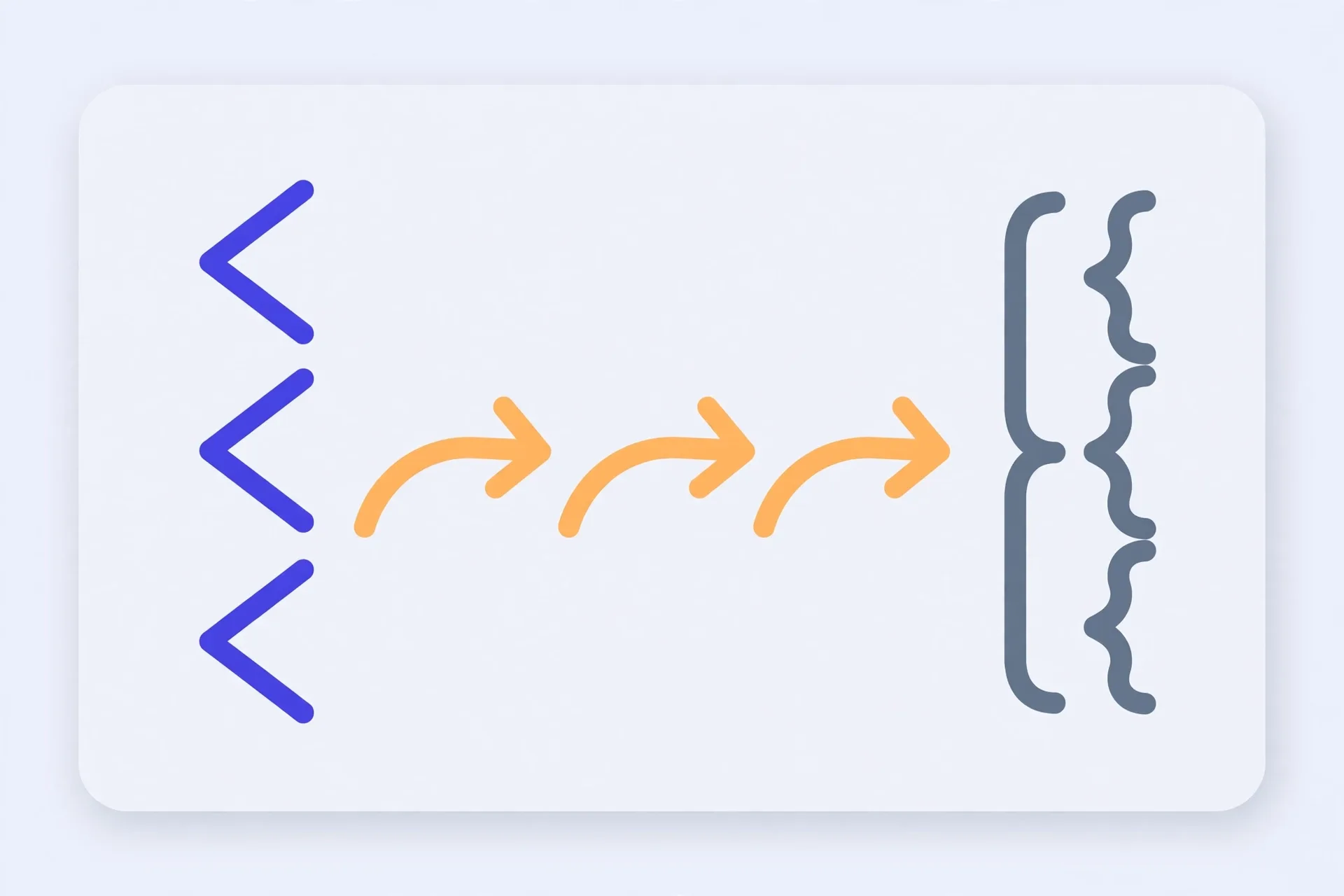
Open the converter, paste your XML into the input box, and click Convert. JSON appears in the output box. Before you use it, inspect two things. First, attributes: XML can attach them to any element, JSON has no direct equivalent for them, so converters surface them with a prefix or a separate key — find out which one yours did. Second, repeated elements: two or more siblings with the same name become an array, while a lone element usually lands as a single value. Pick an indent of 2 or 4 spaces for readable output, copy or download the result, then send the output back as input and convert it to XML again as a quick round-trip check.
Why the shape changes in conversion
XML and JSON store the same facts in different shapes. XML mixes elements, attributes and text in one tree. JSON has objects, arrays and plain values — strings, numbers, booleans and null. There is no slot in JSON that means attribute, and no slot that means element. So a converter has to make choices for you. It maps each element to a key, turns text content into a value, and finds somewhere to put the attributes.
Those choices are reasonable, but they are choices. Two converters can take the same file and return JSON that looks different while holding the same data. That is why this guide spends more time on inspection than on the Convert button. The button is honest. It does exactly one thing, fast. Your job is to read what it produced, slowly enough to spot the places where XML had a distinction JSON could not keep — an attribute that now looks like a child value, or a single item that you expected to be a list.
Convert XML to JSON in six steps
Open the XML to JSON Converter and work through this list in order. Keep your original file open in another tab or editor, so you can compare the two shapes side by side.
- Paste your XML into the input box, keeping the single root element at the top.
- Click Convert and wait for the JSON to appear in the output box.
- Inspect the output for attributes and repeated elements, and check how each one landed as a key, a value, or an array.
- Set the indent to 2 or 4 spaces and convert again if the output is hard to read or hard to compare.
- Copy the JSON, or download it as a file, and keep your original XML until you have checked the saved copy.
- Click Use output as input, set the root element name if you are converting back to XML, and convert once more to check the round trip.
Step three is the one people skip, and it is the one that saves you later. Scroll the whole output once, even on a big file. Look at the top level first — is the root element there as the outer key? Then find one element you know carries an attribute, and one group you know repeats. If those two spots look right, the rest of the file usually followed the same rules. If either spot looks wrong, stop and fix your expectations, or your source, before the JSON goes anywhere near real code.
A small worked example: an order with two items
Take this short XML input: <order id="A1"><item>pen</item><item>pad</item></order>. The root is order. It carries one attribute, id, set to A1. Inside it sit two item elements, pen and pad. Run it through the converter and the shape you should expect looks like this in outline: an order object, an item key holding an array with two strings, "pen" and "pad", and the id showing up somewhere in that object as an attribute entry.
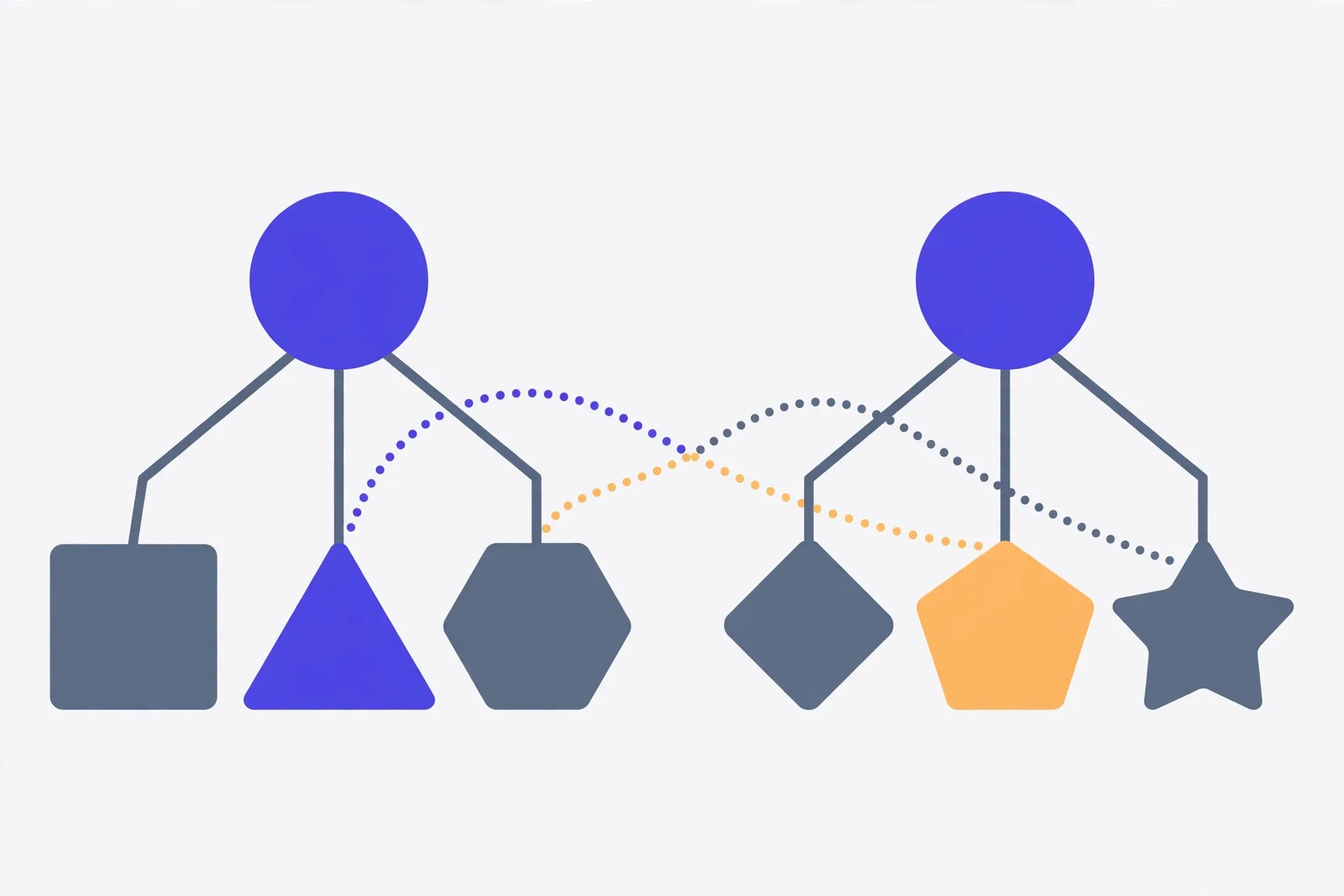
Treat that outline as illustrative, not as a promise about exact key names. The item array is the part you can count on: two siblings with the same name cannot both sit under one key as separate values, so an array is how JSON keeps both. The attribute is the part to verify in your own output. Find A1 in the result. Note whether it sits under a prefixed key or grouped with other attributes. Whatever pattern you find there is the pattern your code, or your next conversion, has to handle for every attribute in the file — not just this one.
Now flip the counts. If the order held only one item, most converters would give you a plain string for item, not a one-item array. Same source format, different JSON shape, depending on how many items happened to be in that order. If you are writing code against this output, that is the trap to design for: normalise single values into arrays on your side, or check which form you got before you loop over it.
Pretty-printing, indent, and the trip back to XML
Indent does not change the data. It changes how easy the data is to read, review and compare. The tool offers 2 or 4 spaces. Pick 2 if the file is deep or you will view it on a narrow screen — nested objects stay on screen instead of marching off the edge. Pick 4 if the file is shallow and you will read it in print or in a review, where the wider gaps help your eye track the levels. Convert again after you change the setting; there is no cost to re-running it, and a fresh run beats squinting at cramped output.
Going the other way works too. Paste JSON as the input and convert to XML, and the tool needs one thing JSON does not carry: a root element name. Fill in that field with the name your receiving system expects — order, in the example above — or the output will use a default that the other side may reject. Names matter here in a way they did not in JSON. A key called item can become an element called item only if the name is valid for XML, so check keys with spaces or odd characters before you convert, not after a failed import at the other end.
Mistakes that produce valid but wrong output
The nastiest conversion bugs do not throw errors. The JSON parses fine. It is just shaped differently from what you assumed. The single-versus-array case above is the classic one. Next is silent attribute loss in your own head: the attribute is in the output, but under a marked key you did not search for, so you conclude it vanished and rebuild data you already had. Search the output for a known attribute value — A1, in the example — before you conclude anything is missing.
Two more habits help. First, do not hand-edit the output to fix a shape you dislike, then convert it back later and wonder why your edits disappeared or moved. Fix the source, or fix it in code, in one place. Second, keep the round trip honest. Converting JSON back to XML will not restore the exact original file — attribute placement, ordering and formatting can all differ. The round trip checks that the data survived, not that the bytes match. If the values, the repeats and the attributes are all present and in the right places, the conversion did its job.
The Verystep XML to JSON Converter runs a real parser in your browser and works in both directions. Paste XML on one side, get JSON on the other, set the indent to 2 or 4 spaces, then copy, download, or send the output back as input for a round-trip check — all without uploading your data anywhere.
Last verified November 16, 2026 — steps, fields and worked figures checked against the Verystep XML to JSON Converter.
Frequently asked questions
Where do XML attributes go in the JSON?
JSON has no direct equivalent for attributes, so converters surface them with a prefix on the key or grouped under a separate key. The exact pattern varies, which is why this guide has you search the output for a known attribute value first. Once you find how one attribute landed, the rest in that file will follow the same pattern.
Why is my repeated element sometimes an array and sometimes not?
Because the shape follows the count in that document. Two or more siblings with the same name become an array, so both values survive under one key. A single element usually lands as a plain string or object. If your code loops over the value, normalise it into an array on your side, or test which form you received.
Should I use a 2-space or 4-space indent?
Either is fine for the data — indent only affects reading. Use 2 spaces for deep files or narrow screens, so nesting stays visible. Use 4 spaces for shallow files you will read closely or print. Match the style of the project the file is joining, if there is one, so diffs stay clean.
Why does converting back to XML ask for a root element name?
JSON does not store a root name. A JSON object just starts, while an XML document must open with one named root element that wraps everything else. The tool asks you to supply that name so the XML it builds has the wrapper your receiving system expects. Without it, the output uses a default name.
The round trip back to XML does not match my original file. Is something broken?
Not usually. Attribute placement, element ordering and formatting can all differ after a round trip, even when every value survived. Compare the data, not the bytes: check that the values, repeated elements and attributes are present and nested in the right places. If they are, the conversion worked.
More guides

How to Use an Auto Loan Calculator to Compare Two Offers
Two dealers can quote payments that look almost identical and still be selling you loans that cost hundreds of dollars apart. The calculator shows you where the gap hides.

How to Build a Debt Payoff Order: Avalanche vs Snowball, Step by Step
Paying extra money toward debt only works if the extra money has a target. This guide builds that target: an ordered list, made two different ways, so you can see exactly where each spare dollar goes.

How to Project Compound Growth (and Read the CAGR Mode)
This calculator does two jobs in one place: it projects a balance forward at a rate you set, and it works backwards from two balances to the steady rate that links them.