Verystep Guides Verystep Guides
How to Convert Markdown to HTML (and HTML Back to Markdown)
You've got tidy Markdown and a box somewhere that only wants HTML — here's the one-minute trip, plus the honest way back.
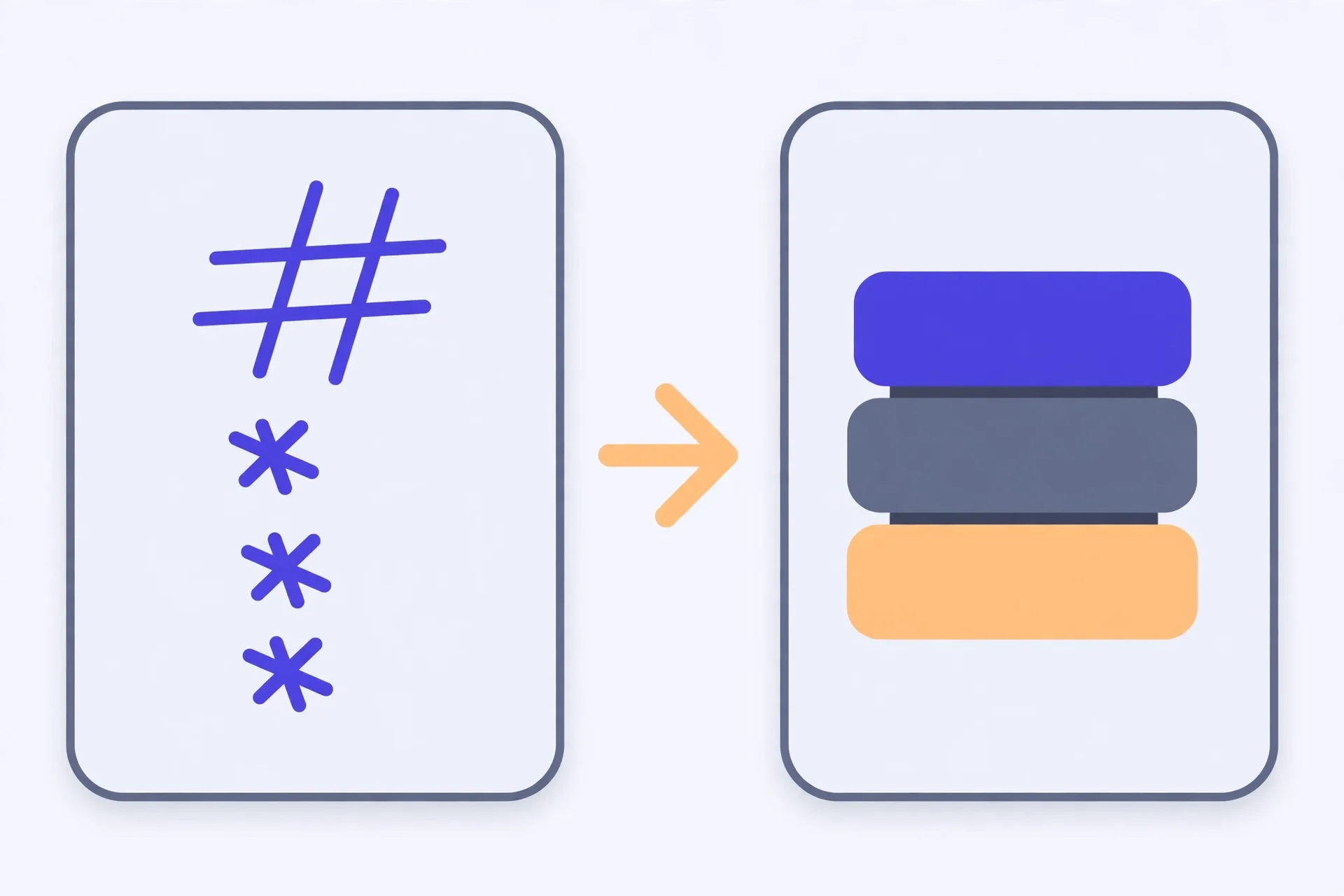
To convert Markdown to HTML, paste your text into the left panel of the Markdown Preview tool, read the live rendered result on the right, and fix anything broken there first — a table missing a cell or a code fence you forgot to close will show up at once. Then click Copy HTML and paste the generated HTML into your CMS, email builder, or code file, and open the result to check that links and images survived. Going back is different: the tool doesn't convert HTML to Markdown, so for short pieces you map the HTML source back by hand, tag by tag, and check it in the preview.
Convert in seven short steps
You've got Markdown. You need HTML. That's the whole job here, and it'll take you about a minute once you've done it twice. The tool below is a live preview, not a file converter you upload to. You type or paste on the left. The rendered result shows up on the right. It handles tables, code blocks, and GitHub-flavored Markdown, so what you see is close to what most sites will show.
- Write or paste your Markdown into the left panel of the Markdown Preview tool.
- Scan the live preview on the right and fix a broken table or an unclosed code fence before you copy anything.
- Check that headings nest in order and that every link and image points where you meant it to.
- Click Copy HTML to copy the generated HTML to your clipboard.
- Paste the HTML into your CMS, email builder, or code file, not into a plain text box that will escape it.
- Open the pasted result once and click each link and check each image survived the move.
- Save your original Markdown file, because that file is now your editable source for the next update.
Don't skip step two. Really. A table that loses one pipe character doesn't throw an error. It just renders as a sad paragraph. Same with a code fence. Forget the closing backticks and the rest of your page turns into one long code block. You'll catch both in the preview in seconds. You won't catch them by staring at raw Markdown.
A worked run: release notes into a help page
Say you've drafted release notes in Markdown and your help center wants HTML. You paste the draft in. Headings look right. Then you spot trouble. One table row is short a cell, so the last column has slid left. You add the missing cell in the left panel and watch the preview fix itself. No re-export. No second tool.
Next, the code sample. Your notes include a short config snippet in a fenced block, and the preview shows it in a neat shaded box with the line breaks intact. That's your sign the fence closed properly. If the text after the snippet had turned monospace too, you'd know it hadn't.
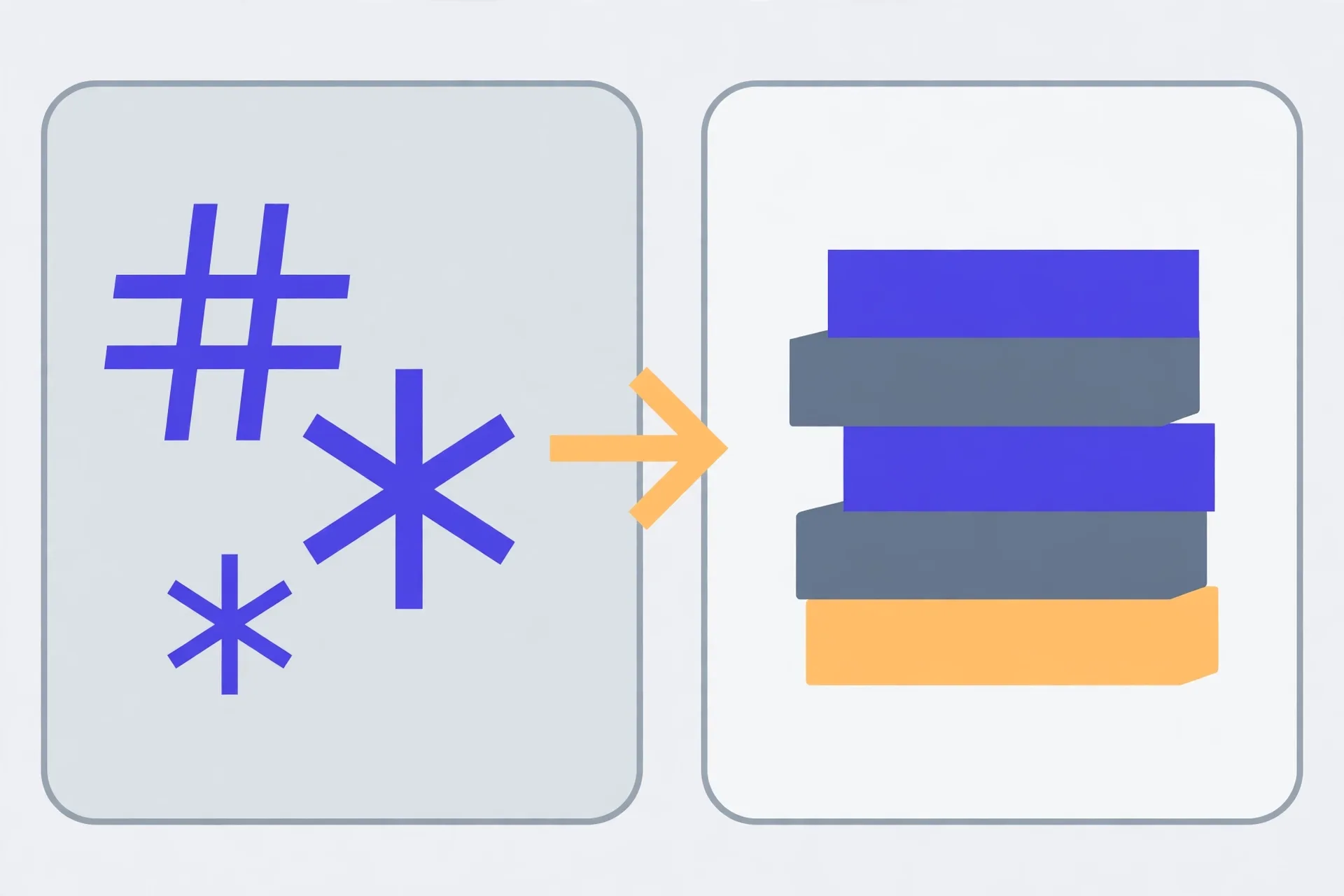
Now you hit Copy HTML and paste it into the help center editor, in its HTML or source view. You open the published page. You click the two links. You check the screenshot still loads. Done. And you've still got the Markdown file, so next month's update starts from clean, readable text instead of from somebody else's generated markup.
Going back: HTML to Markdown
Here's the plain truth. The tool doesn't do this direction. There's no reverse button, and you shouldn't hunt for a hidden one. It turns Markdown into HTML. That's it.
So how do you go back? By hand, for short pieces, and it isn't as grim as it sounds. Start from the HTML source, not from the rendered page on screen. Copy the content block only. Skip the navigation, the footer, and the scripts. They don't belong in your document.
Then map each tag back to its Markdown shape. A top heading becomes a single hash and a space. A link becomes its text in square brackets, followed by the address in parentheses. A bullet list becomes lines that start with a dash. Bold becomes double asterisks. A code block becomes a fenced block with triple backticks above and below. Work top to bottom, then paste the result into the preview and compare the two sides. Where they don't match, your mapping missed something.
Why not just copy the pretty page and paste it into a Markdown editor? Because tables and code don't survive that trip. You'll get flattened rows, lost line breaks, and spans of styling markup you never wrote. For a paragraph or two, fine. For anything with structure, you'll spend longer cleaning it than you'd have spent mapping it properly.
Mistakes that bite, and how you dodge them
Pasting into the wrong view tops the list. If you paste HTML into a visual editor that's expecting text, it'll escape your tags and your reader will see angle brackets on the page. Ugly. And obvious. Paste into the HTML view instead, then switch back and look.
Relative image paths bite next. Your Markdown might point at an image file that sits beside it on your laptop. Your CMS doesn't have that file. The HTML will load, the text will read fine, and the image box will sit empty. Upload the image first, or use a full web address you know resolves.
Watch your heading order, too. Don't jump from a top heading straight to a third-level one just because it looks smaller. Screen readers and search tools follow that order, and a skipped level reads like a missing step. Keep the order boring. Boring is good here.
One last trap? Trusting the copy without opening the result. Links rot in transit. A truncated paste can chop the last section clean off. Thirty seconds of clicking saves you from publishing half a page and finding out from a reader. You don't want that email.
Open the Markdown Preview, paste your text on the left, and watch it render on the right with tables, code blocks, and GitHub-flavored Markdown supported. When it looks right, click Copy HTML and paste the result where you need it. It won't convert HTML back to Markdown, and it doesn't pretend to. Your text stays in your browser while you work.
Last verified November 14, 2026 — tool behaviour checked against the live Markdown Preview: live rendering with tables, code blocks and GFM, plus the Copy HTML button; no HTML-to-Markdown conversion is offered.
Frequently asked questions
Does the Markdown Preview convert HTML back to Markdown?
No, it doesn't. It converts Markdown to HTML only, with a live preview and a Copy HTML button. To go back, work from the HTML source and map headings, links, lists, and code blocks back to Markdown syntax by hand, then check your result in the preview.
Why did my table turn into a paragraph?
You've almost certainly dropped a pipe character or a cell in one row, so the rows no longer line up. Don't publish and hope. Fix the row in the left panel and watch the preview turn it back into a table before you copy anything.
Why did half my page turn into a code block?
Your code fence didn't close. If you open a block with triple backticks and never close it, everything after it counts as code. Add the closing fence, check that the text below renders normally again, and then copy.
Where should I paste the HTML?
Paste it into an HTML or source view, not a plain visual text box. If you paste it into the wrong view, the editor will escape your tags and readers will see angle brackets on the page instead of your formatted content.
Should I keep my Markdown file after converting?
Yes, keep it. It's your editable source. Next time you update the piece, edit the clean Markdown and convert again, rather than picking through generated HTML that you didn't write by hand.
More guides

How to Use an Auto Loan Calculator to Compare Two Offers
Two dealers can quote payments that look almost identical and still be selling you loans that cost hundreds of dollars apart. The calculator shows you where the gap hides.

How to Build a Debt Payoff Order: Avalanche vs Snowball, Step by Step
Paying extra money toward debt only works if the extra money has a target. This guide builds that target: an ordered list, made two different ways, so you can see exactly where each spare dollar goes.

How to Project Compound Growth (and Read the CAGR Mode)
This calculator does two jobs in one place: it projects a balance forward at a rate you set, and it works backwards from two balances to the steady rate that links them.