Verystep Guides Verystep Guides
How to Compare Two Texts and Read a Diff
A diff only helps if you read it in the right order — changed lines first, word highlights second, and a healthy suspicion of anything that looks like a total rewrite.
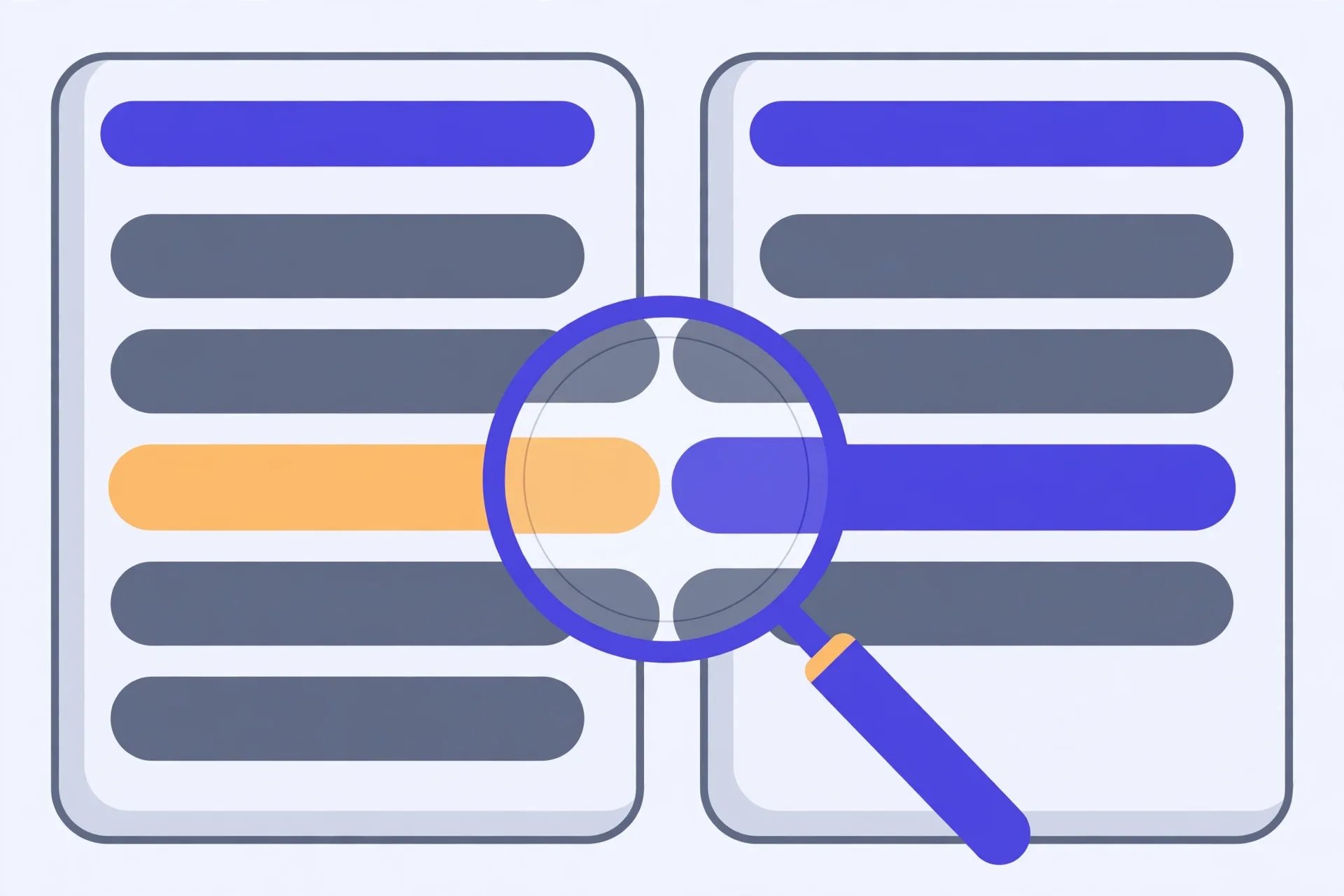
Put the older version on the left and the newer one on the right, and keep that order every time: left-only lines read as removed, right-only lines as added. Run the check, scan the changed lines first, then read the word-level highlights inside them to see exactly what moved. If the whole file lights up, turn on ignore whitespace — spacing and line-ending noise from PDFs and reformats can fake a rewrite. A block that vanishes in one place and appears in another is usually a moved paragraph, not new text. Report a short list of changed lines, not the whole diff.
Set the sides before you paste anything
Order runs the whole show here. In this guide, left means old and right means new. A line that only shows on the left reads as removed. A line that only shows on the right reads as added. Flip the sides and your report flips too — you'll tell someone a clause was cut when it was actually added. That's not a small slip in a contract thread.
So pick the habit and stick to it. Old left, new right, every time. Don't swap halfway through a review because one file happened to open first. If a teammate uses the other way round, say your convention out loud at the top of your notes. Two minutes of fuss. It saves a very awkward correction later.
Nothing you paste gets uploaded. The check runs in your browser, so you can use it on drafts you'd never drop into a random server-side tool. Still, treat the text with care. Close the tab when you're done with sensitive drafts, same as you'd close the document itself.
Compare two texts in seven steps
- Put the older version on the left and the newer version on the right, and keep that order for every check you run.
- Paste each version into its own panel, then glance at the first and last lines to confirm you didn't paste the same text twice.
- Run the comparison and scan only the changed lines first, skipping the untouched blocks for now.
- Read the word-level highlights inside each changed line to see exactly which words were added, cut, or swapped.
- Turn on ignore whitespace if the result lights up everywhere but the changes look like spacing, tabs, or line-ending noise.
- Treat any block that shows as one big deletion plus one big addition as a moved paragraph until you've checked its new spot.
- Write down the verdict as a short list of changed lines or sections instead of copying the whole diff into your report.
That's the whole routine. Most checks take under five minutes once the sides are set. If step five changes the picture a lot, note that down — it means the two files differ in formatting more than in wording, and the person who sent them should know that before they panic.
A worked pass: two drafts of the same clause
Say legal sends draft three of a services agreement, and you've got draft two saved from last week. You paste draft two on the left, draft three on the right. The checker flags six lines. Four are tiny. A payment term moves from 30 days to 45, and one word-level highlight shows “reasonable” dropped before “efforts.” Those two matter. You circle them.
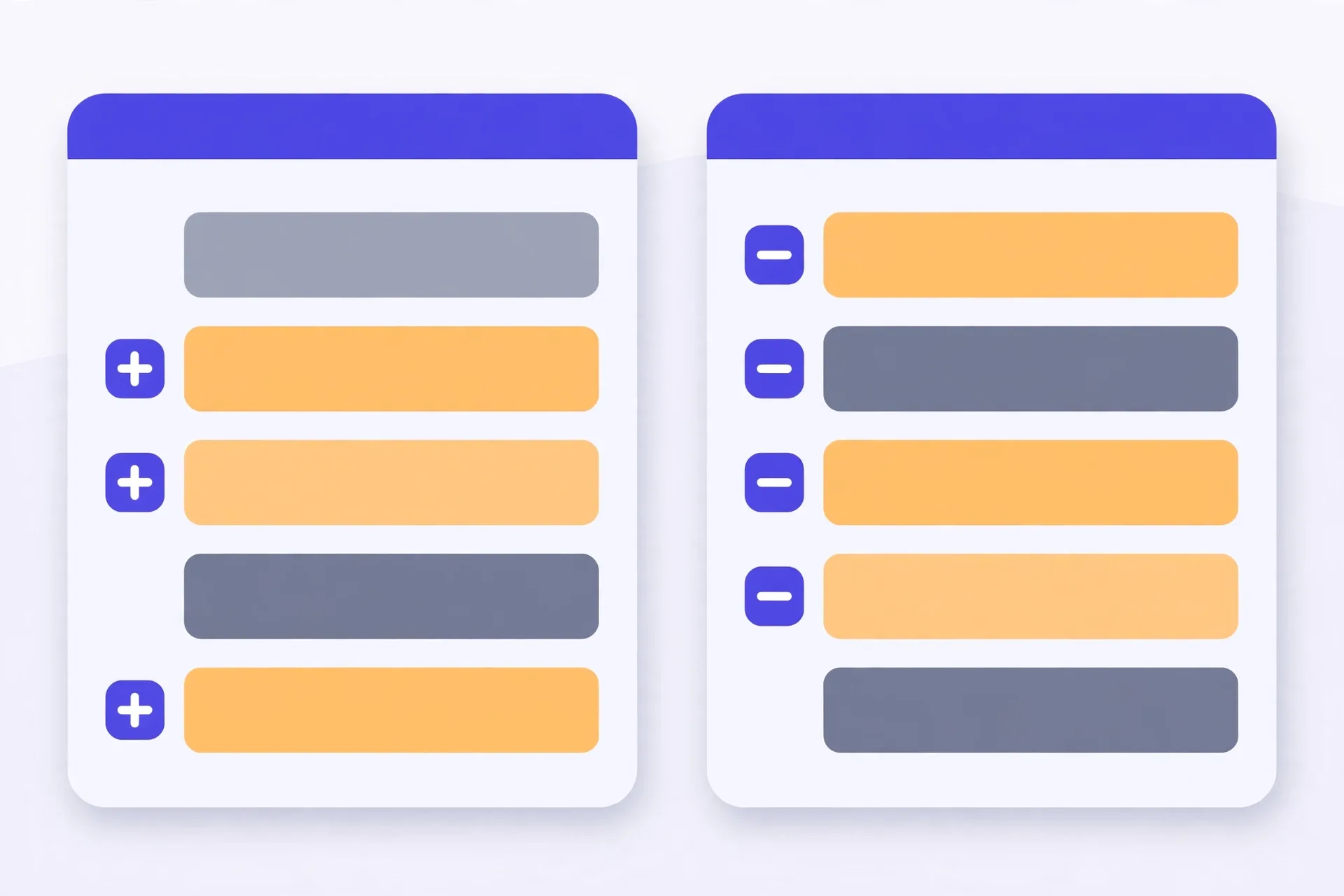
The other two flags look huge. A whole paragraph shows as deleted near the top and added near the bottom, word highlights and all. You search the right-hand text for its first few words. There it is, moved under a new heading, wording intact. So your verdict isn't “paragraph rewritten.” It's “paragraph moved, no wording change.” Very different email.
The same pass works elsewhere. Config files after an edit, where one changed value hides among 200 lines. An essay revision, where you want proof you fixed the second paragraph and didn't just reread it fondly. A code review when there's no git repo handy and someone hands you two files on a stick. The tool changes. The reading order doesn't: lines first, words second, moves third.
Mistakes that fake a result
The classic is pasting the same text twice. You get a clean, empty diff and a warm feeling of certainty — and you've proved nothing except that copy and paste works. Check the edges. First lines, last lines, one known difference in the middle. If you can't name a spot that should differ, you can't trust a result that says nothing differs.
Next up: encoding and line-ending noise. Text copied from a PDF often carries odd spaces and hard line breaks. A file saved on Windows ends lines differently from one saved on a Mac or Linux box. Both can paint a diff that looks like a rewrite. Turn on ignore whitespace, re-run, and see what's left. What's left is real.
Don't read a reformat as a rewrite, either. Someone runs a formatter, wraps every long line, and suddenly each paragraph flags as changed. Look at the word highlights. If the words match and only the breaks moved, say so plainly. And don't report the whole diff when three lines carry the news. A short verdict — which lines, what changed, in plain words — is what the next person can actually act on.
The Verystep Text Diff Checker shows additions and deletions line by line, highlights the exact words that changed inside a line, and offers an ignore-whitespace toggle for noisy copies. Paste both versions and read the result in your browser — nothing is uploaded.
Last verified November 14, 2026 — steps and options checked against the Verystep Text Diff Checker on this site (line-by-line additions and deletions, word-level highlighting, ignore-whitespace option, in-browser processing).
Frequently asked questions
Which side should the original go on?
On the left, in the convention this guide uses. Left-only lines then read as removed and right-only lines as added. The tool doesn't mind which order you pick, but your report does — flip the sides and added becomes removed. Pick old-left, new-right and never swap mid-review.
What does ignore whitespace actually do?
It tells the checker to treat runs of spaces, tabs, and line breaks as if they match. Use it when a diff lights up everywhere but the words look the same — common after a formatting pass or when text was copied out of a PDF. Turn it back off for a final pass if spacing itself matters, as it can in config files.
A whole paragraph shows as deleted and added. Did someone rewrite it?
Probably not. That's the classic shape of a move. Search the other version for the paragraph's opening words. If you find it intact in a new spot, report it as moved with no wording change. If parts differ, the word-level highlights inside the two blocks will show you exactly where.
Can I use this on a contract or other sensitive draft?
The checker runs in your browser and nothing you paste is uploaded, which is why people use it for drafts they wouldn't send to a server-side tool. Treat the text with the same care as the document itself anyway — work in a private window if you share the machine, and close the tab when you're done.
The diff says nothing changed, but I know something did. What went wrong?
Most likely you pasted the same version twice — an empty diff proves nothing in that case. Check the first and last lines of each panel and one spot you know differs. Line-ending or encoding differences can also hide or invent changes, so re-run with ignore whitespace on and compare what survives.
More guides

How to Use an Auto Loan Calculator to Compare Two Offers
Two dealers can quote payments that look almost identical and still be selling you loans that cost hundreds of dollars apart. The calculator shows you where the gap hides.

How to Build a Debt Payoff Order: Avalanche vs Snowball, Step by Step
Paying extra money toward debt only works if the extra money has a target. This guide builds that target: an ordered list, made two different ways, so you can see exactly where each spare dollar goes.

How to Project Compound Growth (and Read the CAGR Mode)
This calculator does two jobs in one place: it projects a balance forward at a rate you set, and it works backwards from two balances to the steady rate that links them.