Verystep Guides Verystep Guides
HEIC to JPG: Why Your iPhone Photos Won’t Open — and How to Convert Them
Your iPhone’s favourite format is everyone else’s “unsupported file”. Here is what HEIC is, and what happens when you convert it.
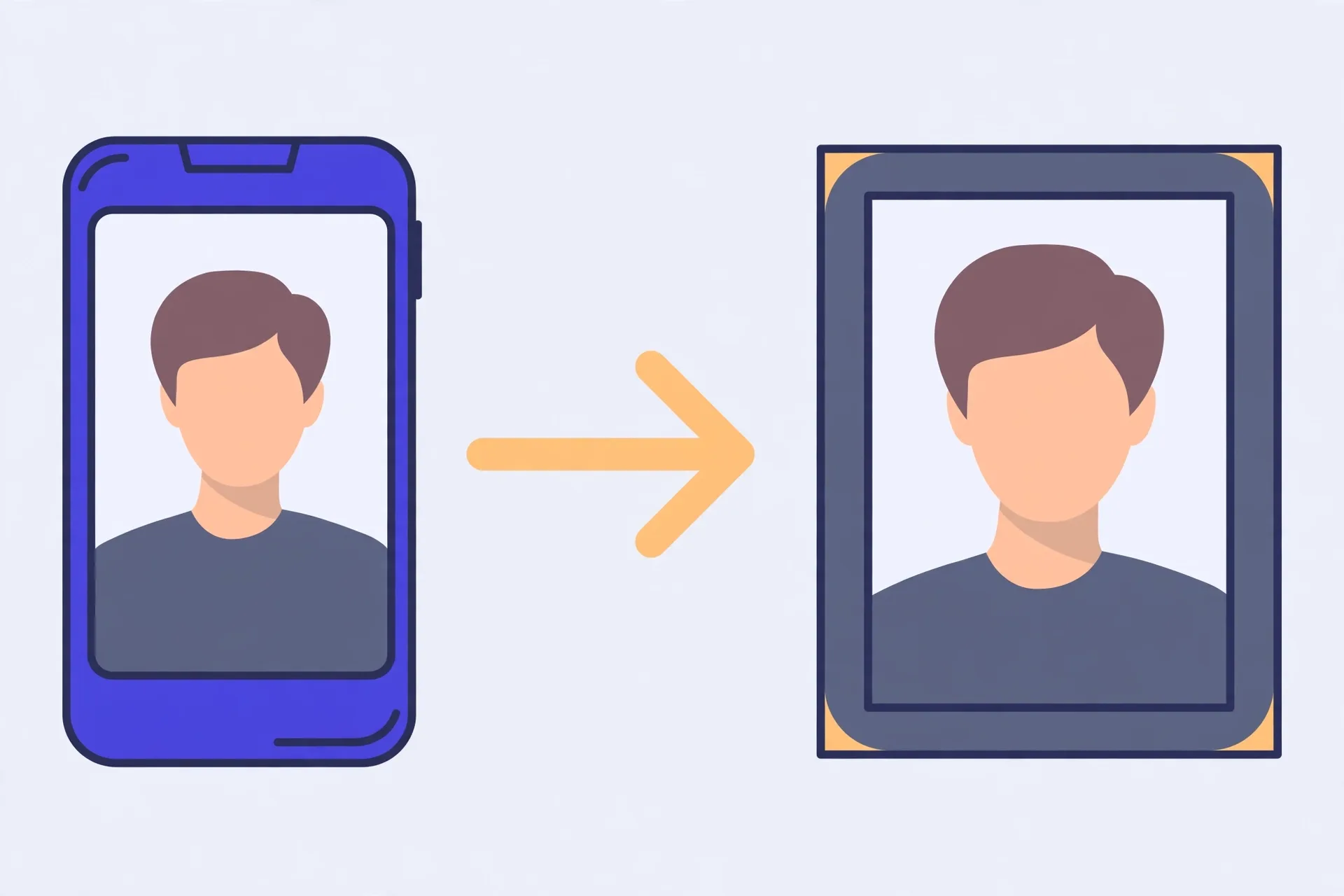
HEIC is what iPhones have saved by default since iOS 11: a HEIF container holding HEVC-compressed images, commonly about half the size of an equivalent JPG, able to carry thumbnails, depth maps and Live Photo frames in one file. JPG is older and larger but opens everywhere. Converting decodes the HEIC to pixels and re-encodes them — JPG at around 92% quality for sharing, PNG for lossless pixels — and only the main photo survives, so keep the original HEIC as your master copy.
Why the photo opens on your phone and nowhere else
You know the moment. The picture looks perfect on your iPhone, you send the actual file to a Windows laptop or upload it to a website form, and the other side shrugs: blank thumbnail, “unsupported format”, a grey box. Nothing is wrong with the picture. It is written in a format half the world still cannot read.
Since iOS 11, iPhones save most photos as HEIC by default. A format can be technically better and practically awkward at the same time, and HEIC is exactly that. JPG is worse at storing pictures and better at being understood — every browser, office app and printer kiosk opens one. Conversion trades a little efficiency for a lot of compatibility.
HEIC, HEIF, JPG: three names, two jobs
People use HEIC and HEIF as if they were the same word, and for everyday purposes they nearly are. HEIF — High Efficiency Image File Format — is the standard container. HEIC is the variant Apple uses, with images compressed using the HEVC video codec, and it is the extension you see on iPhone files: .heic. Think of HEIF as the box design and HEIC as the labelled box your phone actually hands you.
And it really is a box. A JPG holds one picture, flattened. A HEIC file can hold several things at once: the main photo, a thumbnail, a depth map from Portrait mode, a burst or Live Photo sequence, even an edit history. That is how you can re-pick a Live Photo’s key frame later — the extra pieces are still in the file.
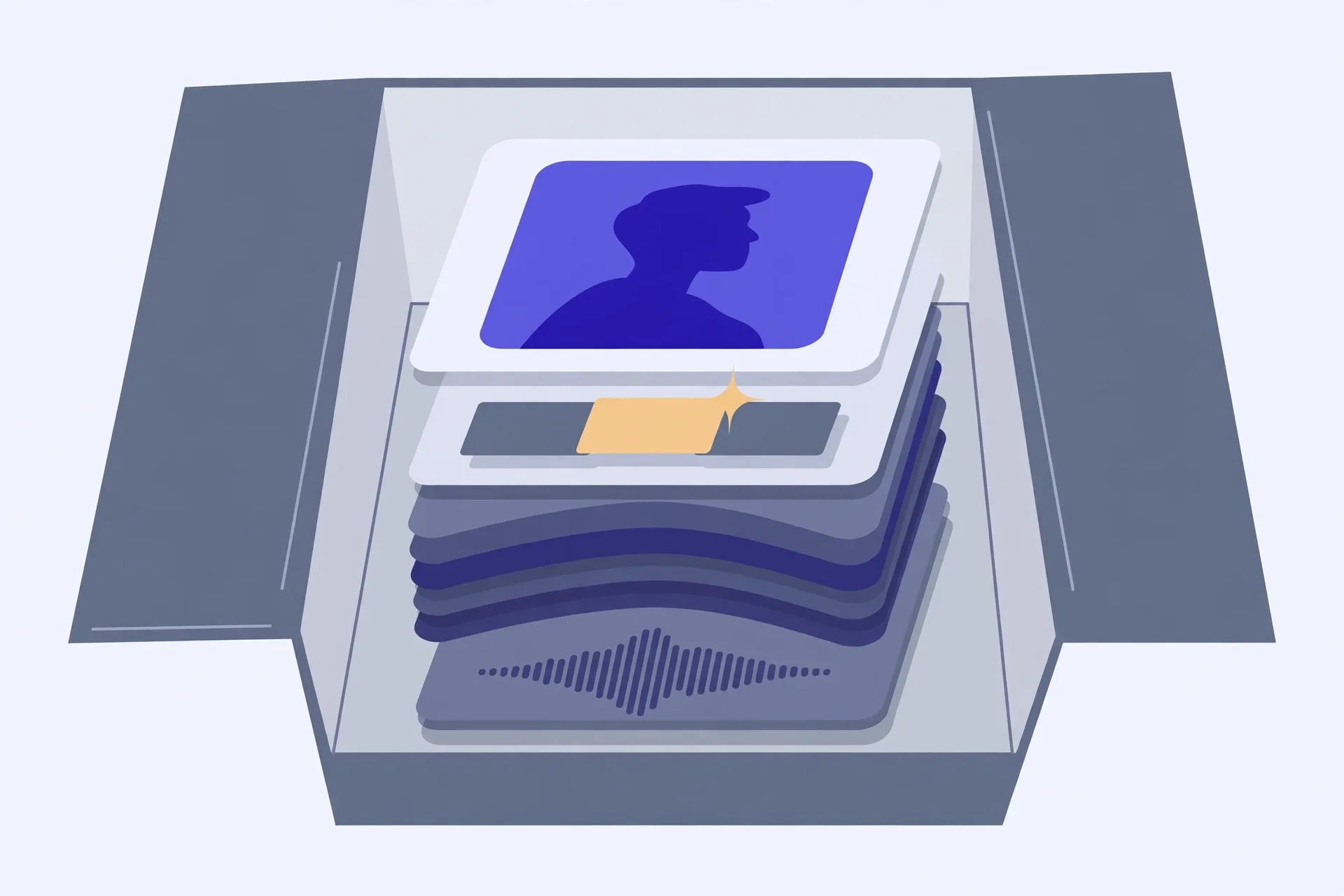
That container trick is also conversion’s quiet catch. Convert a HEIC and you get the main photo, baked flat. The depth map, alternate frames and undoable edits do not come along. Fine for sharing — a real loss if you delete the original. Keep the HEIC.
Why Apple switched anyway
Storage. HEVC compression is simply better at its job than the compression inside JPG, a design from the early 1990s. At similar visible quality, a HEIC photo commonly takes roughly half the space of the same photo as JPG. Over a few thousand photos a year, that decides whether your phone complains about storage every spring.
The format can also store wider colour information than a basic JPG. None of this makes JPG obsolete. It makes JPG the exchange format rather than the archive format: keep HEIC at home, send JPG when the picture has to travel.
Support has been catching up — recent Windows versions open HEIC once you install the HEIF and HEVC extensions, and many Android phones display it natively. But “can, once you install something” is not “just opens”, and one rejecting upload form is enough to send you looking for a converter.
What converting actually does
Conversion is not renaming. Changing photo.heic to photo.jpg by hand changes only the label, and most apps then fail in a more confusing way. A real converter decodes the HEIC — reconstructs the picture pixel by pixel — and encodes those pixels again in the target format. That is why the tool below loads about 1 MB of decoding code the first time you use it.
Two things happen during that re-encode. First, the target decides the quality story. JPG encoding is lossy, so the converter asks how hard to compress: the tool below defaults to 92% quality, a sensible middle where the difference is hard to spot but the file stays modest. PNG encoding is lossless — pixels stored exactly — which is why PNG conversions come out so large. Lossless sounds better. For a photo you are about to share, it usually just means heavier.
Second, the new file is built from the decoded picture, not copied from the old file. Orientation is baked in, so sideways phone photos mostly fix themselves. Most embedded metadata does not survive either. If GPS coordinates matter to you, check the converted file rather than assuming — our EXIF tool, linked from the converter, shows what is actually in it.
Convert a batch, step by step
- Select your HEIC files — several at once is fine. On a phone, work in batches of about a dozen to stay inside the browser’s memory limits.
- Pick the output. JPG for sharing, uploading and printing. PNG only when you need exact pixels for editing and don’t mind the size.
- For JPG, leave quality at 92% unless you have a reason. Drop towards 80% when size really matters; push it up for a big print.
- Click Convert. The first batch is slower because the decoder loads once; after that it is cached.
- Download the files, then spot-check one on the device or site that rejected the HEIC. If it opens there, the batch is good.
- Keep the original HEIC files. The JPG is the copy you send out, not the master.
When not to convert — and how to stop making HEIC files
If a photo will only ever live inside the Apple ecosystem — phone, Mac, iCloud — converting buys you nothing and costs you the container extras. Same if you plan to edit seriously: edit the original, export a JPG at the end. Convert at the border, where the file leaves your world for someone else’s.
If the whole dance annoys you, your iPhone can simply stop: in Settings, under Camera and then Formats, choose “Most Compatible” and new photos are JPG from the start. Know the price first — roughly twice the space, and some container features gone. Most people are better off keeping High Efficiency and converting the handful of photos that need to travel.
The Verystep HEIC to JPG Converter decodes your photos with the open-source heic2any decoder, right in your browser — several files at once, JPG or PNG out, JPG quality adjustable and set to 92% by default. Your photos are never uploaded; close the tab and they are gone.
Last verified November 9, 2026 — format background (HEIF container, HEVC compression, iPhone default since iOS 11) and converter behaviour (heic2any in-browser decoding, JPG/PNG output, 92% default quality) cross-checked against the tool below.
Frequently asked questions
Is HEIC the same thing as HEIF?
Almost. HEIF is the standard container format; HEIC is the variant Apple uses, with the picture compressed using HEVC, saved with a .heic extension. A file from an iPhone is HEIC, and everything in this guide about containers and size applies to it.
Why is the JPG bigger than the HEIC it came from?
Because JPG compression is less efficient. HEVC squeezes the same picture into roughly half the bytes at similar quality, so re-encoding those pixels as JPG — or worse, as lossless PNG — produces a larger file. That is the normal price of compatibility, not a sign something went wrong.
Does converting HEIC to JPG lose quality?
A little, in principle. JPG encoding is lossy, so at the converter’s 92% default the loss is very hard to see; at low quality settings it becomes visible as smearing around edges and text. What definitely degrades a photo is converting or re-saving it over and over. Convert once, from the original HEIC, and keep that original.
Can Windows open HEIC without converting?
Often, yes — recent Windows versions display HEIC photos once the HEIF Image Extensions and HEVC Video Extensions are installed from the Microsoft Store. That fixes viewing on your own machine. It does not help when a website or someone else’s computer rejects the file — that is when converting to JPG is the reliable move.
Are my photos uploaded when I use the converter below?
No. The converter decodes HEIC entirely in your browser using the open-source heic2any library — the first conversion loads that decoder (about 1 MB), then it stays cached. Nothing is sent to a server.
More guides
How to Use an Auto Loan Calculator to Compare Two Offers
Two dealers can quote payments that look almost identical and still be selling you loans that cost hundreds of dollars apart. The calculator shows you where the gap hides.
How to Build a Debt Payoff Order: Avalanche vs Snowball, Step by Step
Paying extra money toward debt only works if the extra money has a target. This guide builds that target: an ordered list, made two different ways, so you can see exactly where each spare dollar goes.
How to Project Compound Growth (and Read the CAGR Mode)
This calculator does two jobs in one place: it projects a balance forward at a rate you set, and it works backwards from two balances to the steady rate that links them.